Azure Entra SSO Setup for Authorium
Configuring Single Sign-On (SSO) in Azure Entra allows Authorium to integrate with your organization's identity management, ensuring secure and centralized access control.
note
Users can be added to Authorium manually (via invite or link), and SSO can be enabled at a later time without issues.
1. Create Authorium Application in Azure Entra
- Go to the Azure Entra Admin Center
- Sign in with your Azure AD administrator credentials.
- In the left-hand menu, go to Applications > Enterprise applications
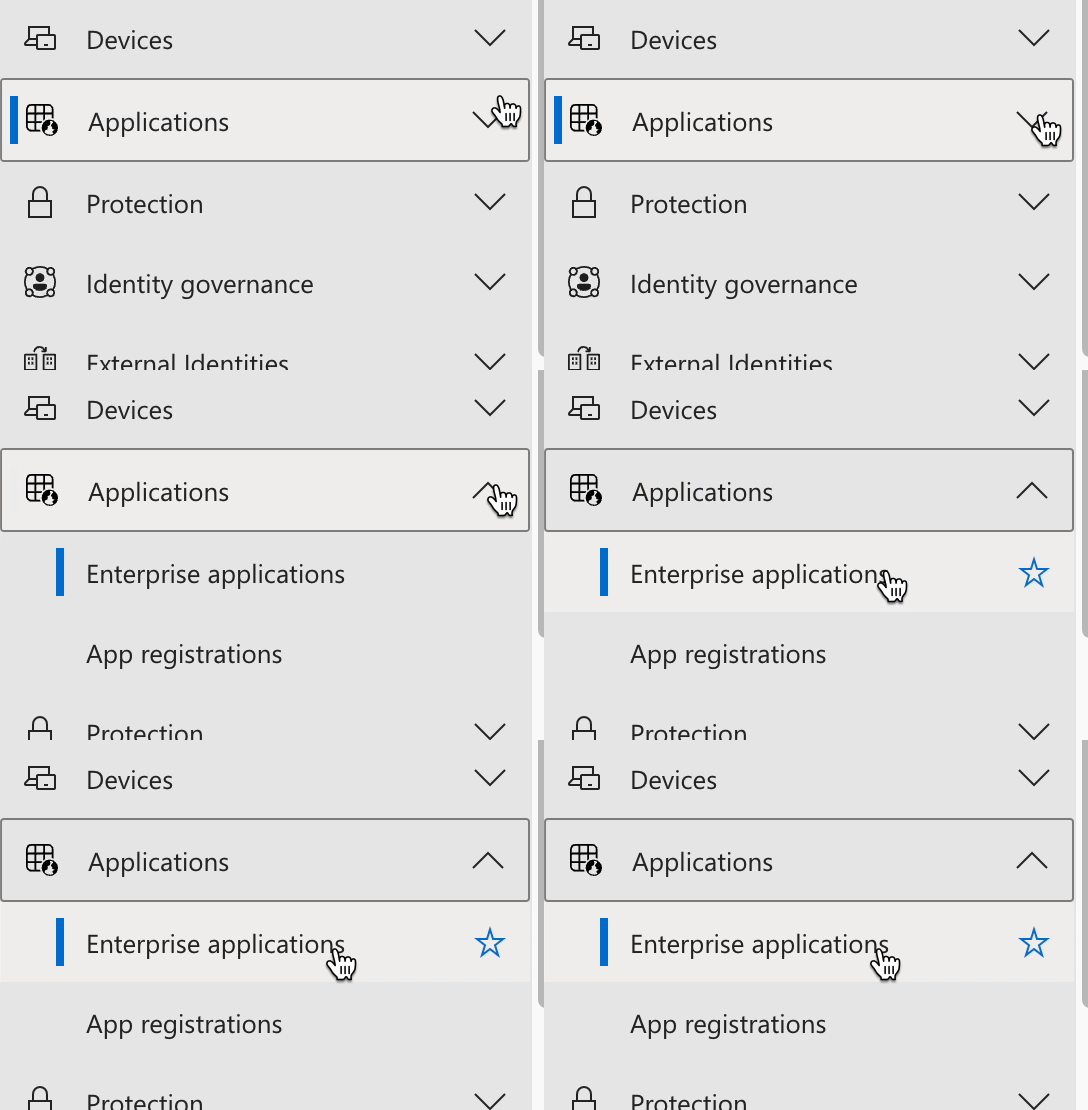
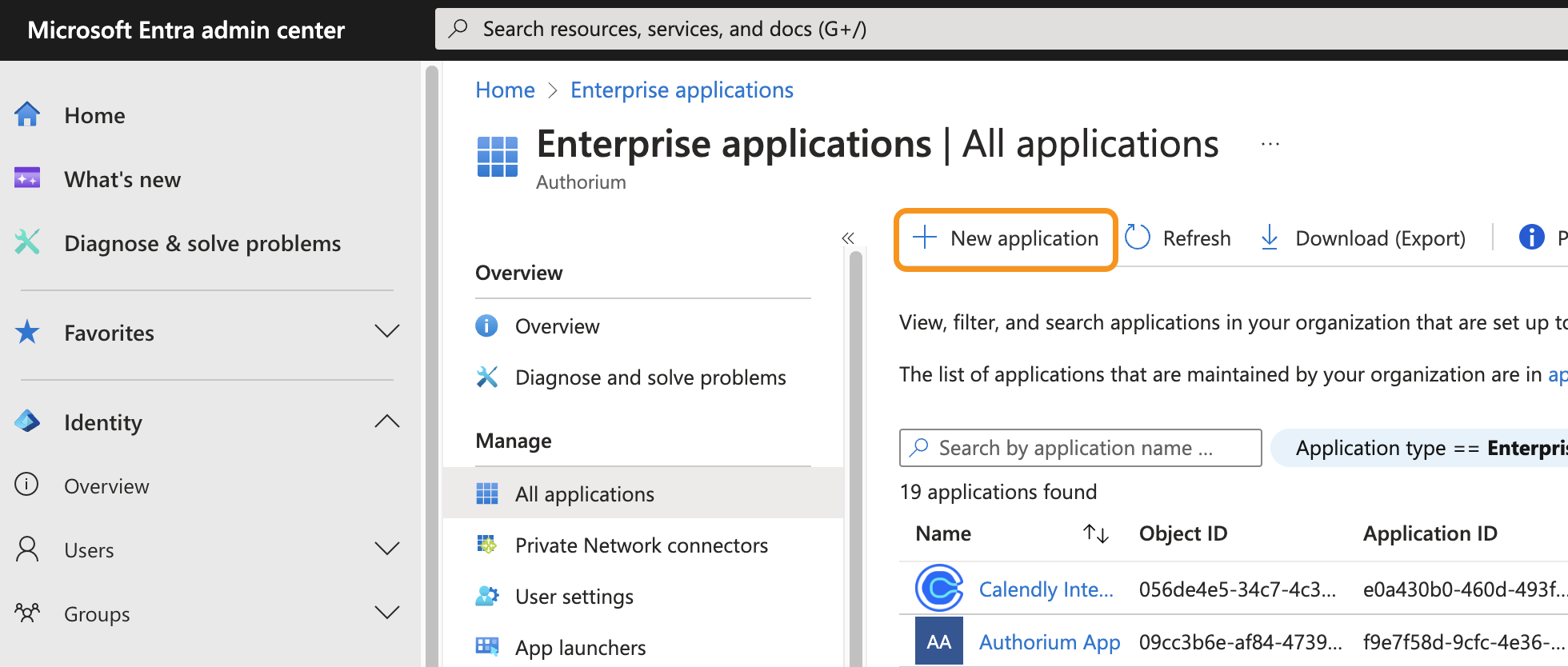
- Click New application.
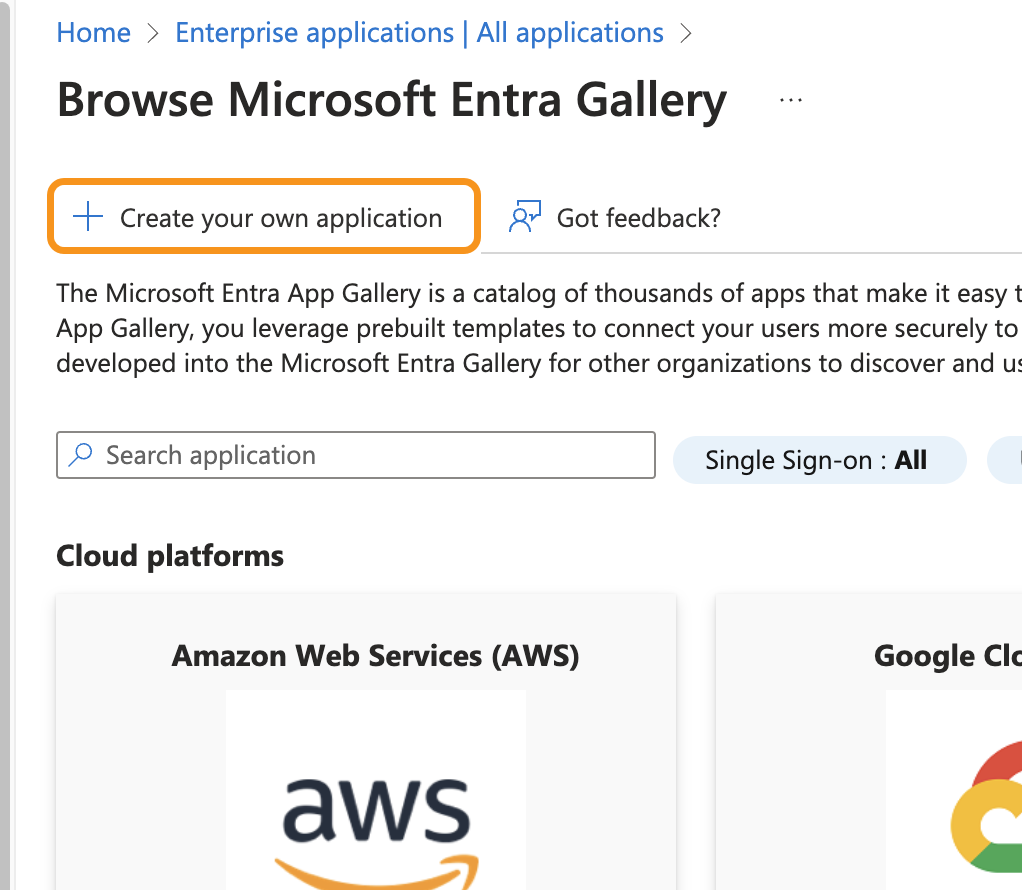
- In the Microsoft Entra Gallery, choose Create your own application
- Name it Authorium in What’s the name of your app?.
- Select "Integrate any other application you don't find in the gallery (Non-gallery)"
- Click Create.
2. Set Up Single Sign-On
After the app is created, open the Single sign-on section and choose the method:
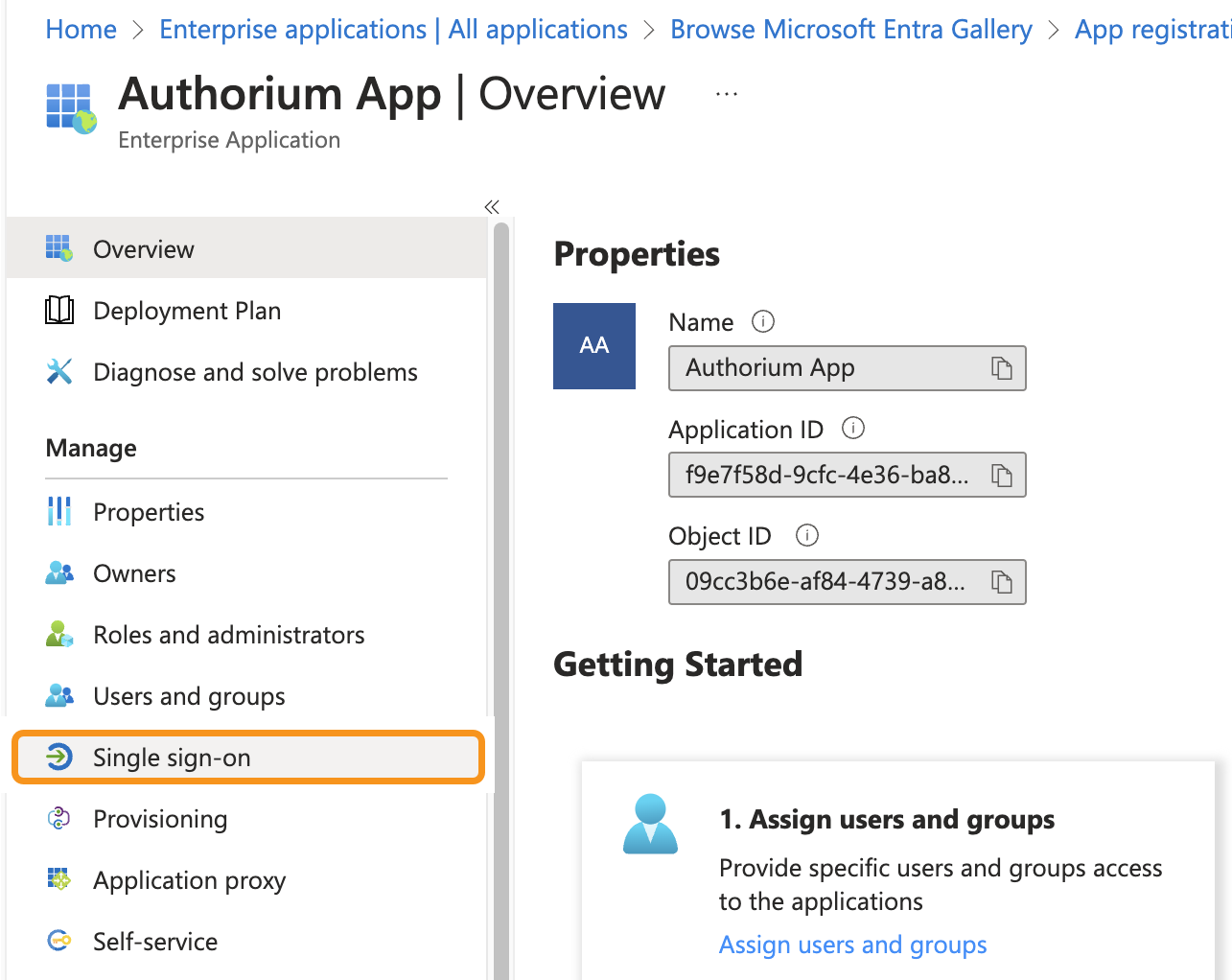
SAML (Preferred)
-
Choose SAML.
-
Enter the following details:
- Identifier (Entity ID):
https://app.authorium.com/auth/entra_id - Reply URL (ACS URL):
https://app.authorium.com/users/auth/entra_id/callback - Logout URL:
https://app.authorium.com/users/auth/saml/single_log_out
- Identifier (Entity ID):
-
Under SAML Certificates, download the Federation Metadata XML.
NoteSave the file as.txtbefore uploading to Authorium.
OpenID Connect and OAuth
- Navigate to App registrations in Azure (search for it under "More services").
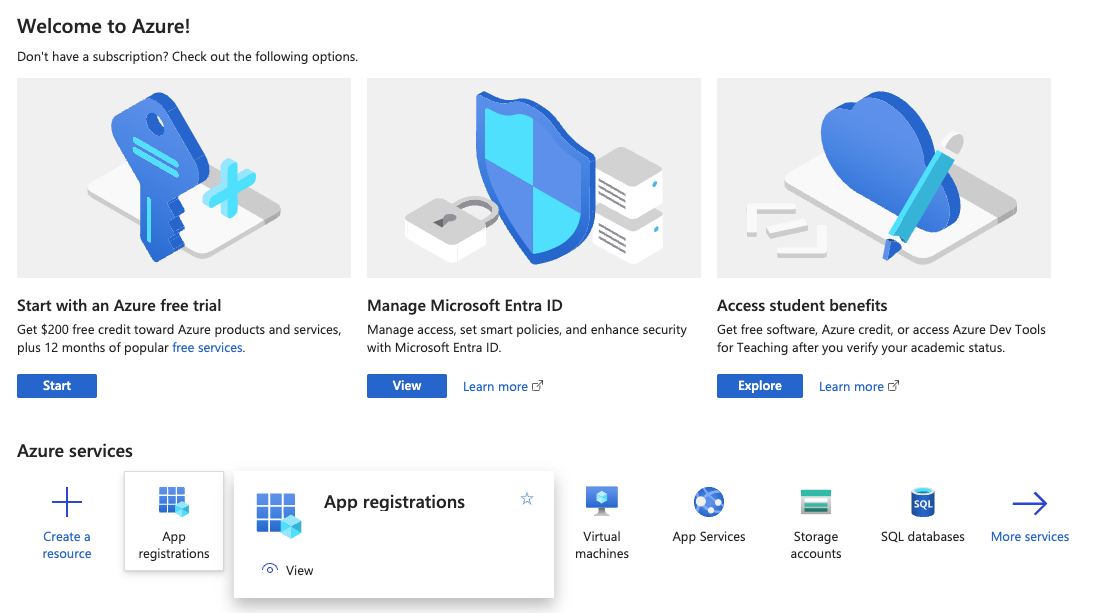
-
Click New registration and provide:
- Name: e.g.
Authorium OAuth SSO - Supported account types: leave as
Single tenant - Redirect URI:
- Type:
Web - URI:
https://app.authorium.com/users/auth/entra_id/callback
- Name: e.g.
-
Click Register.
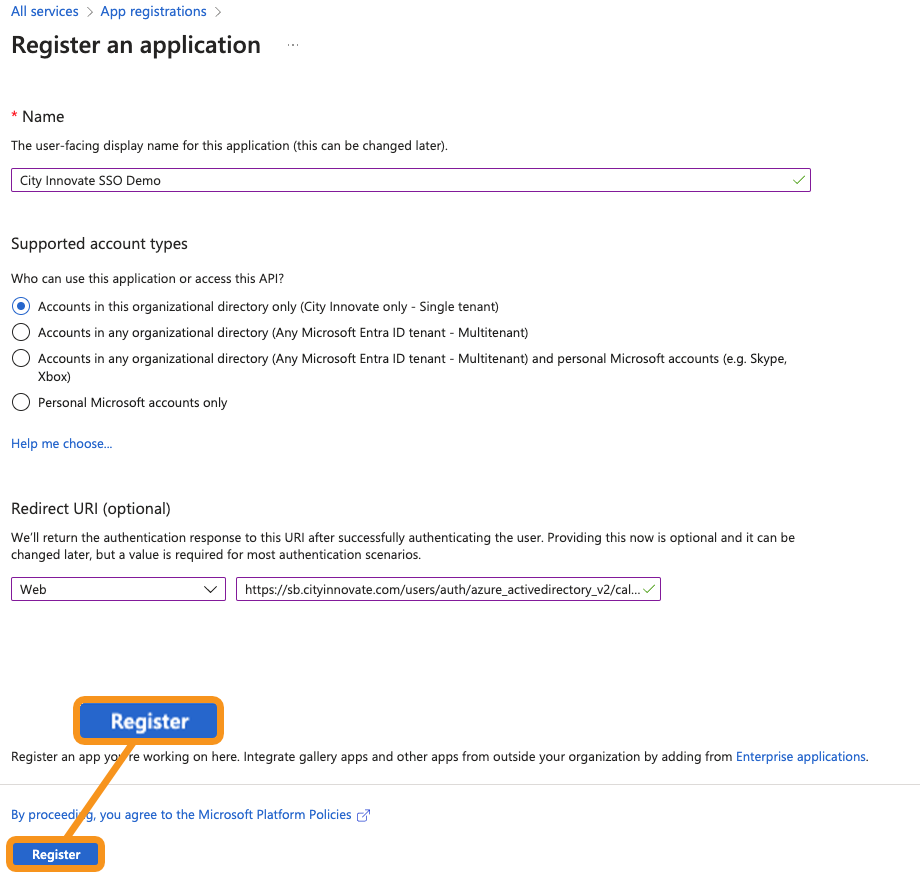
App Details to Collect
- Application (client) ID
- Directory (tenant) ID
Create a Client Secret
- Go to Certificates & secrets > New client secret.
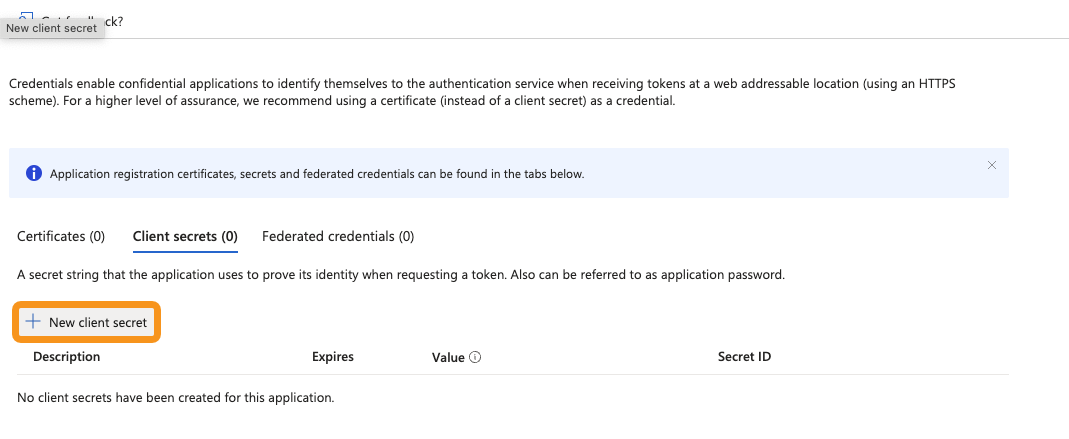
- Add a description (e.g. Authorium Production).
- Set an expiration (6 months recommended).
- Click Add.
- Copy the generated Secret Value — this will be required in Authorium.

3. Assign Users and Roles
- In your Authorium app in Azure Entra, go to Users and groups.
- Click Add user/group.
- Select users/groups who need access.
- Assign roles if needed.
4. Configure Authorium
- Sign in to Authorium as a super admin.
- Go to:
App Administration > Agency Organizations - Search for and select your organization.
- Verify that the domain is correctly set (e.g.
dept.ca.gov, nohttps://).
Configure SSO
- Navigate to Internal Authentication > Single Sign-On

-
For Identity Provider, choose
Entra ID -
Upload the
.txtversion of the Federation Metadata XML -
Manually enter the following from Azure:
- SAML Sign-On Endpoint
- SAML Logout Endpoint
- SAML Issuer (Microsoft Entra Identifier)
-
Ensure "Require User Re-authentication" is enabled
-
Click Save and Apply Authentication
5. Test the Configuration
- Go to the Authorium login page
- Log in using the SSO method
- Confirm:
- Successful login via Azure Entra
- Proper access to the assigned application
- Roles and permissions are correctly applied
Note
Notify the Authorium team of the SAML certificate expiration date so they can schedule a renewal reminder 60 days in advance.
global-project-content-guides