Manage a User Profile and Password
This guide shows how to update your personal information or change your password in Authorium, whether you're using standard login or SSO.
Using SSO?
You can still access and update your profile settings even if your organization uses Microsoft Entra or another SSO provider.
When to Manage Your Profile
You should update your profile or password when you need to:
- Reflect changes to your personal details (e.g., name or job title).
- Improve the security of your account.
- Activate MFA or update login credentials.
To Update Your Profile and Password
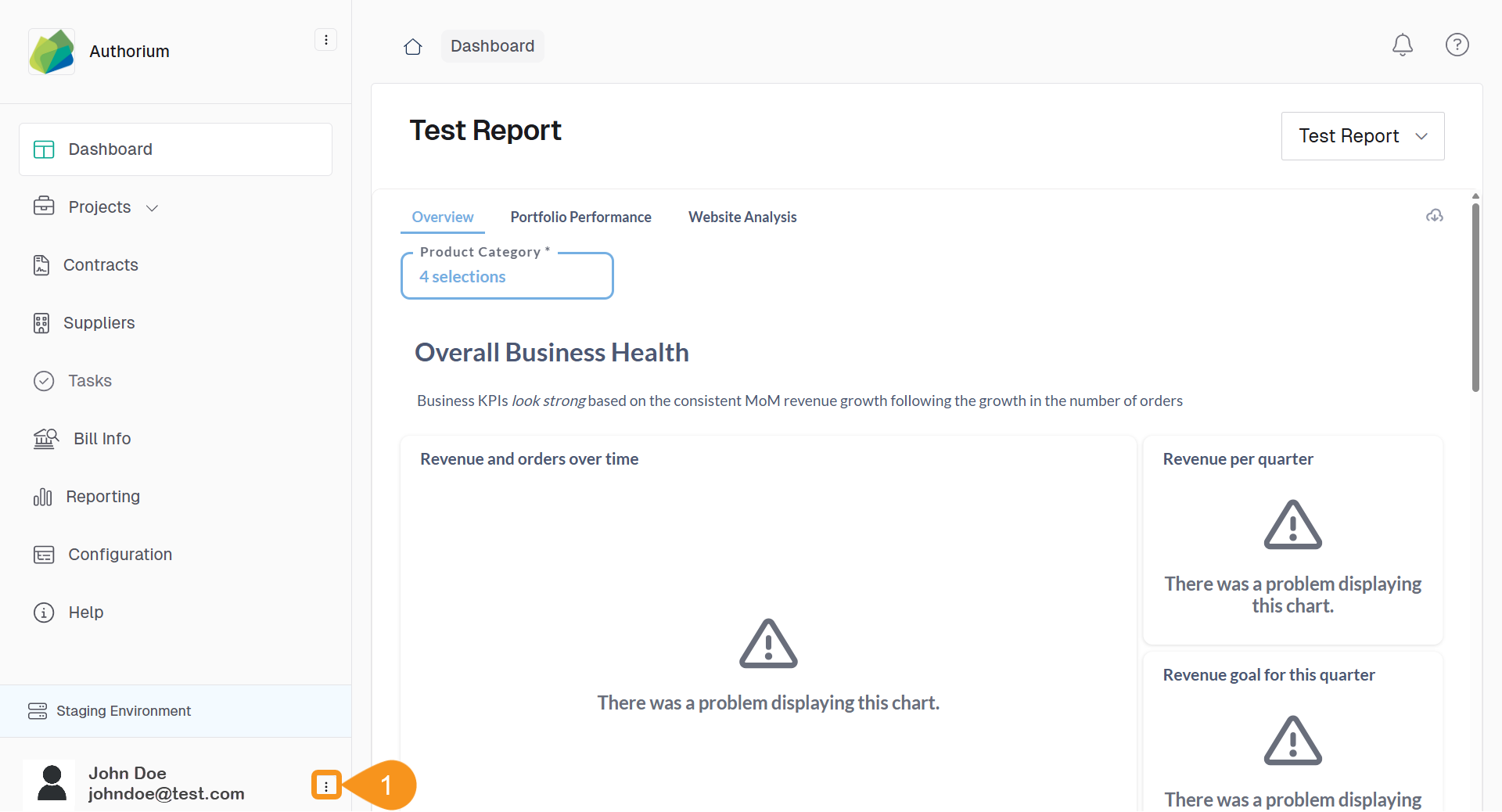
- From the Dashboard, click the three-dots menu next to your name and email in the top navigation bar.
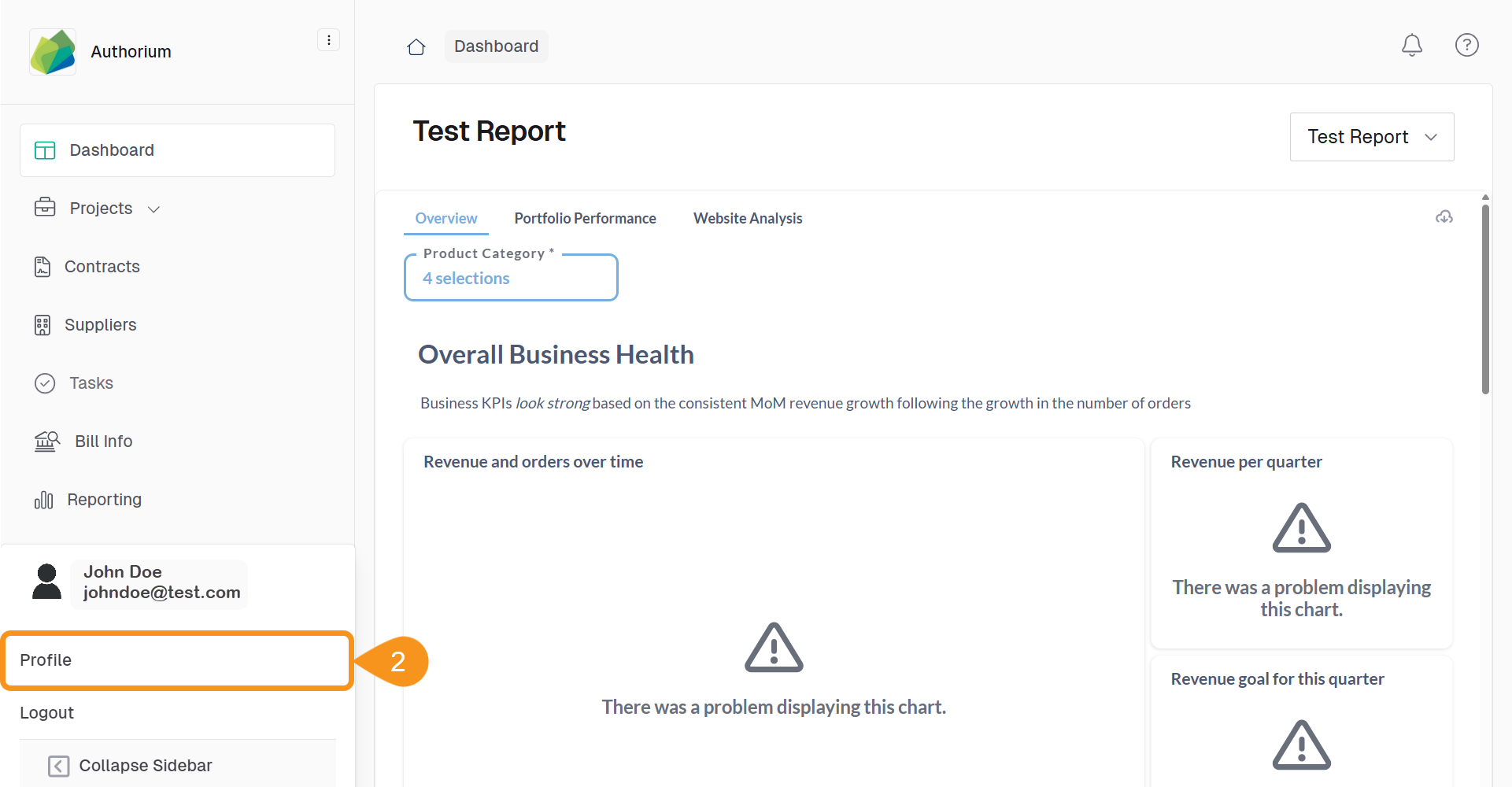
- Select Profile.
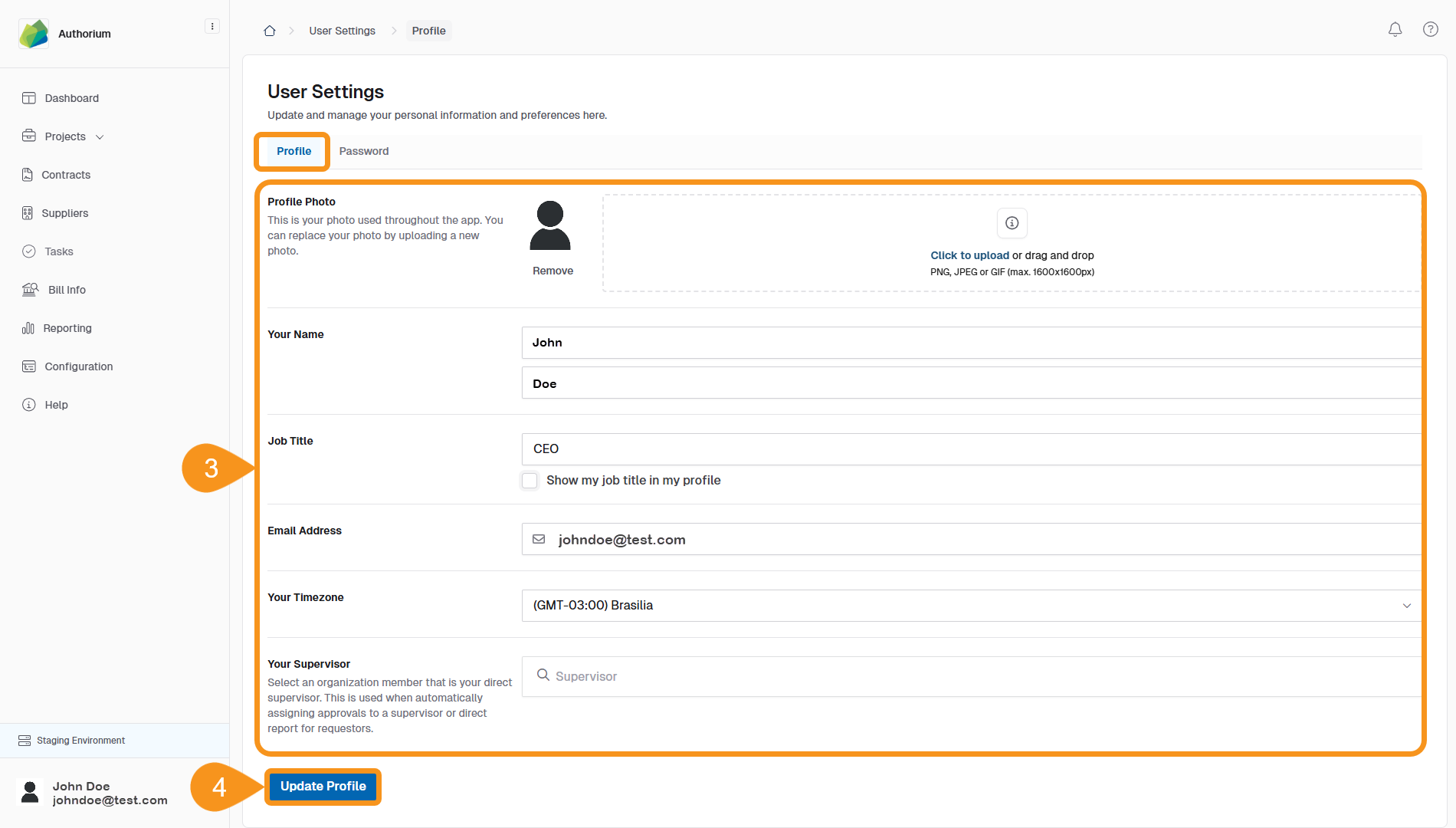
- In the Profile tab, update your personal information as needed.
- Profile photo (optional)
- Name
- Job title
- Email Address
- Time zone
- Supervisor
- Click Update Profile to save your changes.
-
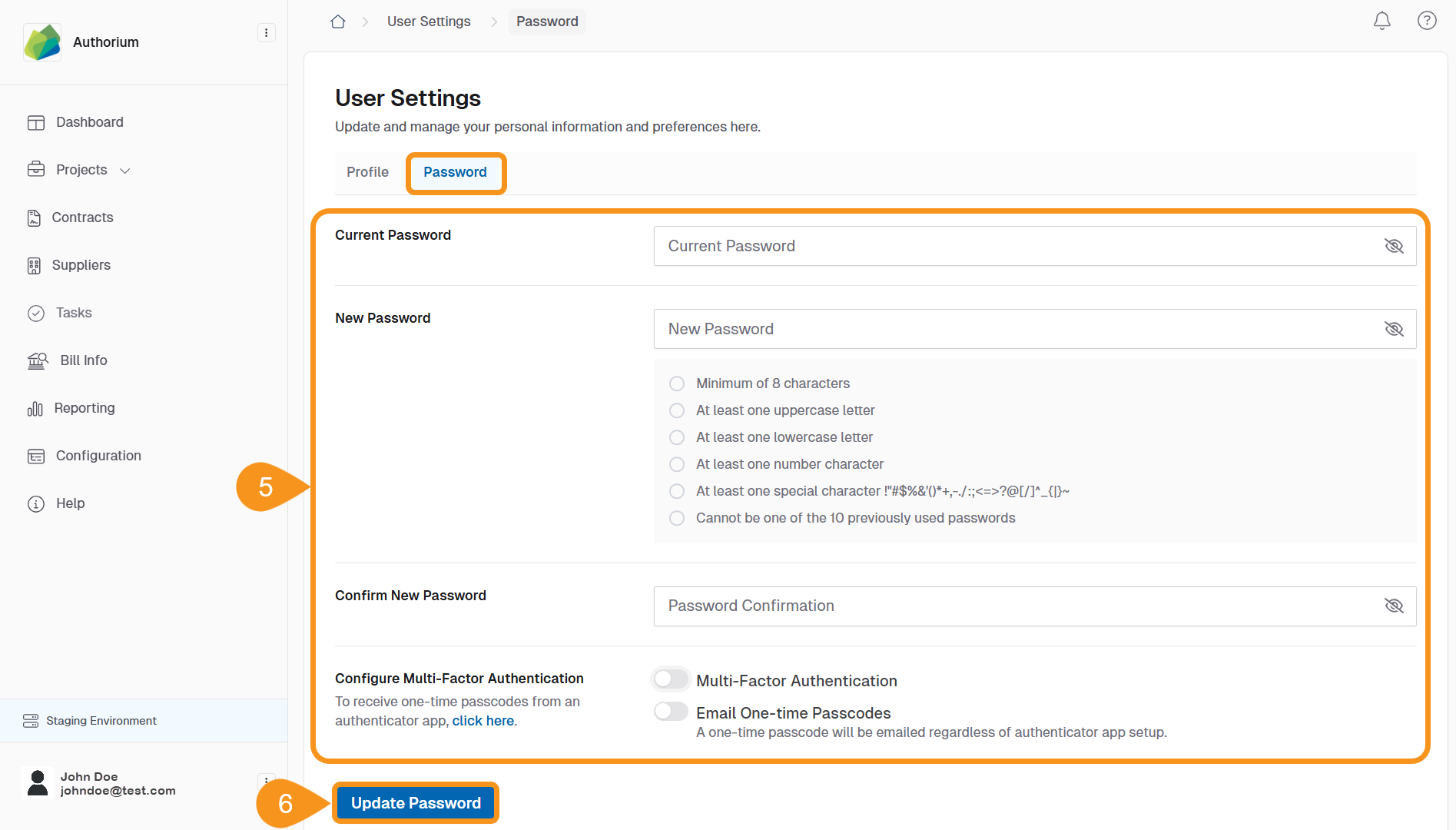
Go to the Password tab and set up the fields:
- Enter your current password.
- Choose a new password that meets the requirements.
- Confirm your new password.
- (Optional) Enable Multi-Factor Authentication or Email One-time Passcodes for added security.
-
Click Update Password to save your password settings.
See Also
To complement your knowledge of this process, check the following pages: