Create Ownership Blocks in a Project Template
This how-to guide explains how to enable and create Ownership Blocks when setting up a project template. Ownership Blocks allow you to assign responsibility for different workflow sections, improving accountability and collaboration.
When to Use Ownership Blocks
You should enable Ownership Blocks if you want to:
- Assign responsibility to users or roles as a project progresses.
- Notify project participants when it’s their turn to act.
- Restrict access or editing to specific workflow stages.
- Organize complex workflows into clear blocks of ownership.
To Create a Project Template with Ownership Blocks
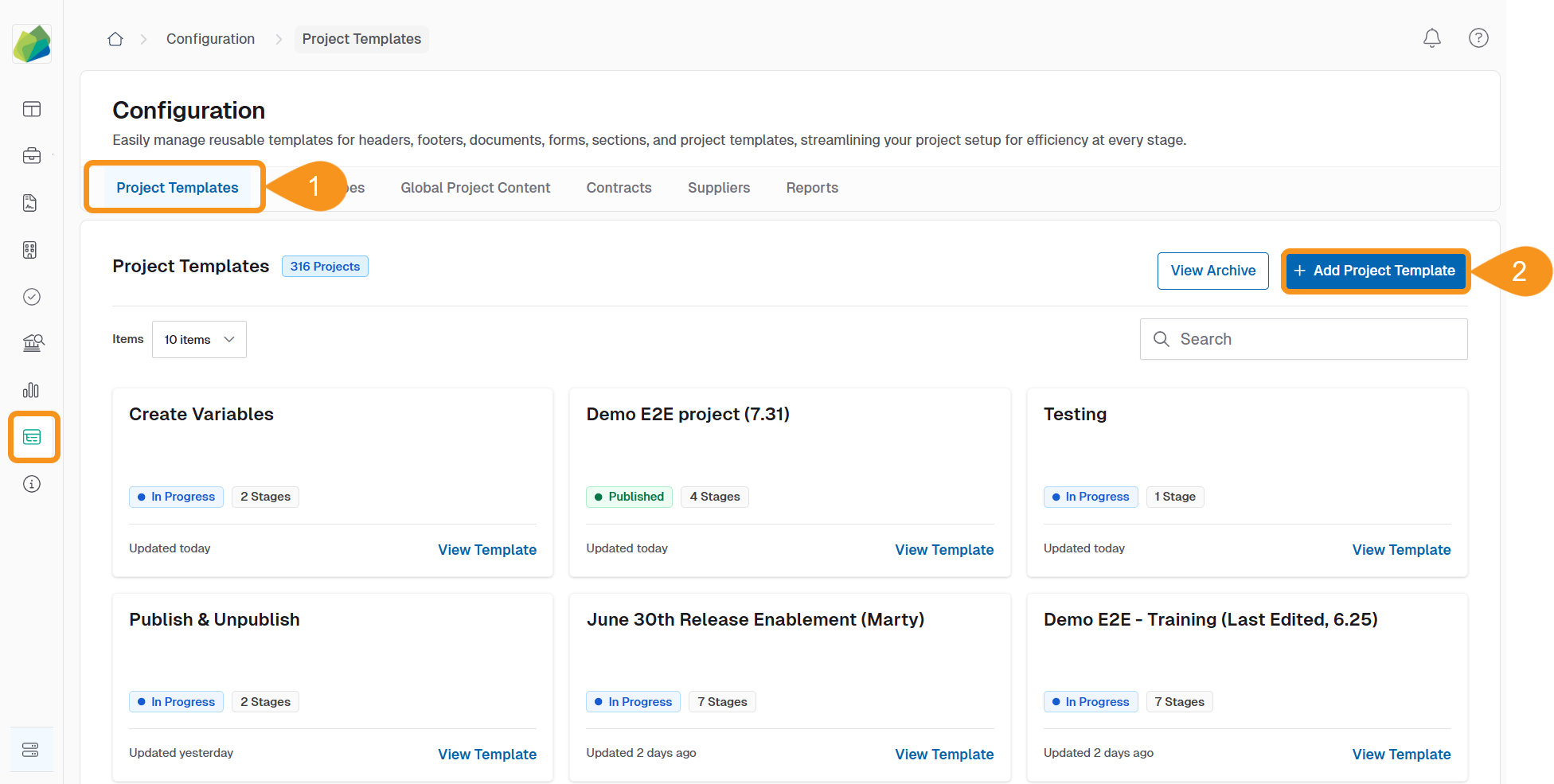
- Go to Configuration > Project Templates.
- Click + Add Project Template
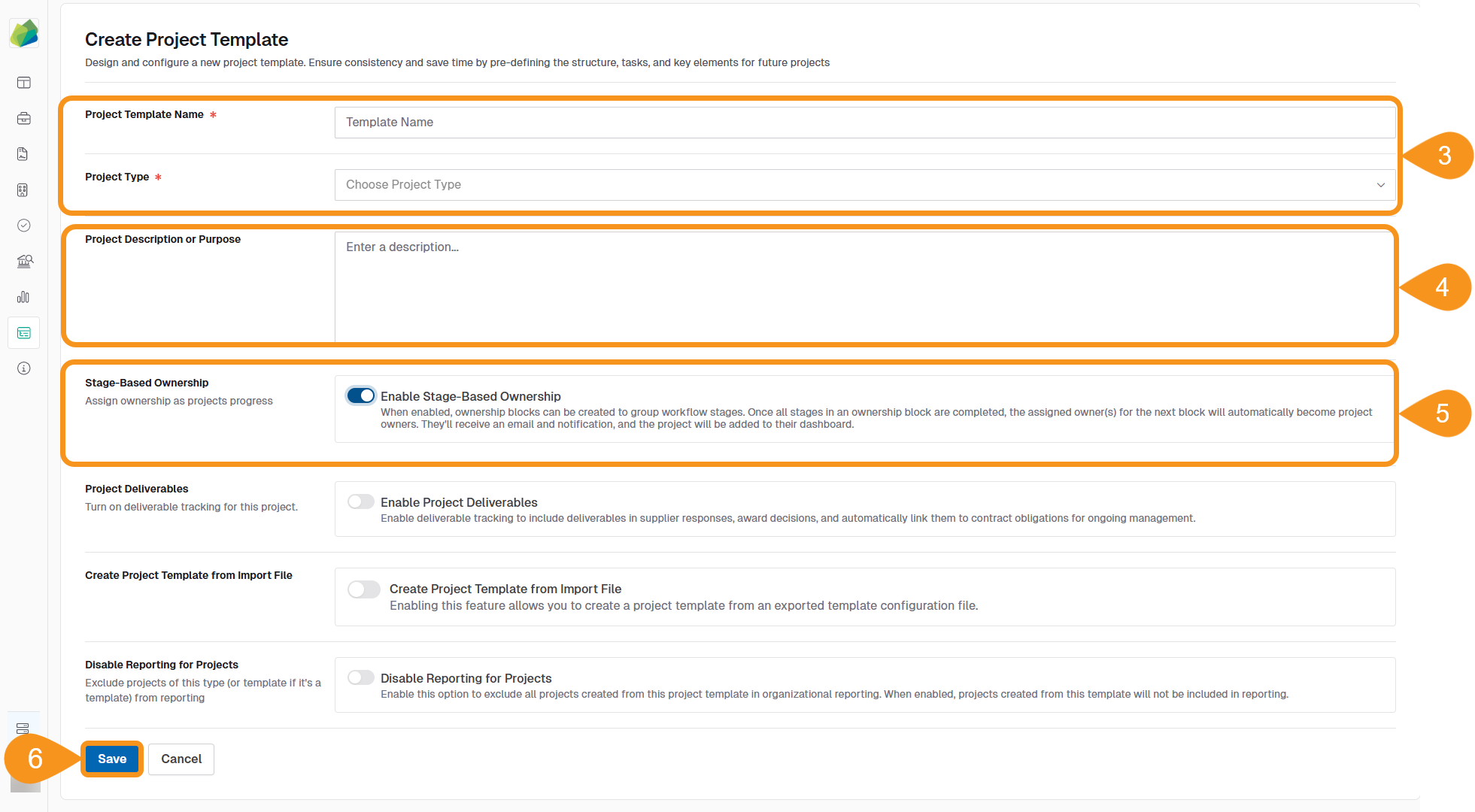
- Enter a Project Template Name and choose a Project Type.
- (Optional): Add a Project Description or Purpose.
- Toggle on Enable Stage-Based Ownership.
- Click Save to create the template.
Once saved, the template includes a default ownership block called Project Creator.
To Add More Ownership Blocks
- Open the template and go to the Workflow tab.
- Click + Add Ownership Block.

A new block appears under the current structure. You can now begin assigning owners and adding workflow stages to each block.
See Also
To complement your knowledge, check the following guides: