Configure the Scope of an Ownership Block
This guide explains how to define which parts of a template are controlled by a specific Ownership Block. Setting the scope ensures that the right users can view or edit only the content they’re responsible for.
When to Configure Scope
You should configure the scope of an Ownership Block when:
- You need to restrict edit access to certain sections or fields.
- Different team members work on separate parts of a process.
- You want to assign accountability to specific parts of a deliverable.
Types of Scope You Can Assign
Ownership Blocks can apply to:
- Entire documents: Control access to full documents within a project.
- Individual stages: Assign ownership to specific stages like Forms, Multipart Documents, or Online Submissions.
- Fields or components: Apply granular control to form fields, tables, attachments, or other inputs. You can mix different scope types within a single Ownership Block.
To Configure Scope
- In the Workflow tab of the project template, locate the Ownership Block you want to configure.
- Click Add Stage to create a new stage or open an existing one (e.g., Form, Document, Multipart Document).
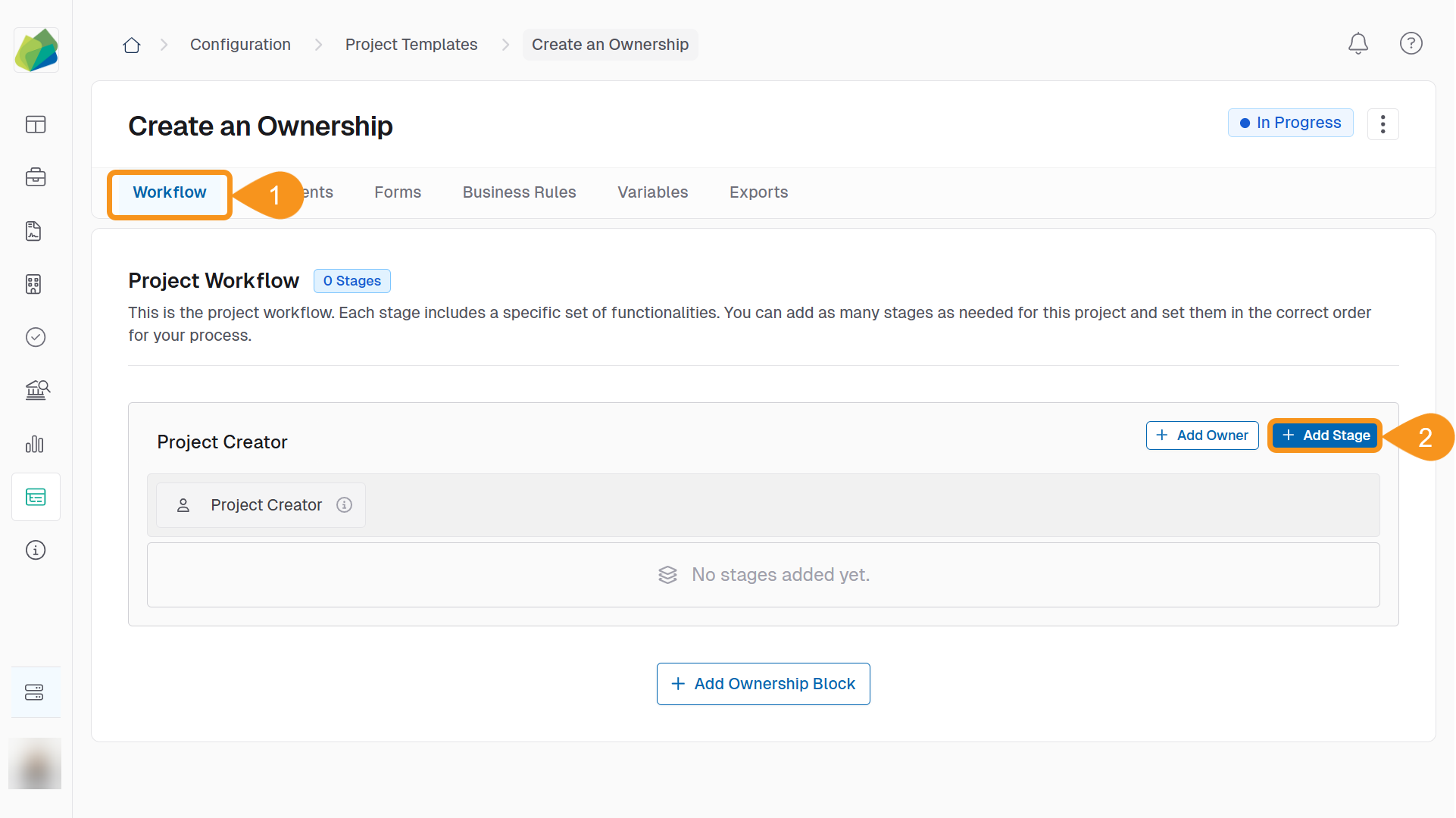
- Select the relevant project stage you want to assign scope within.
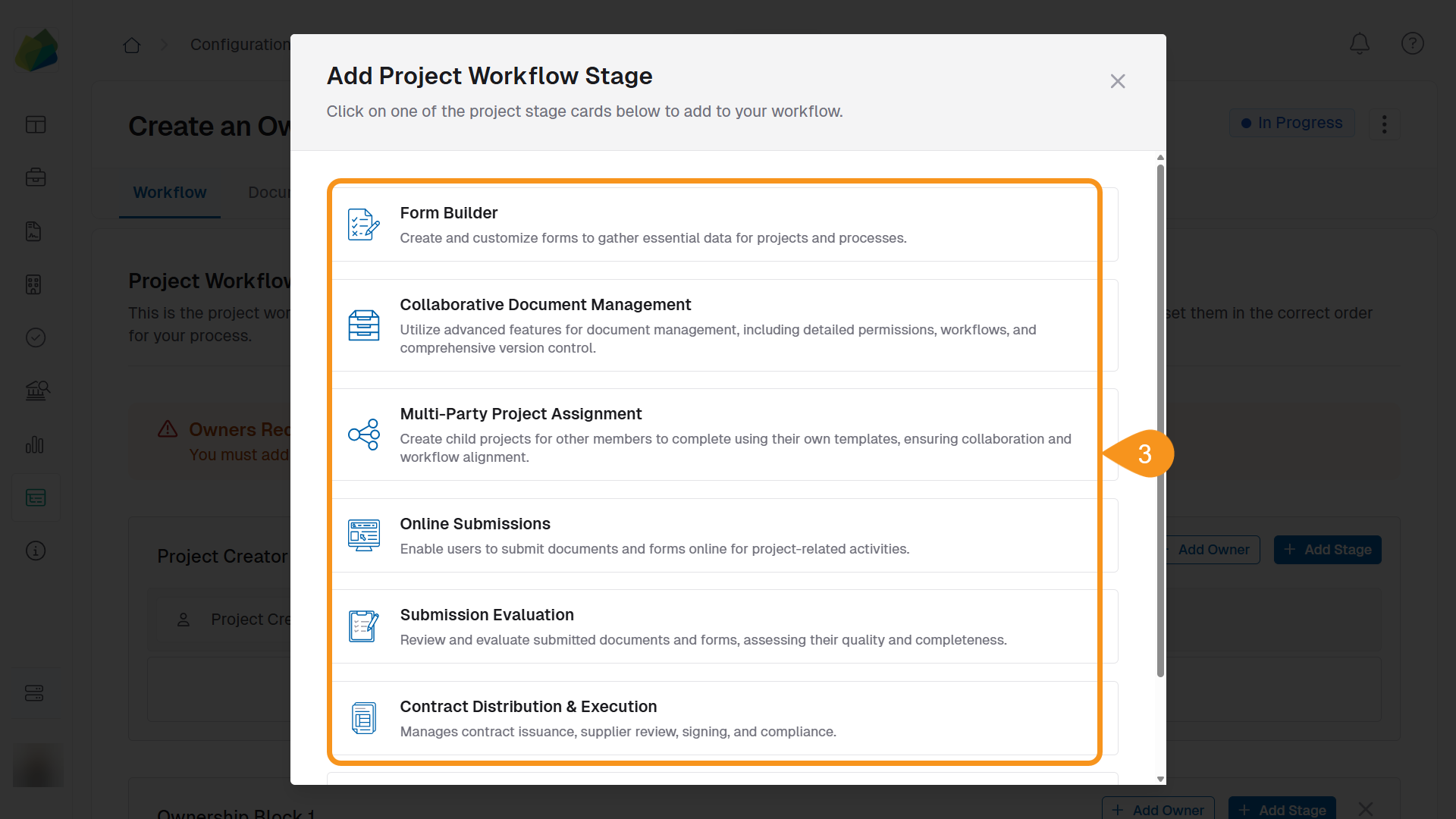
- Configure the selected stage based on its type:
- In Form Builder, create or edit the form fields as needed.
- In Collaborative Document Management, create the document and structure its sections.
- In other stage types, follow the relevant setup process.
See Also
To complement your knowledge, check the following guides: