Unpublish a Project Template
This how-to guide explains how to unpublish a Project Template in Authorium. Unpublishing removes the template from the list of available options when starting a new project, without deleting it or affecting existing projects already using it.
When to Unpublish a Project Template
You should unpublish a template when you need to:
- Make changes to its configuration.
- Retire a template that is outdated or temporarily inactive.
- Prevent teams from using it for new projects, without removing historical references.
To Unpublish a Project Template
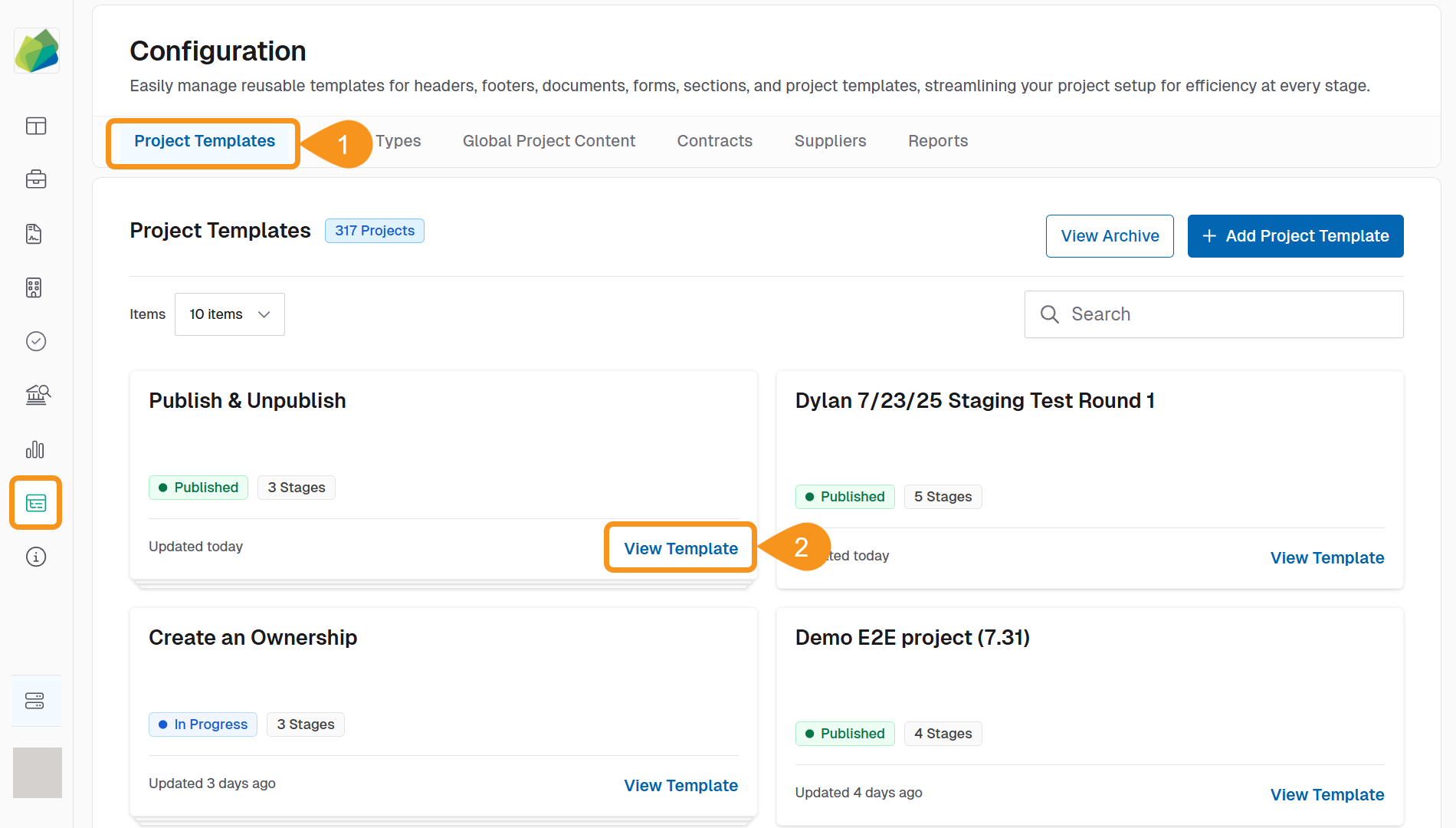
- Go to Configuration > Project Templates.
- Locate and select the template you want to unpublish and click View Template.
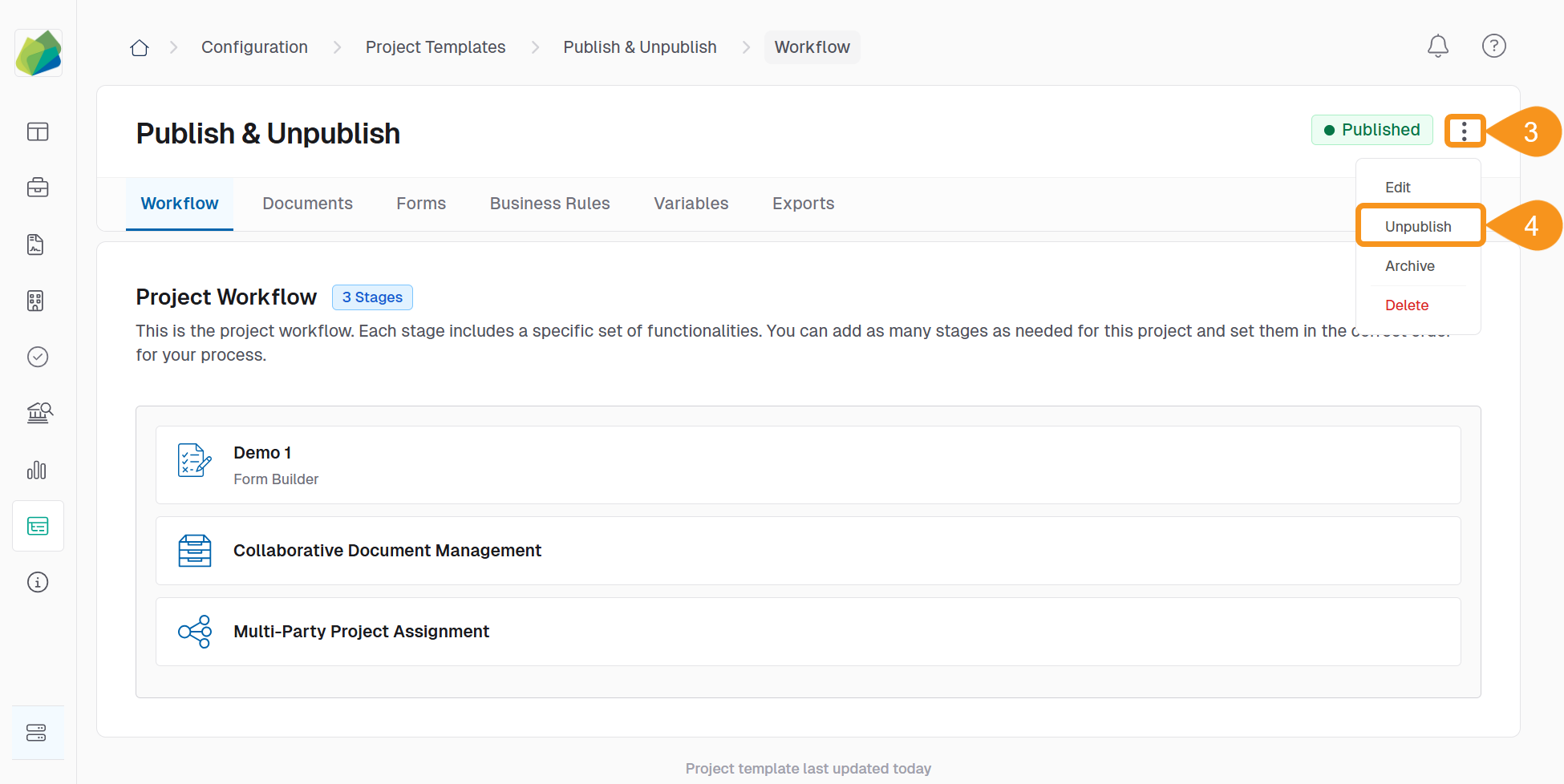
- Click the three-dot menu next to the template status.
- Select Unpublish from the dropdown.
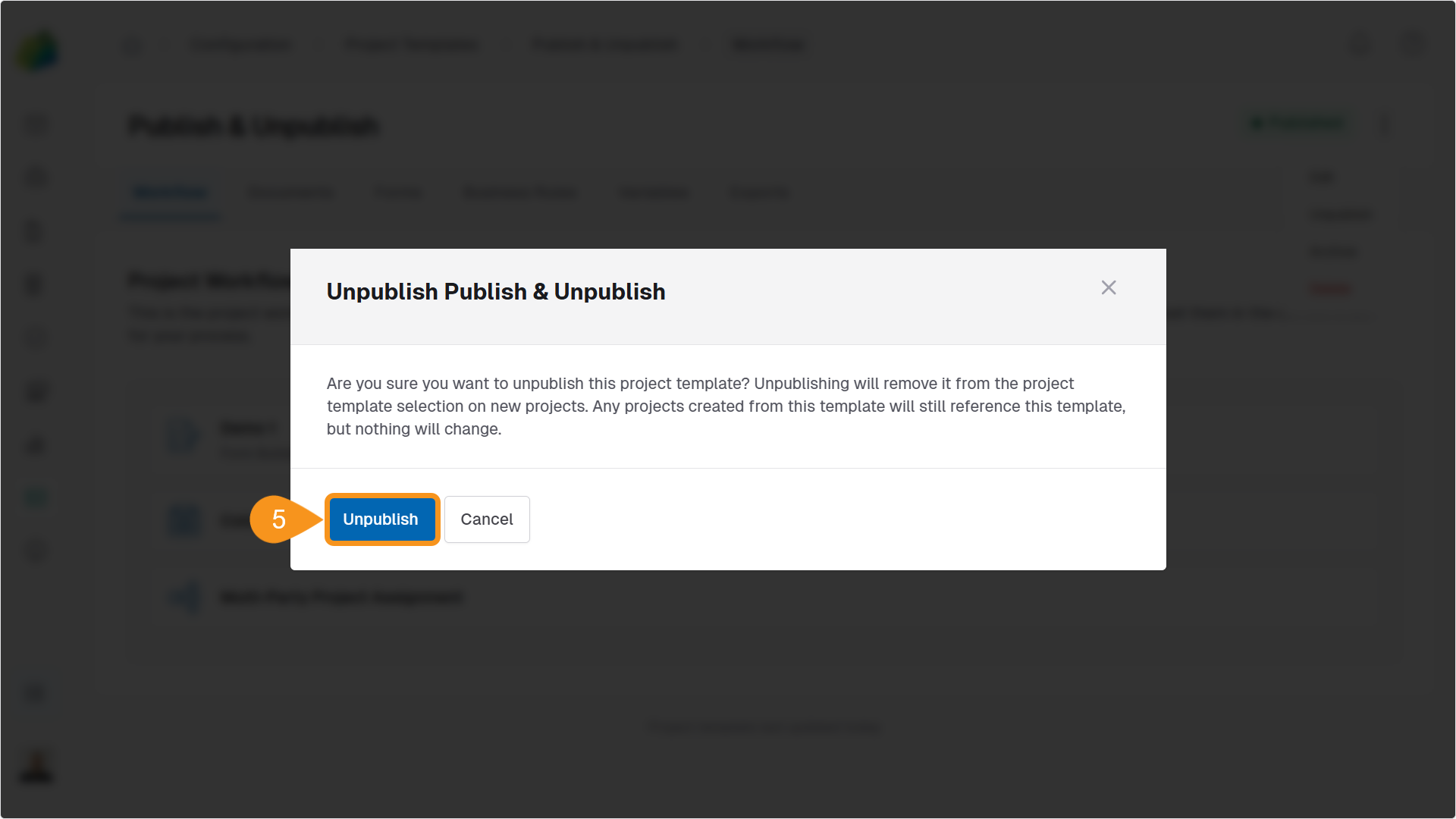
- Click Unpublish in the confirmation dialog.
Note
Only Org Owners and Org Admins can unpublish templates.
What Happens When You Unpublish a Template
- The template is no longer available for starting new projects.
- Projects that were already created using the template remain unchanged.
- The template remains editable and can be republished at any time.
- Users cannot start new projects from an unpublished template, even if it was previously used in their organization.
Unpublishing vs Archiving vs Deleting
| Action | Effect on New Projects | Effect on Existing Projects | Can Be Edited | Permanently Removed |
|---|---|---|---|---|
| Unpublish | Not available | No impact | Yes | No |
| Archive | Hidden from users (for cleanup) | No impact | Yes | No |
| Delete | Permanently removed | Cannot be used anymore | No | Yes |
- Use Unpublish if you plan to reuse or update the template later.
- Use Archive when a template is fully replaced and should not be visible to prevent accidental re-publication.
- Use Delete only if the template is no longer needed at all.
See Also
To complement your knowledge of this process, check the following pages: