Edit a Global Document
This guide explains how to modify the general settings of a Global Document Template in Authorium. These settings control how the document behaves across projects but do not affect its content.
When to Edit Document Settings
You should update the general settings when:
- You want to change the title or type of the document.
- You need to update visibility or export preferences.
- You want to set a different default status for when the document is created in a project.
To Edit a Global Document’s Settings
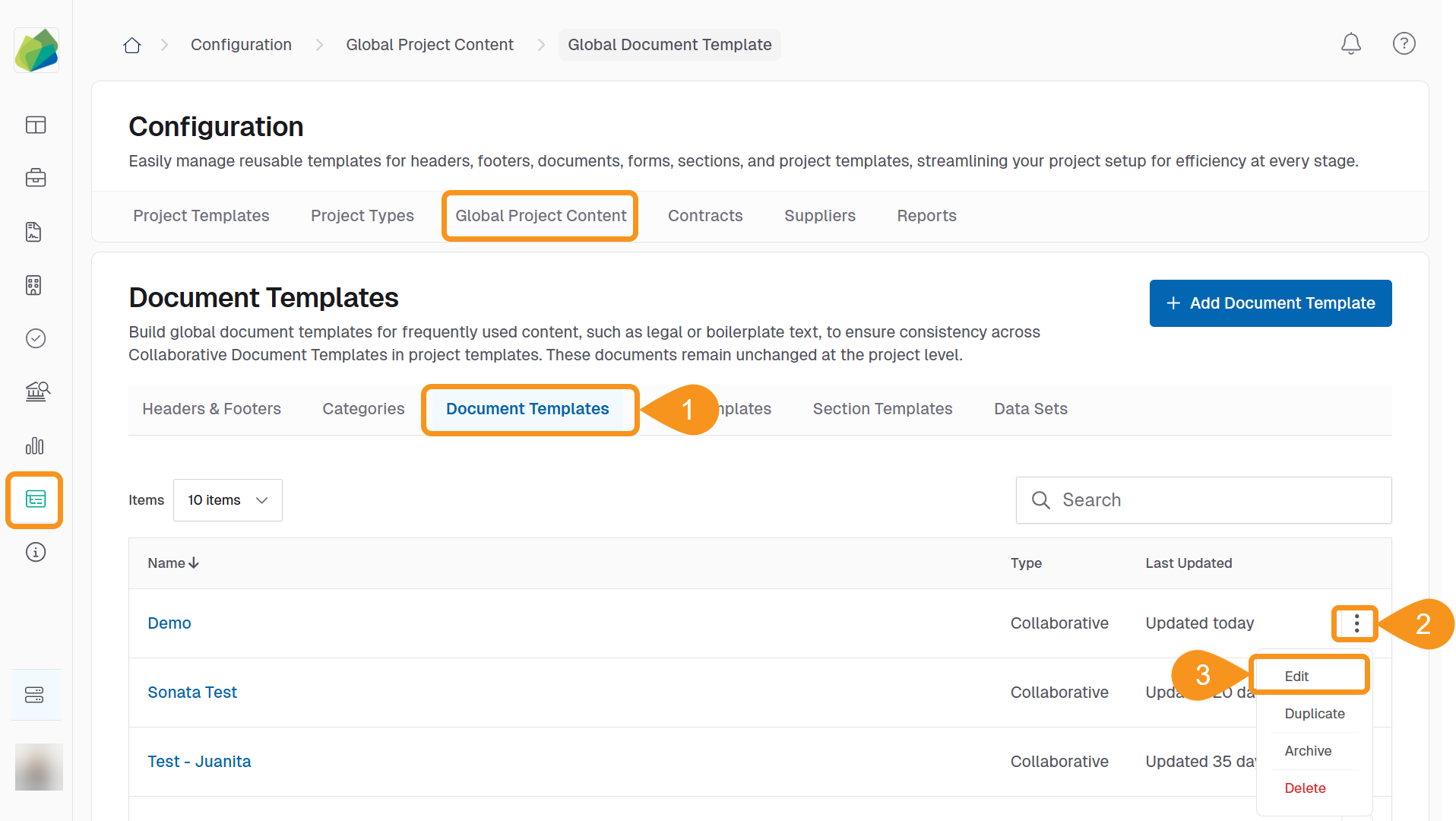
- Go to Configuration > Global Project Content > Document Templates.
- Find the document template you want to modify and click the kebab menu (︙) next to the Last Updated column.
- Select Edit.
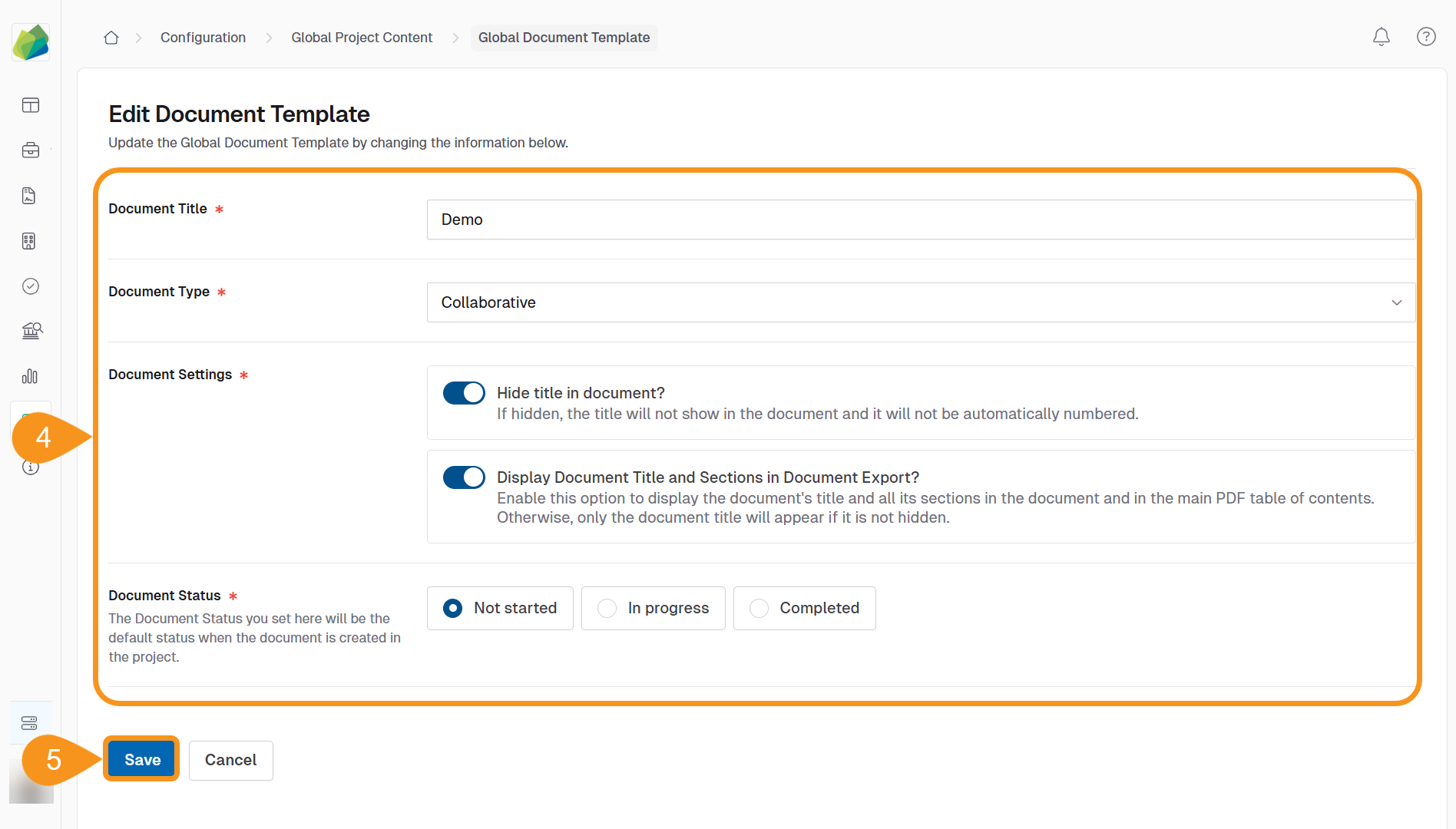
- In the Edit Document Template screen, update the desired settings:
- Document Title: Enter a new name for the document (mandatory).
- Document Type: Select a different type, if available (e.g., Collaborative).
- Document Settings:
- Hide title in document? – If enabled, the title will not appear or be auto-numbered.
- Display Title and Sections in Export? – Shows document headings in the final PDF export.
- Document Status: Choose a default status (Not started, In progress, or Completed) for when the document is created in a project.
- Click Save to apply your changes.
Note
These changes affect how the document behaves in project templates but do not modify the document's written content.
See Also
To complement your knowledge of this process, check the following pages: