Use Custom Variables in a Form
This guide explains how to display Custom Variables inside a form in your project template. Custom Variables let you capture and reuse specific information (such as names, dates, or IDs) across forms and documents, making your project template more dynamic and reusable.
To Use Custom Variables in a Form
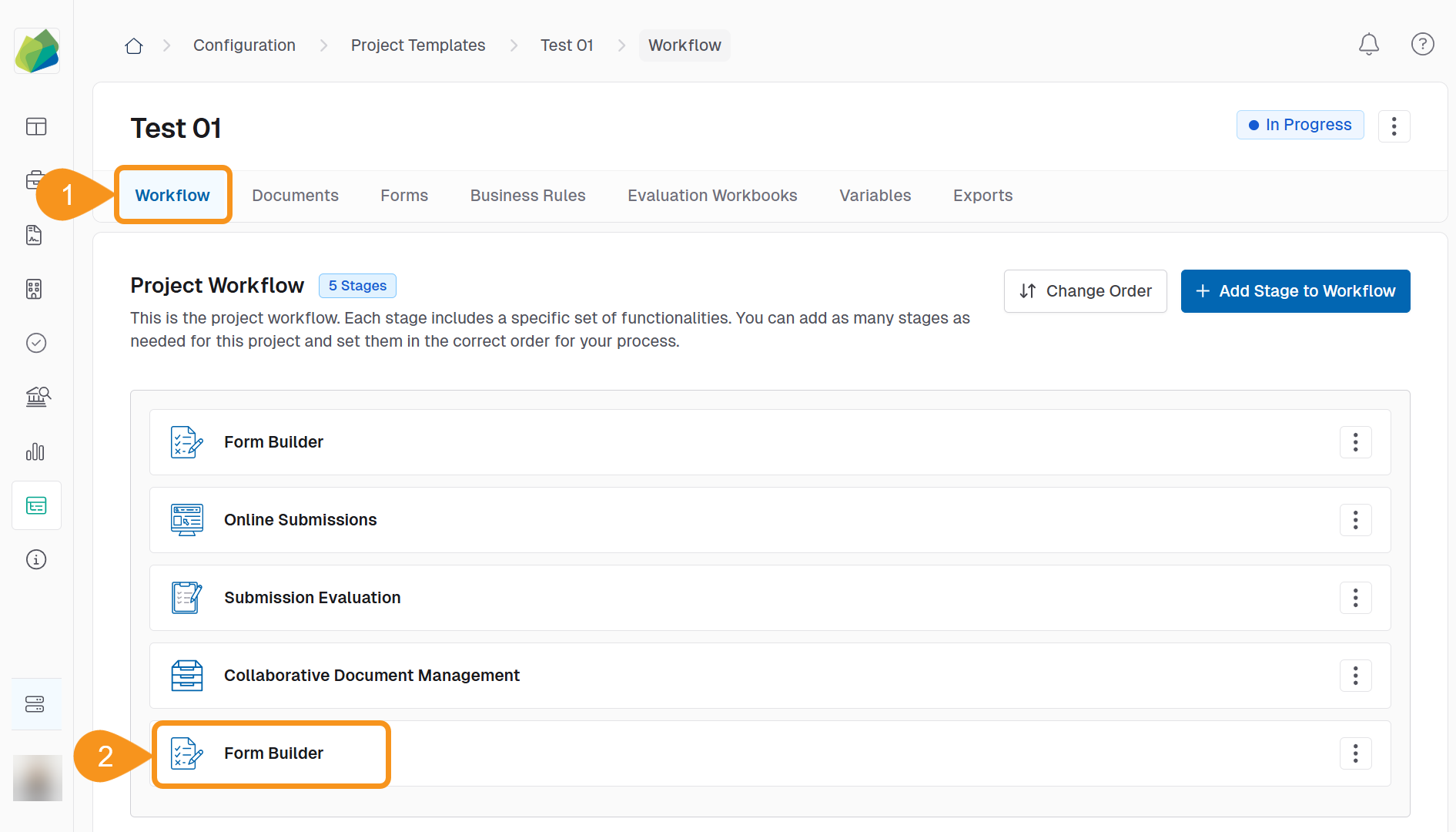
- Go to the Workflow tab of your Project Template.
- Select the Form Builder stage.
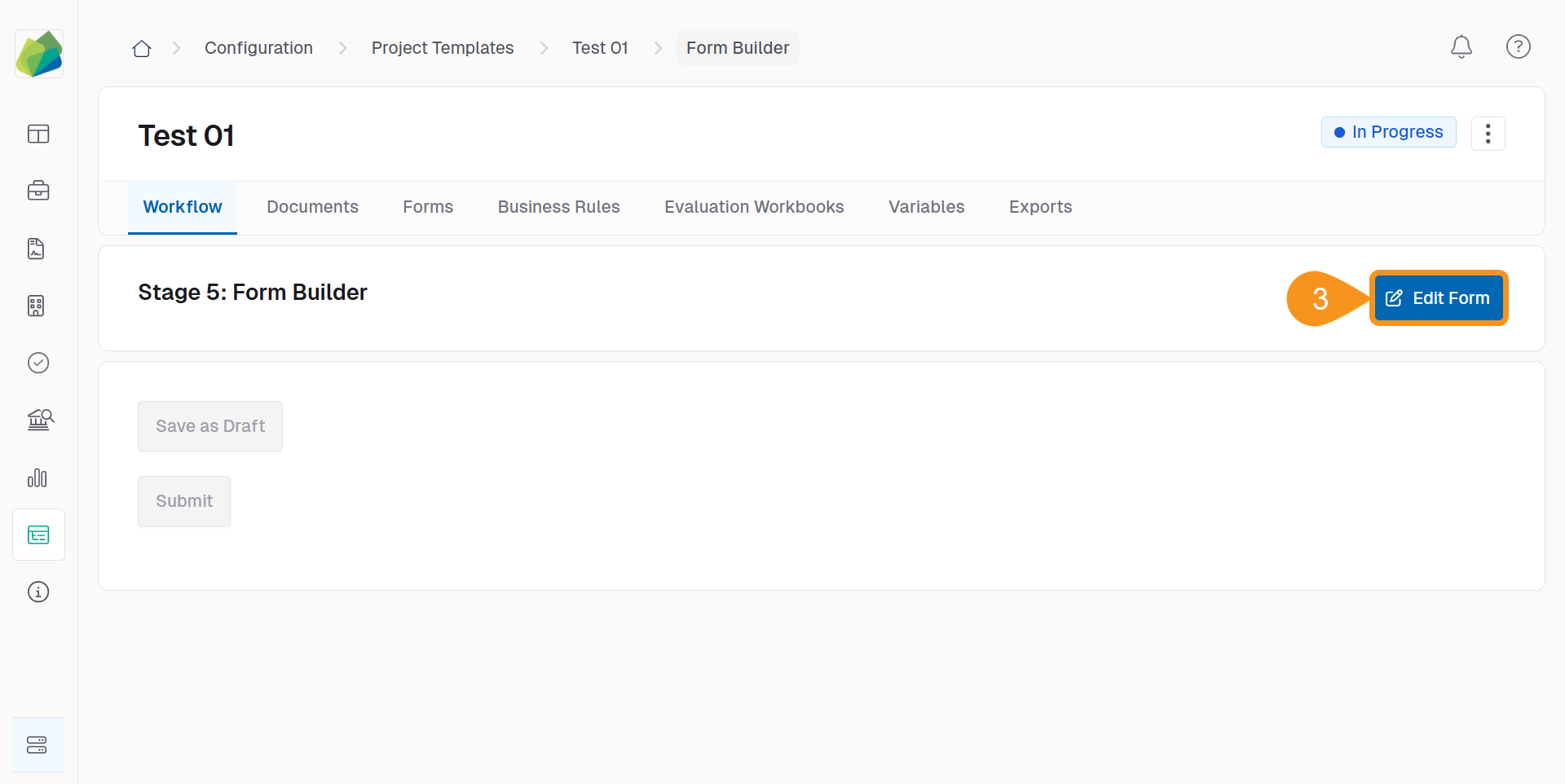
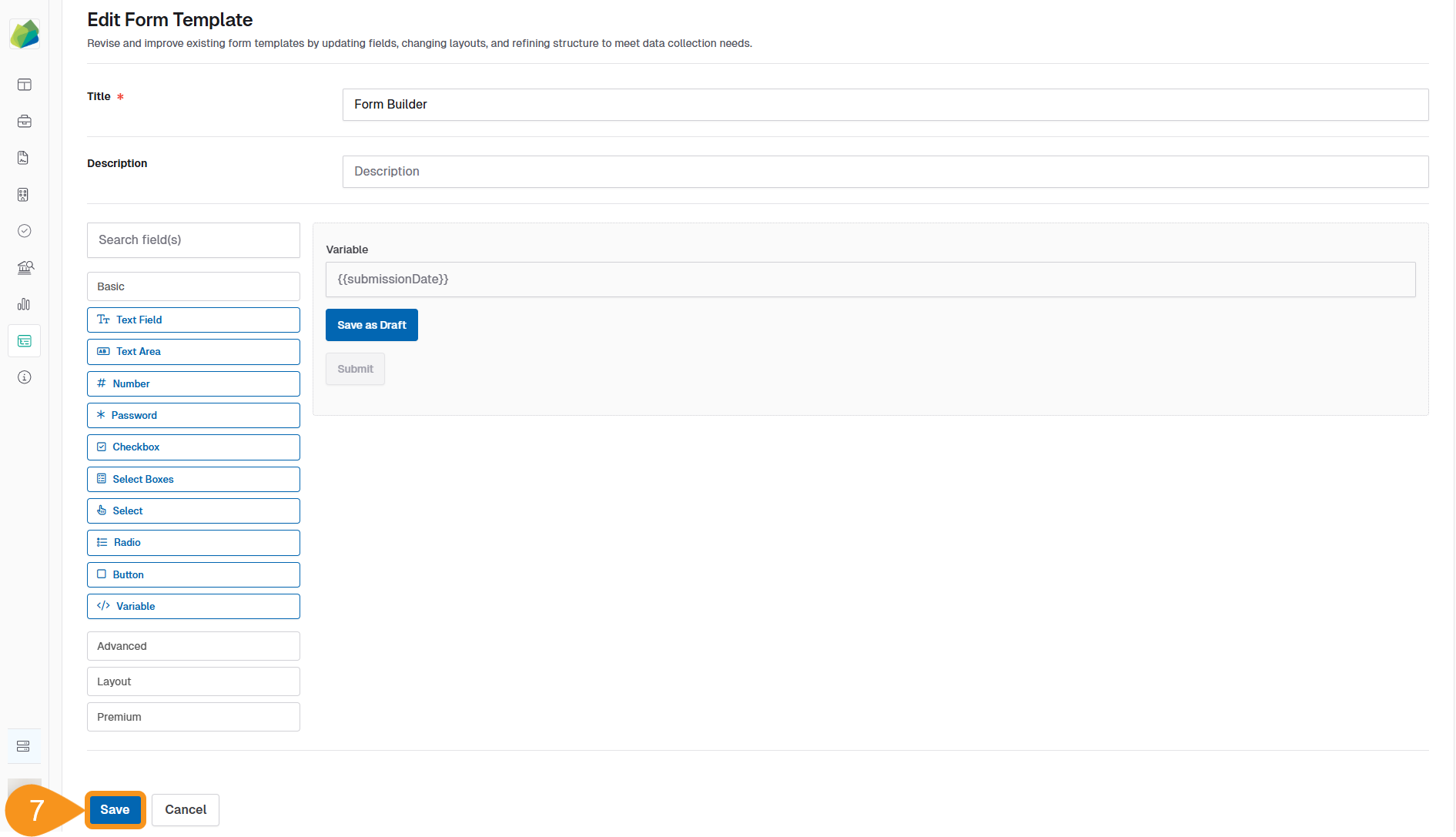
- Click Edit Form.
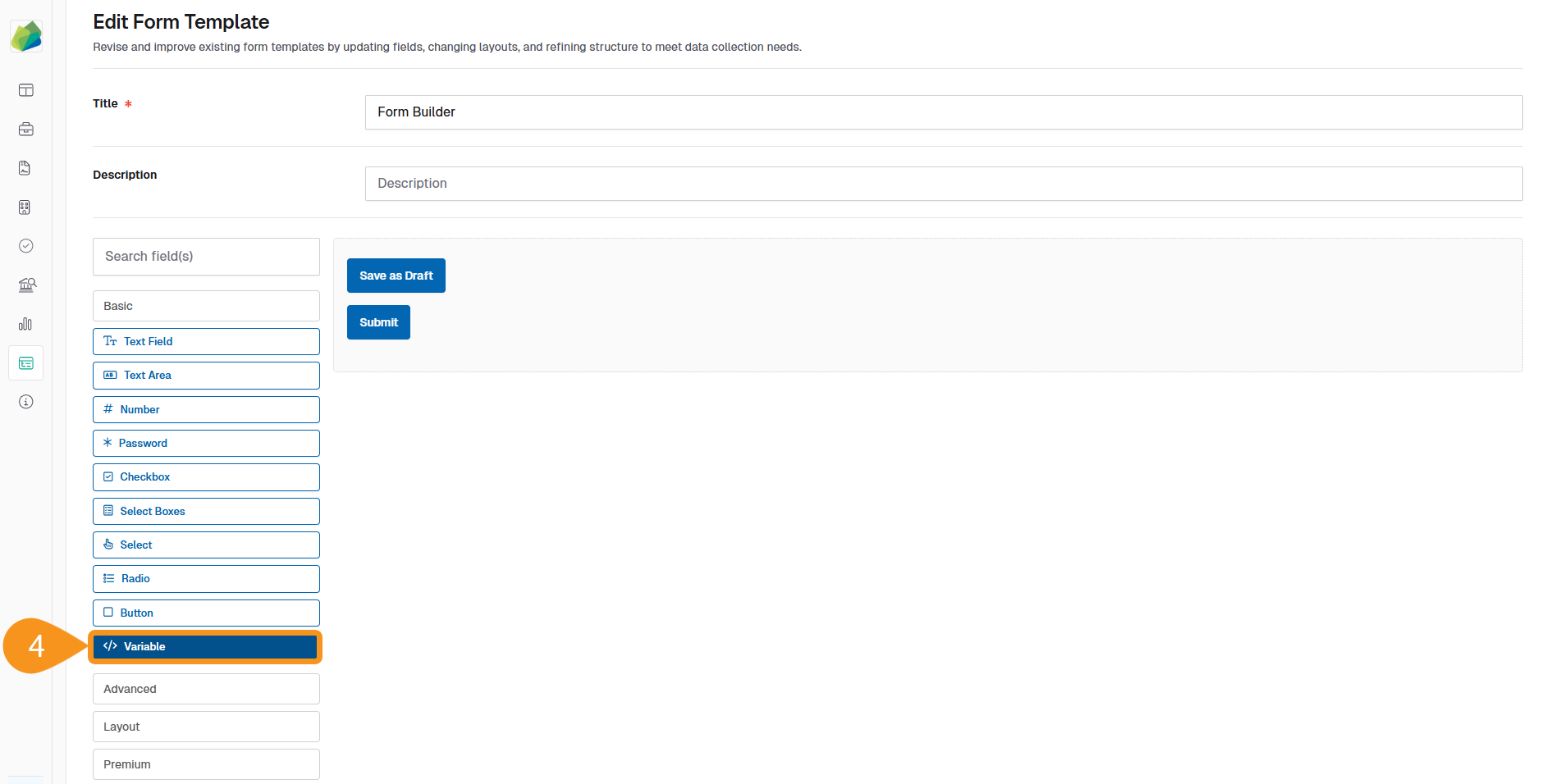
- Drag and drop the Variable component onto your form.
- Enter a label appropriate to the variable type chosen.
- Click Save in the form editor to create the field.
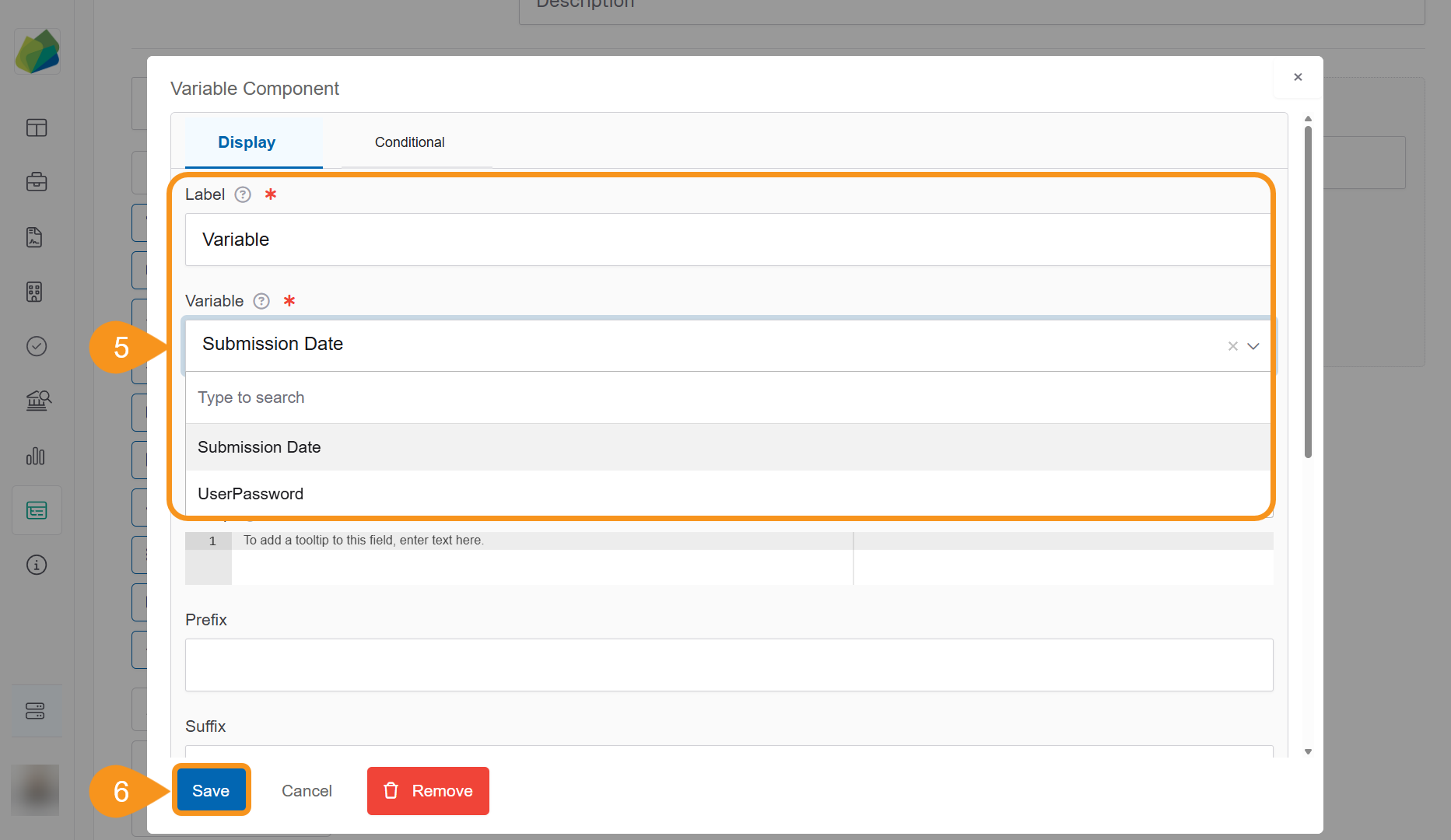
- Click Save again to apply the changes to the form.
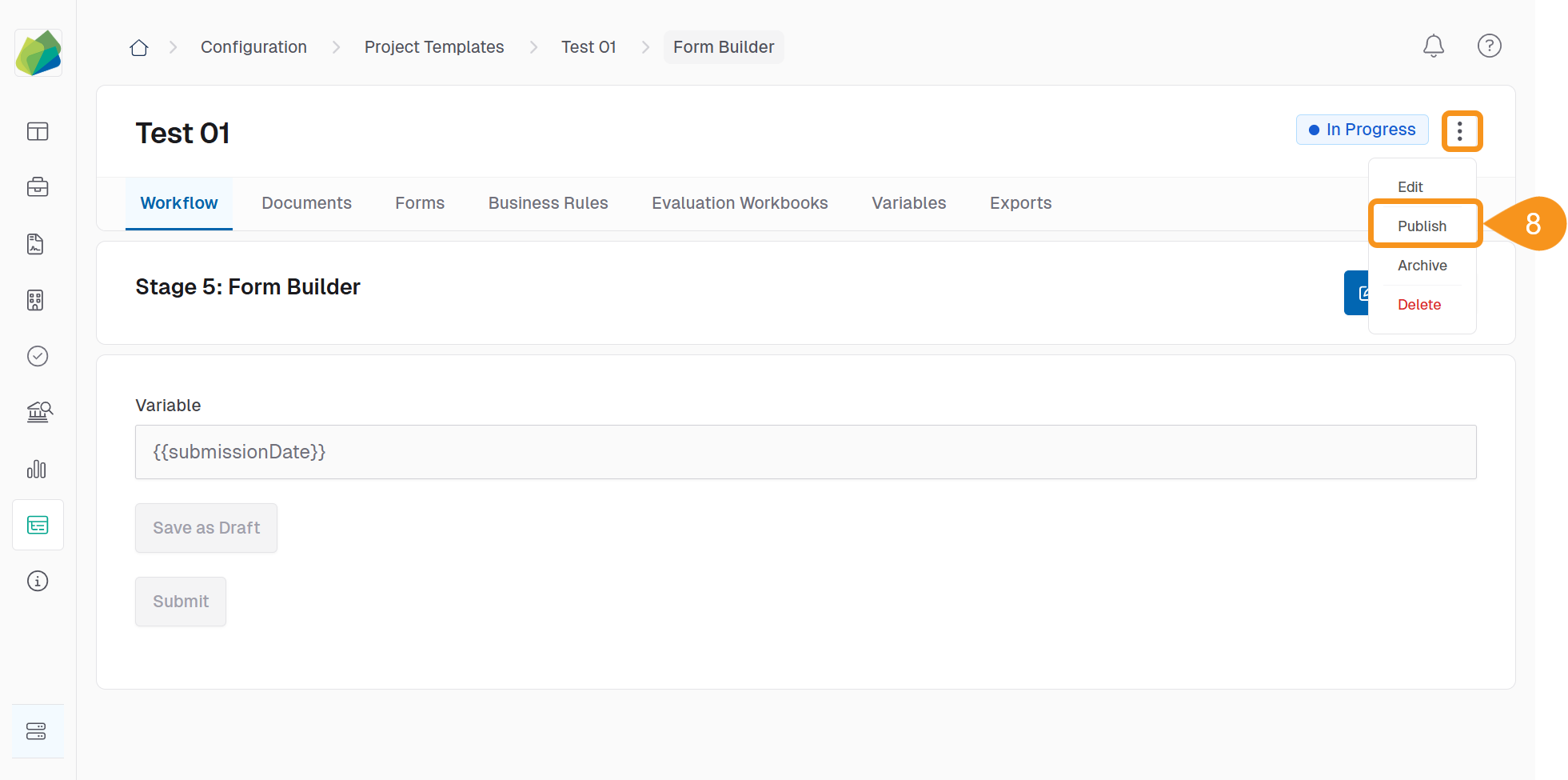
- Click the kebab menu (︙) in the project template and select Publish to finalize.
Note
Custom variables can be used across multiple form templates within the same project.
See Also
To complement your knowledge of this process, check the following pages: