Project Data Mapping
This guide explains how to set up Project Data Mapping, which connects form field inputs to variables. These variables can then be reused in other forms, documents, or calculations—helping you keep information consistent across a project.
Project data mapping links form field inputs to variables, which can be used in other documents or other forms (for example, a responder’s input for cost per unit defines the costPerUnit variable).
In the data mapping interface, variables are grouped together by Workflow Stage.
- Project Data Mapping is only available in project templates that contain forms.
- Only specific field types can be mapped to variables, such as text fields, numbers, and currency inputs.
When to Use Project Data Mapping
You should use Project Data Mapping when you need to:
- Reuse data across multiple forms or documents.
- Ensure that information (such as project name or dates) stays consistent.
- Automate the transfer of data instead of manually re-entering it.
To Set Up Project Data Mapping Variables
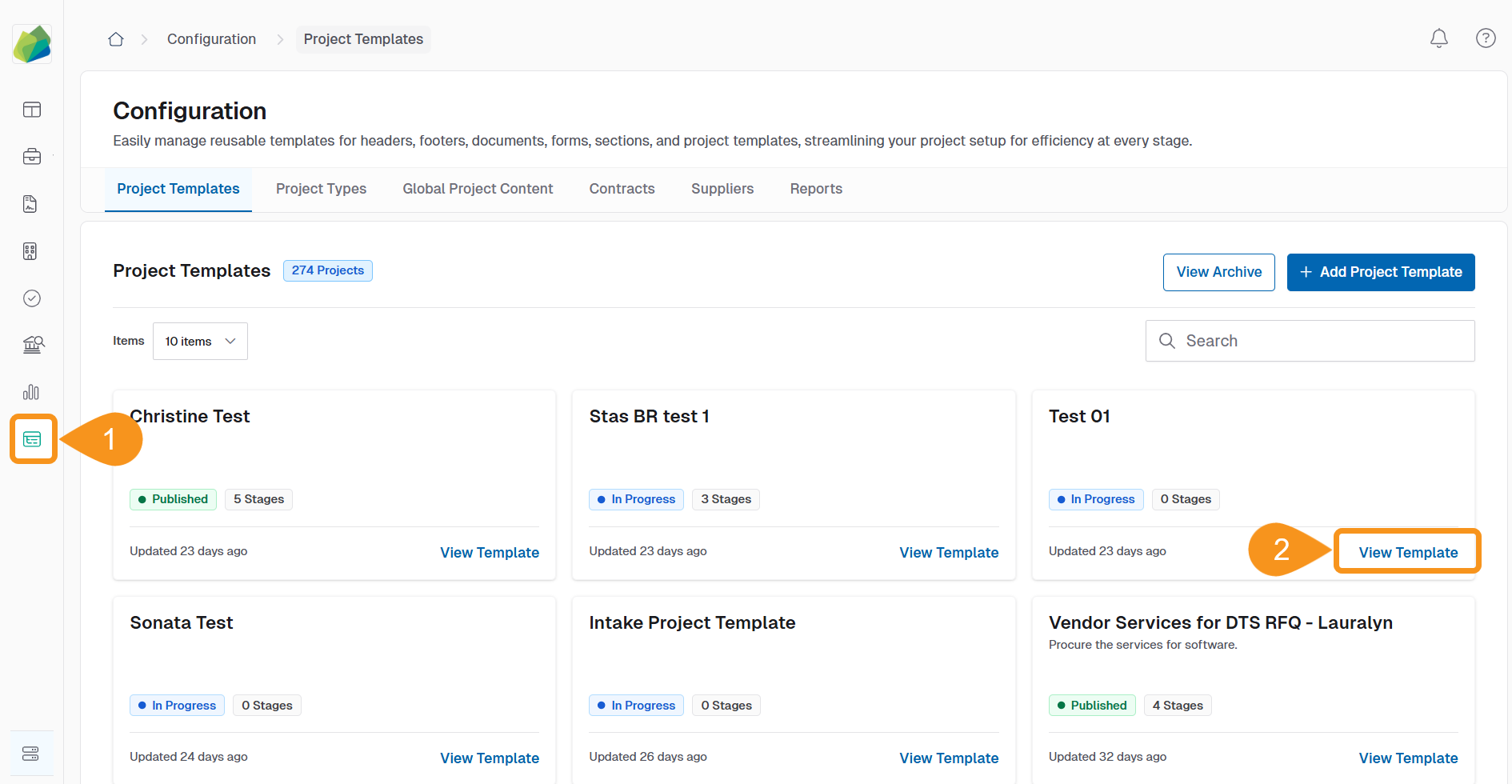
- Go to the Configuration section from the sidebar.
- In the Project Template tab, click View Template next to the template you want to edit.
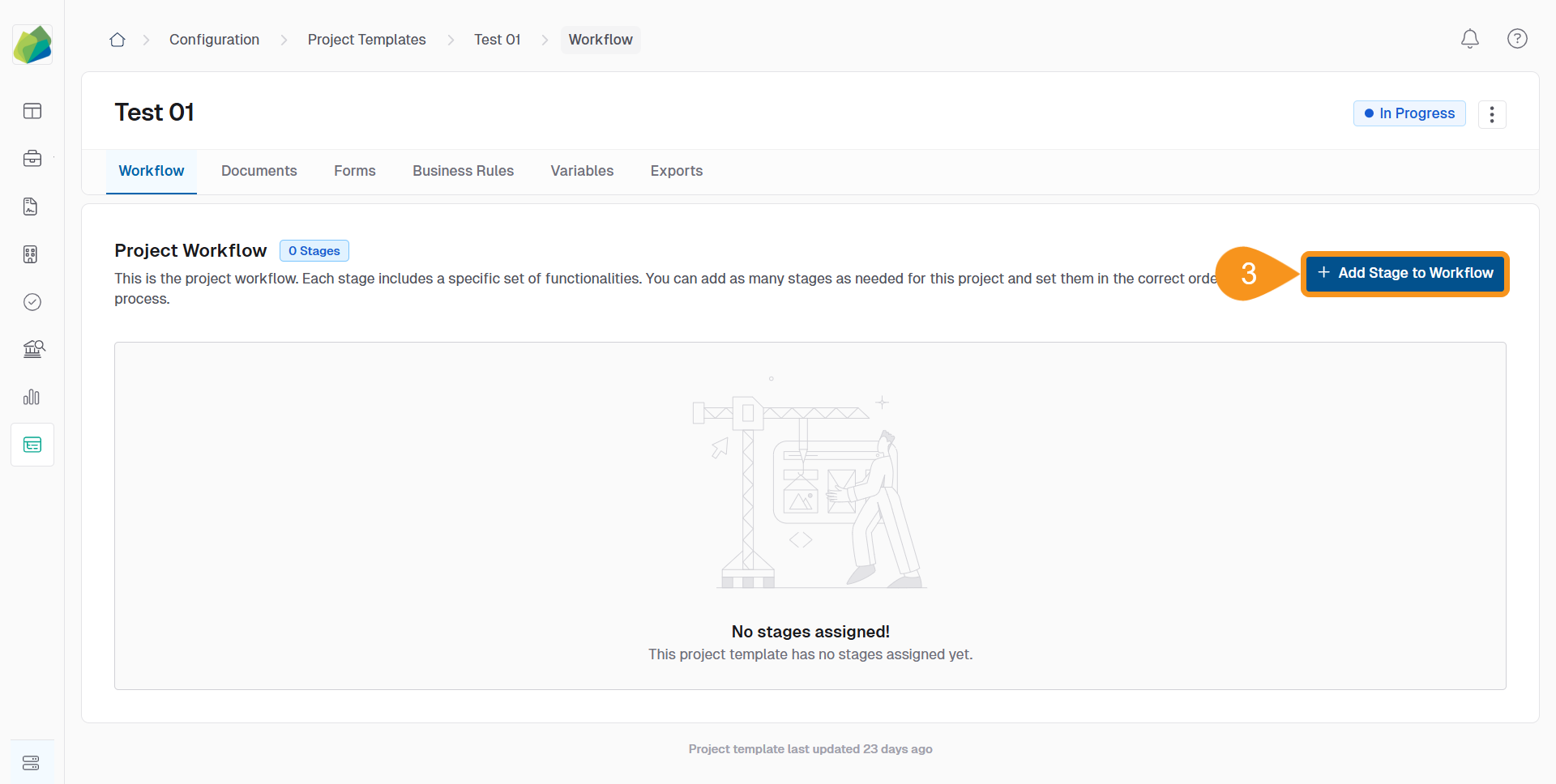
- Click Add Stage to Workflow.
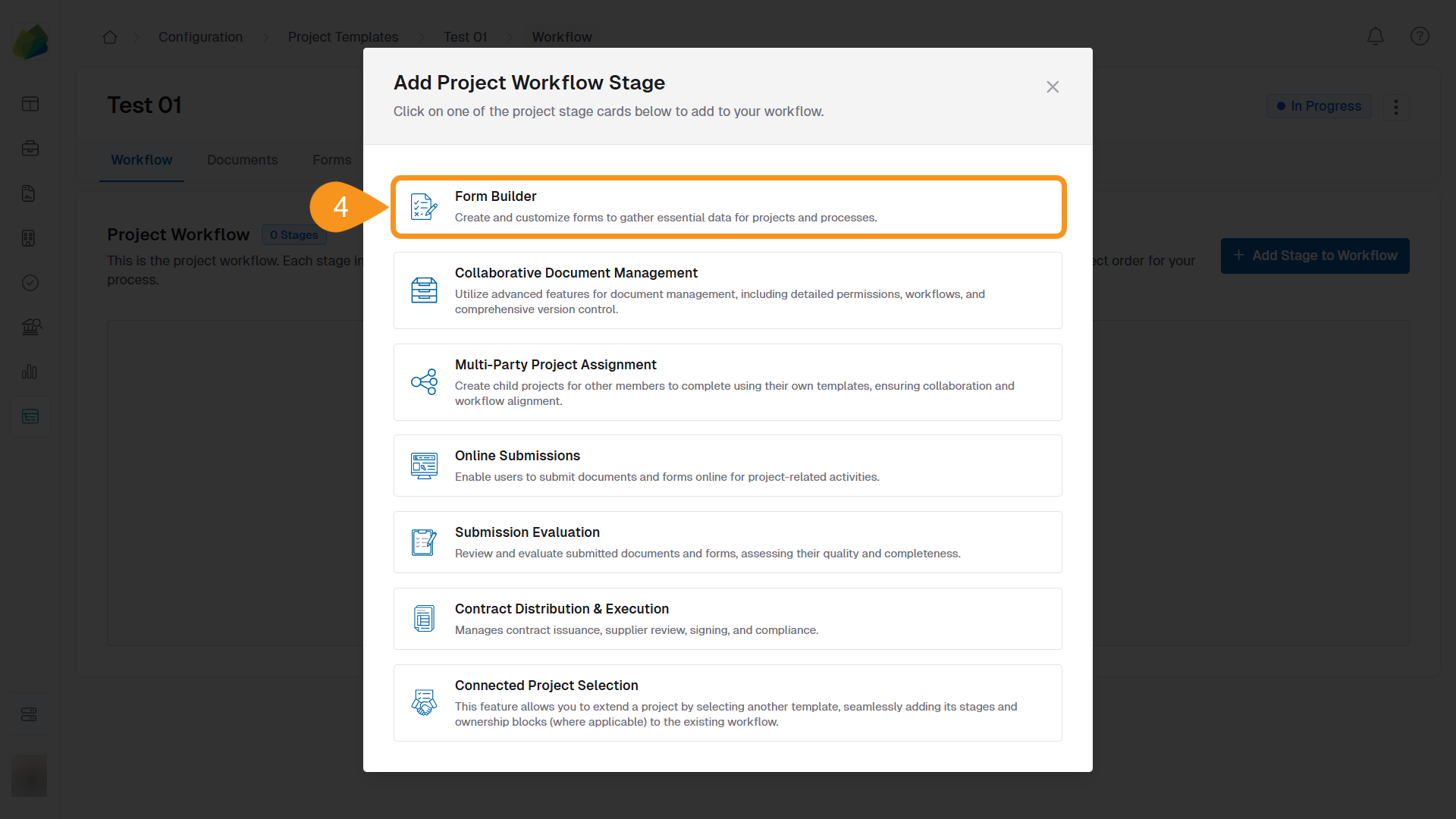
- Select Form Builder as the stage type.
- Enable Use a Template for this Stage, then select a form template.
- Click Save Stage.
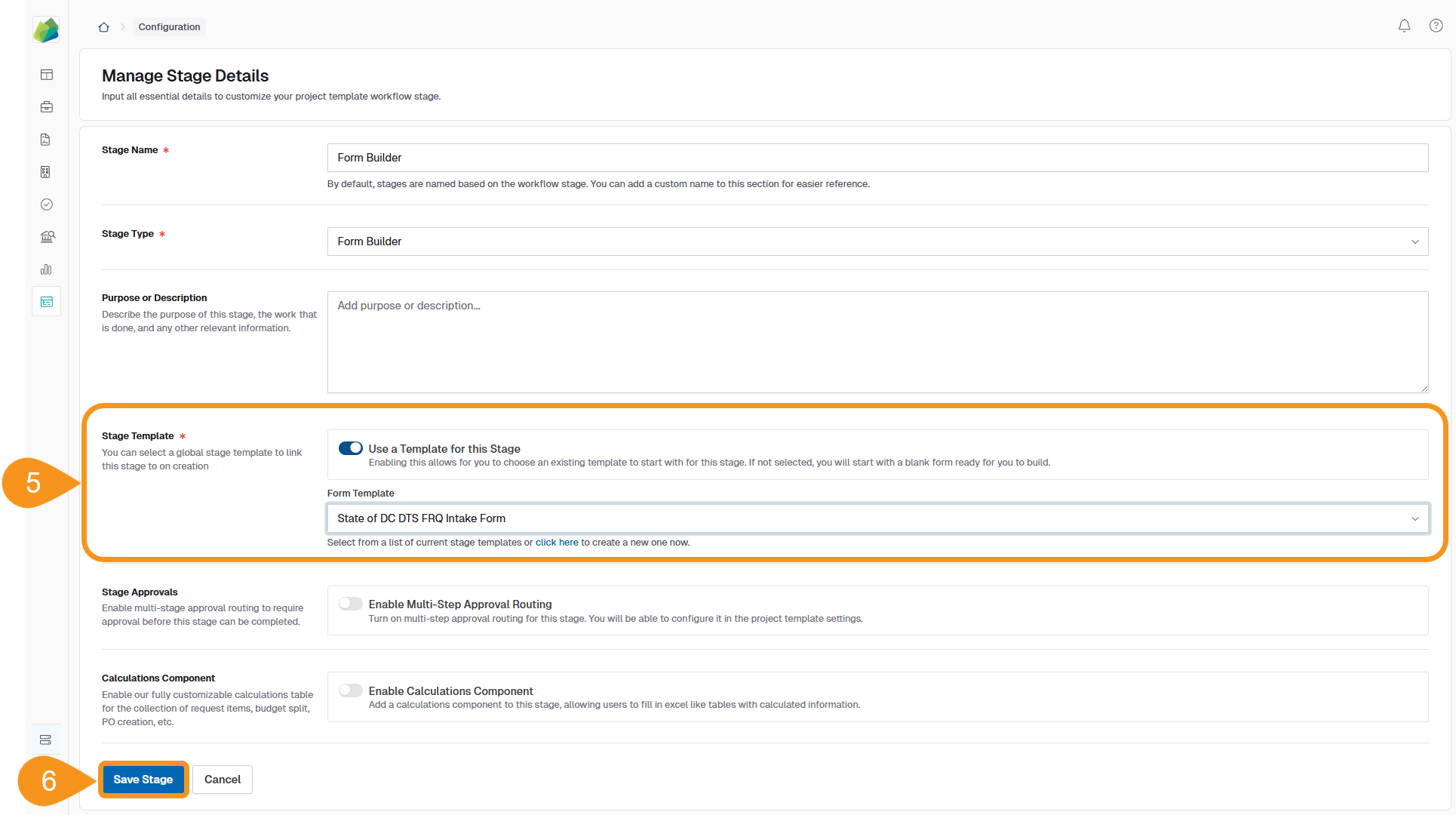
At this point, the form fields will be available for data mapping.
To Access and Edit Project Data Variables
-
Go to the Variables tab in your project template.
-
Locate the variable you want to edit and click the kebab menu (three dots).
-
Select Change Variable.
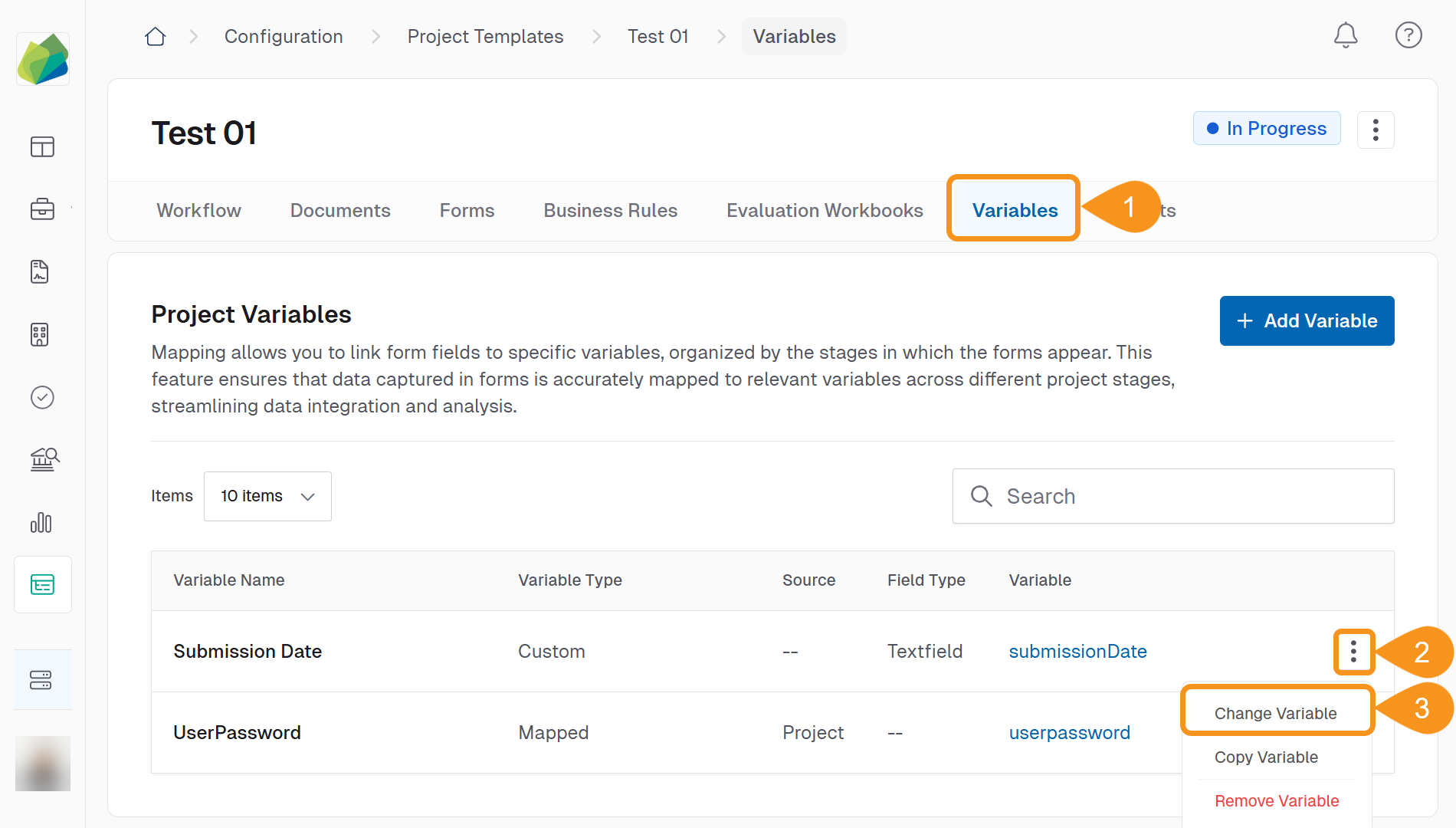
You can:
- Rename the variable (Name).
- Update the Variable.
- Adjust the Data Source or linked field.
-
Click Save Changes when finished.
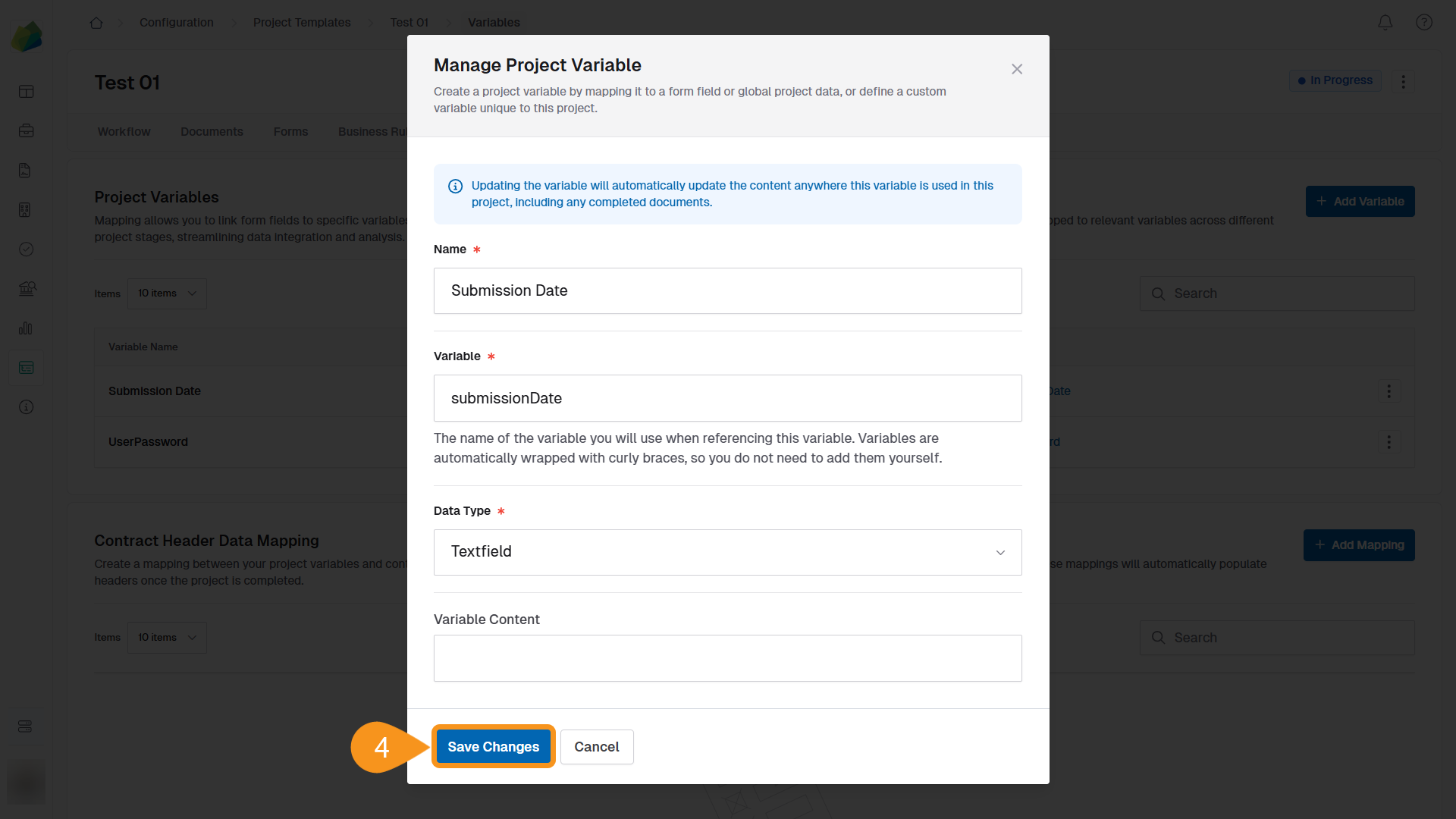
Only specific form fields can be mapped to variables—such as text fields, numbers, and currency inputs.
See Also
To complement your knowledge of this process, check the following pages: