Add and Configure Custom Variables
This guide explains how to add and configure Custom Variables in a project template. Custom Variables are user-defined values that you set up manually, and they can be used throughout a project in forms or documents.
To Add and Configure Custom Variables
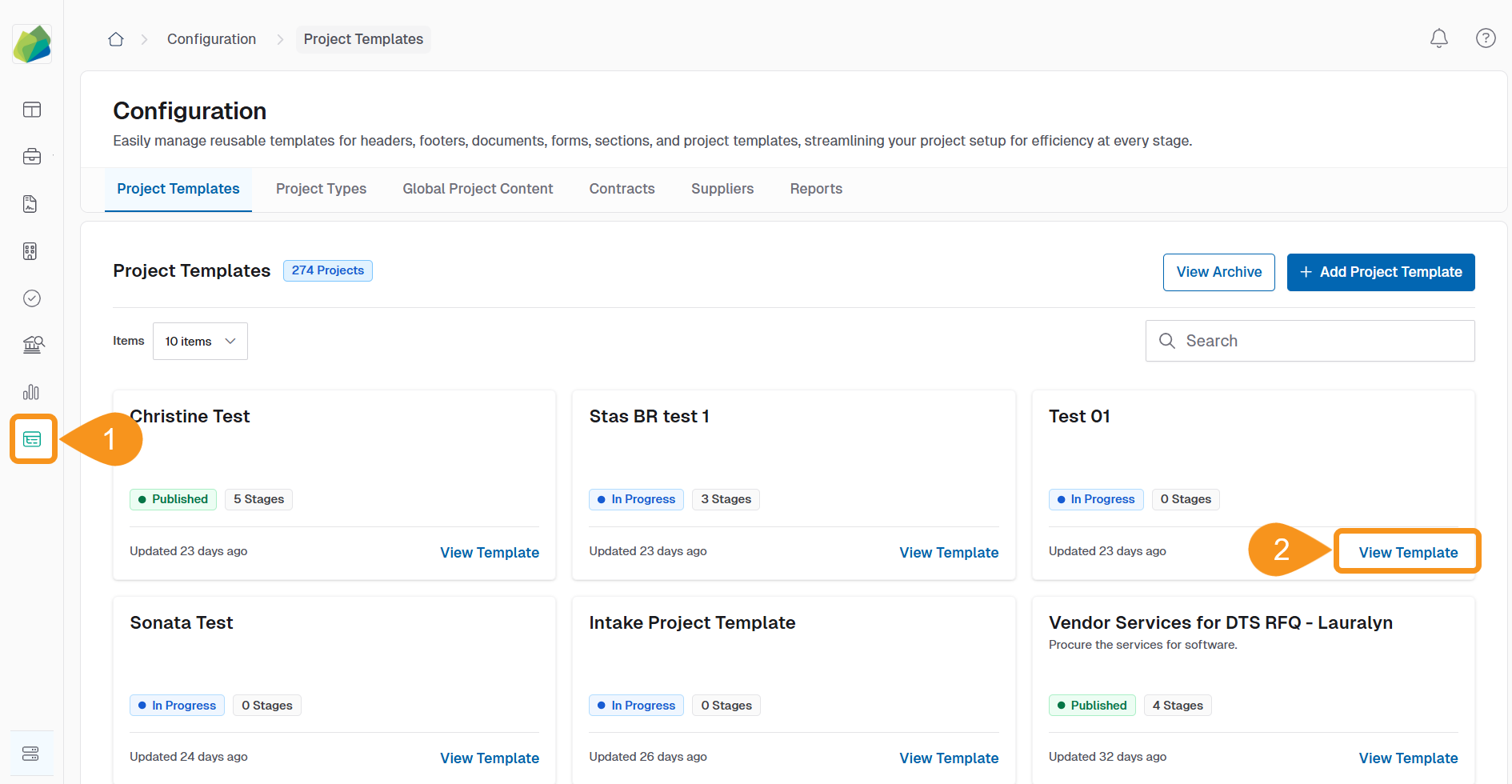
- Go to the Configuration section from the sidebar.
- In the Project Template tab, click View Template next to the template you want to add & configure custom variables.
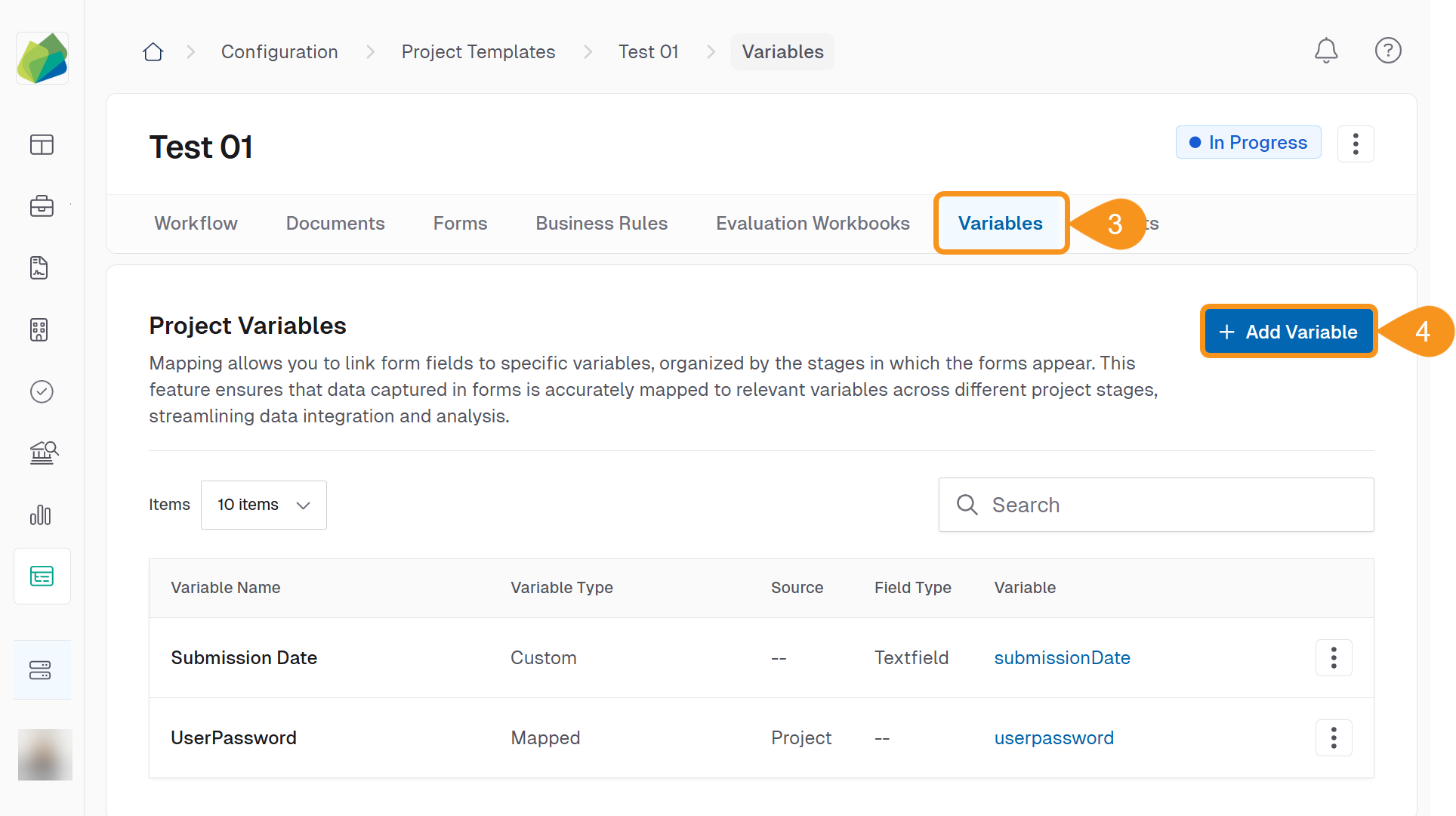
- Go to the Variables tab. This is where all variables for the project are managed.
- Click Add Variable, next to Custom Variables.
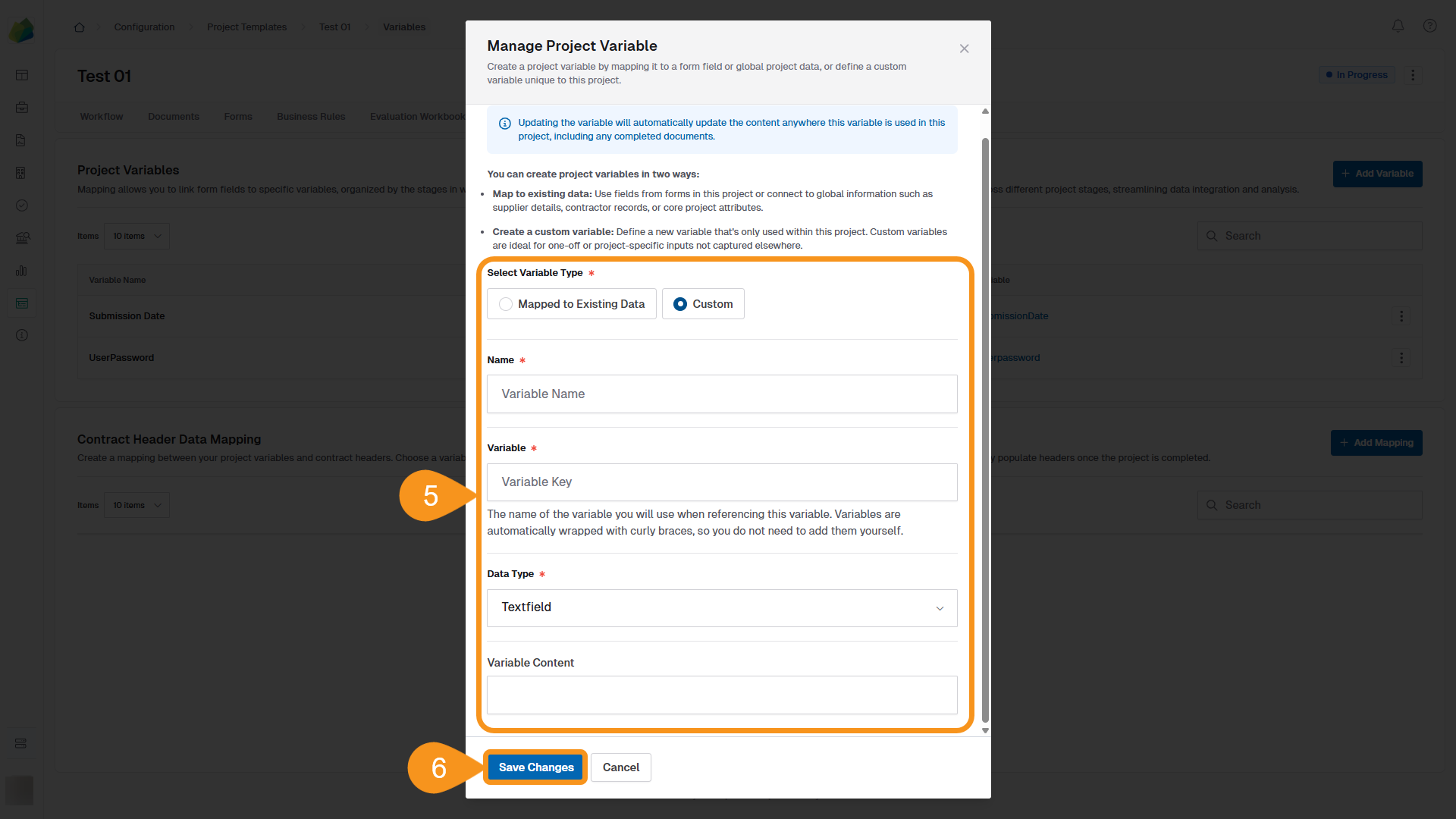
- In the form that appears, provide the following information:
- Variable Type: Select Custom.
- Stage: Choose the project stage where the variable will be available.
- Name: Enter a descriptive name so you can easily recognize the variable.
- Key: Define a unique identifier (used when referencing the variable in documents or forms).
- Value: Enter the value you want the variable to hold.
- Data Type: Select the type of variable (for example, Text, Number, or Date).
- Default Value (optional): Set a default value if the variable will be used multiple times.
- Description (optional): Add a short note to explain the variable’s purpose.
- Click Save Changes to add the variable to your project template.
Optional Configuration
You can use the variable’s dropdown menu to configure it further if needed (for example, editing or deleting the variable).
About Custom Variables
Custom Variables are defined manually, are not linked to form fields, and can be reused anywhere in the project. This includes forms, documents, and across multiple project stages.
See Also
To complement your knowledge of this process, check the following pages: