Configure Project Member Management
This guide explains how to configure project member management in Authorium. Proper configuration ensures the right people have the correct level of access, whether globally across the project or limited to specific workflow stages.
When to Configure Project Member Management
You should configure project member management when you need to:
- Change the scope of member access, deciding whether your project will use:
- Only Global Project Members – users with permissions for the entire project.
- Global and Stage Members – users with access limited to specific project stages.
- Adjust permissions for specific tasks or forms within a workflow stage.
- Transfer project ownership when the primary responsible individual changes.
To Configure Project Member Management
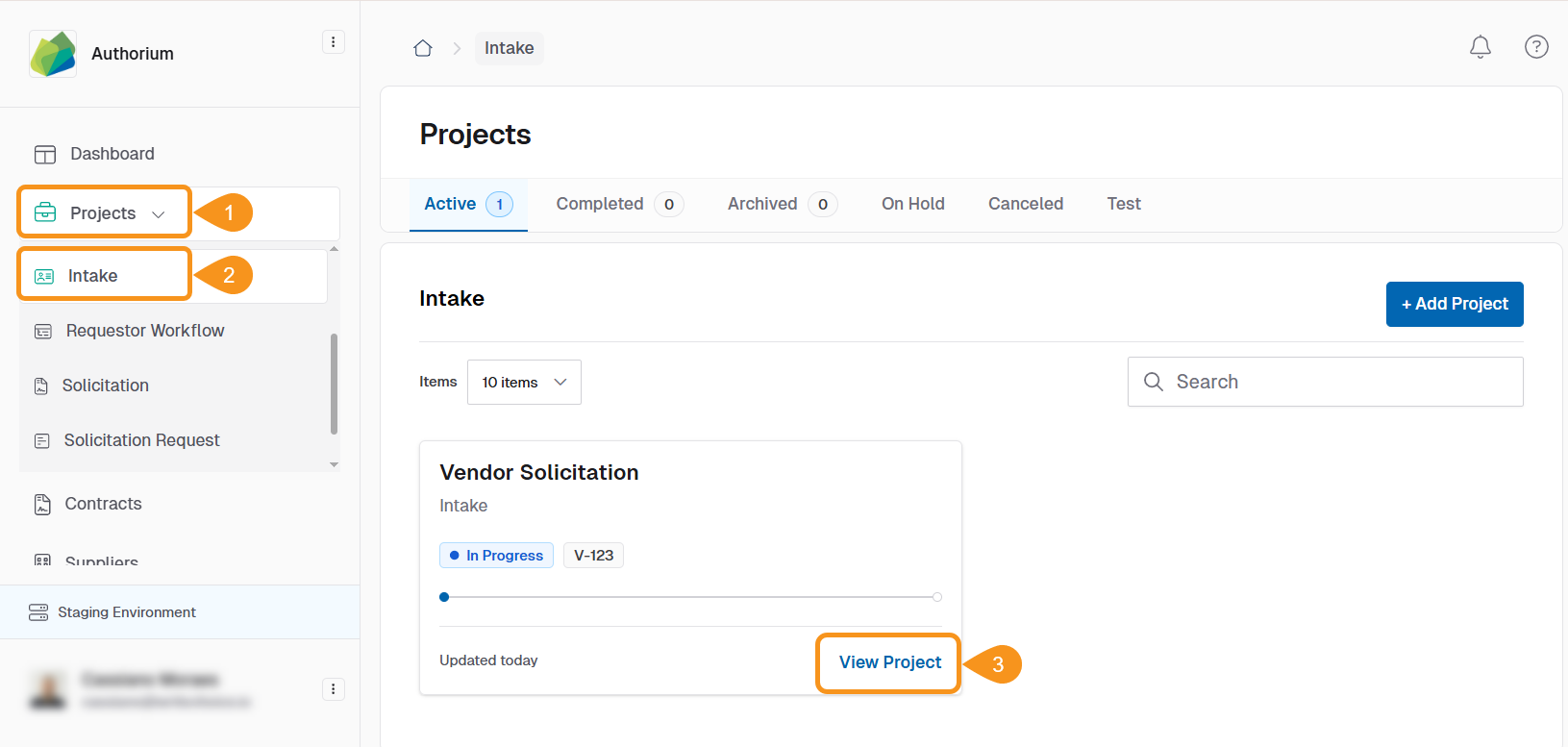
- From the Dashboard, go to the Projects drop-down in the sidebar.
- Select the Project Type corresponding to your project.
- Locate your project and click View Project.
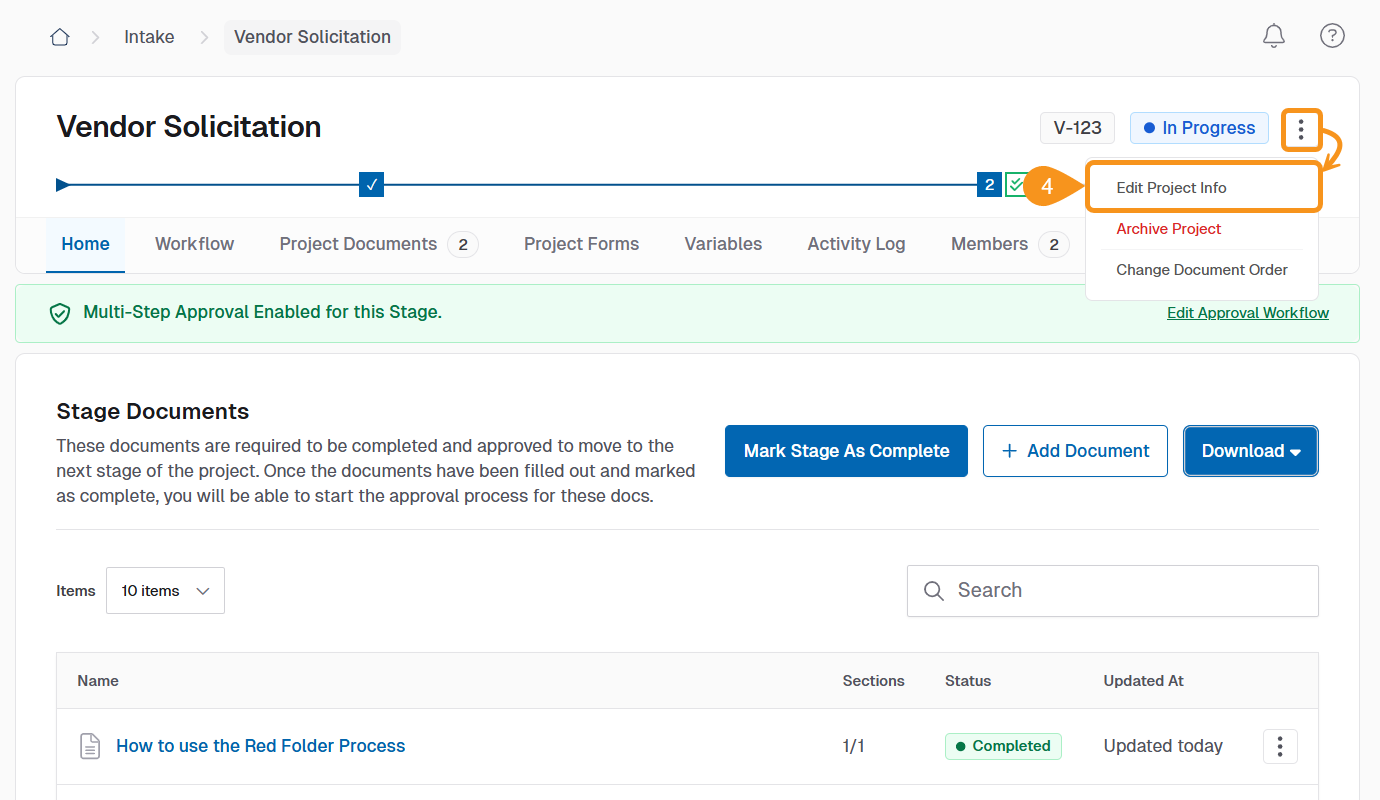
- Click the three-dot menu beside the project status and select Edit Project Info.
 Project Settings
This is where the core settings for your project are found.
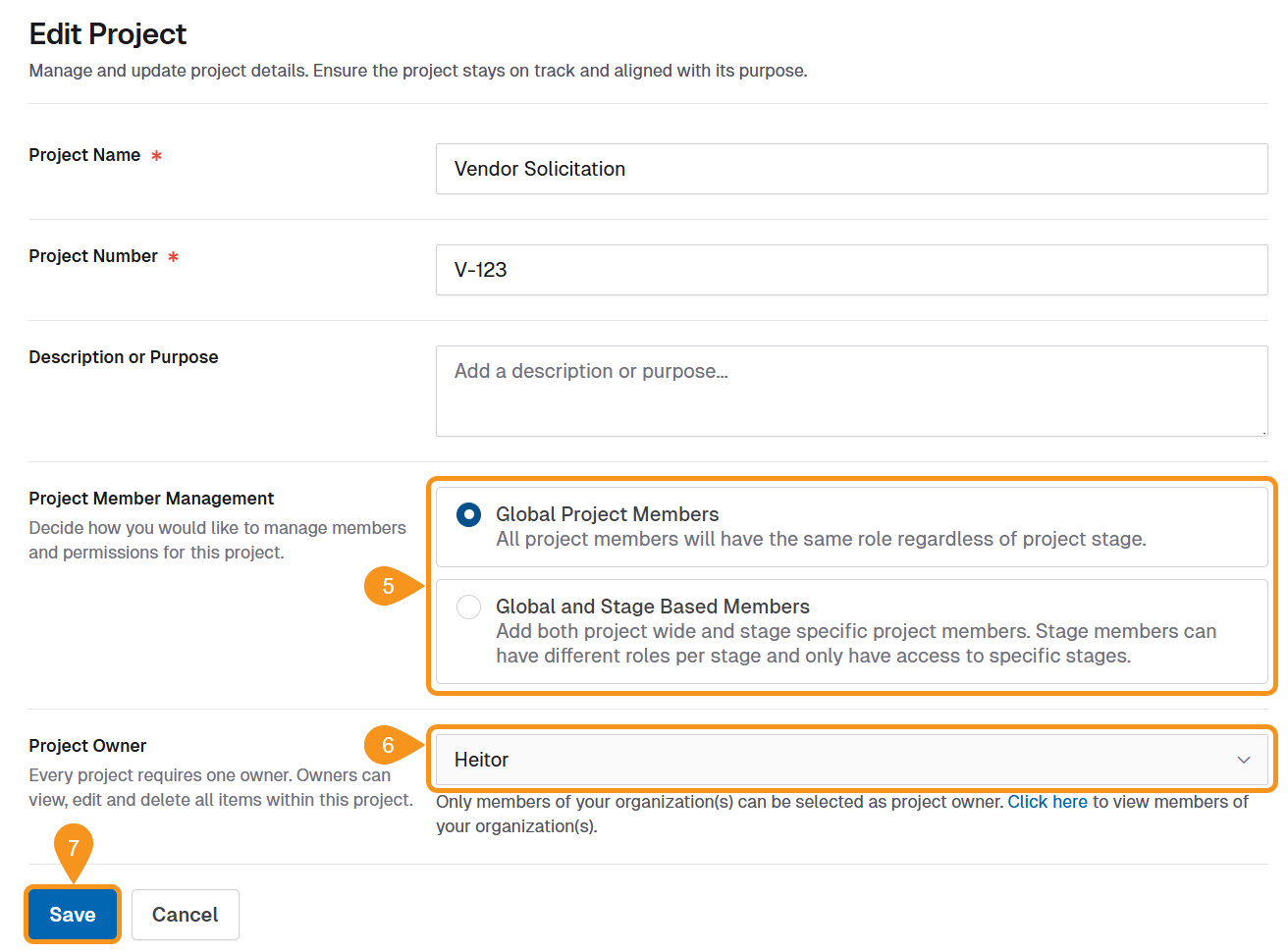
- Under Project Member Management, use the toggle to select between:
- Only Global Project Members
- Global and Stage Based Members
Stage Members
Choose Global and Stage Based Members if certain team members need access only to specific project stages.
- (Optional) To assign a new Project Owner, use the drop-down menu to select an internal member of your organization.
- Click Save to apply your changes.
See Also
To complement your knowledge of this process, check the following pages: