Add Workflow Stages to Project Templates
This how-to guide explains how to add workflow stages to a Project Template in Authorium. Workflow stages define the lifecycle of a project—from preparing forms and documents to evaluating submissions and executing contracts.
When to Add Workflow Stages
You should add workflow stages when you need to:
- Build a new project template and define its process.
- Ensure all projects created from the template follow a consistent flow.
- Update a template to support a new requirement or process.
About Workflow Stages
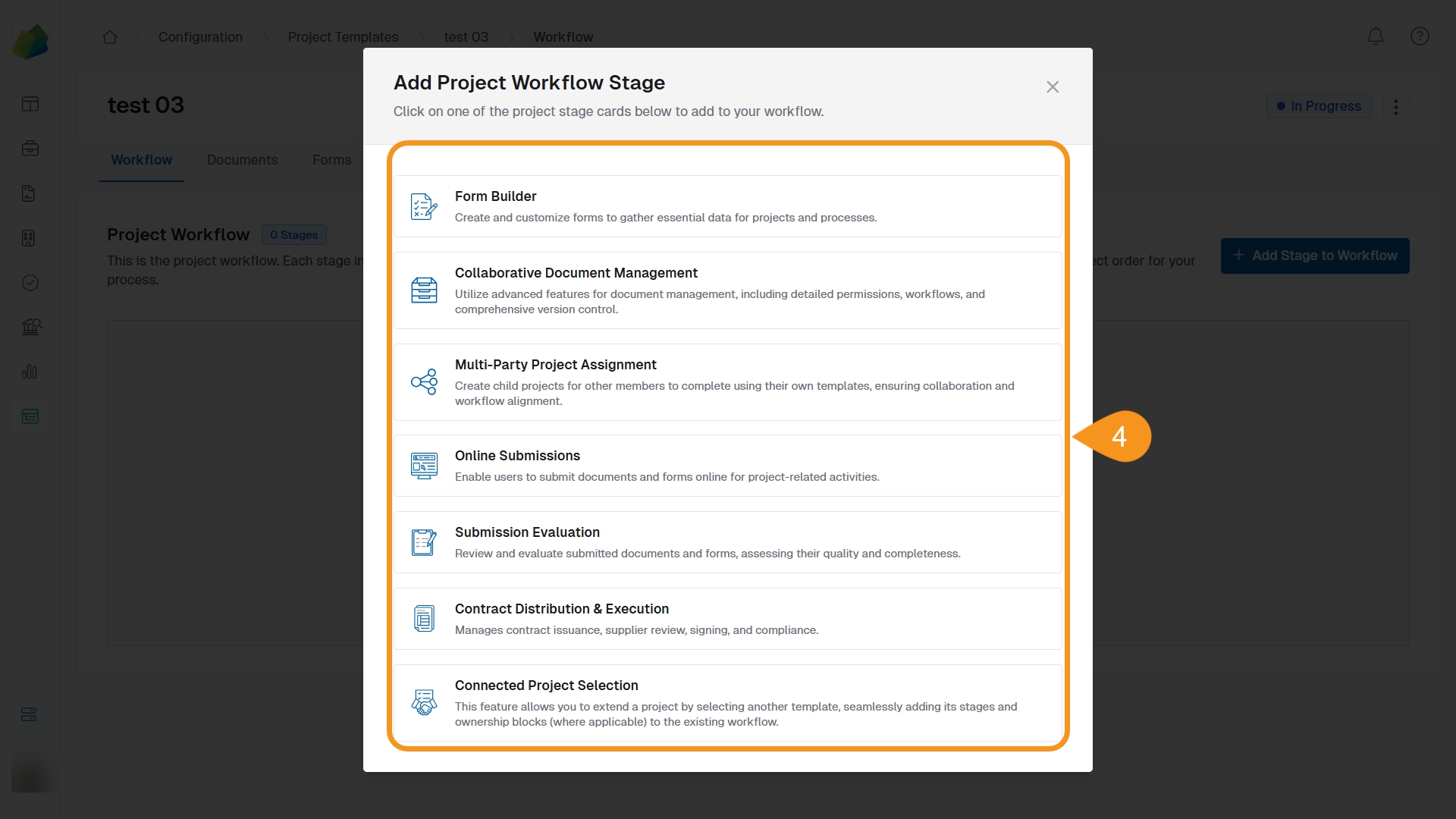
There are six types of workflow stages, each serving a specific function:
- Form Builder Stage: Create customized forms for gathering essential project information.
- Collaborative Document Management Stage: Add documents, handle approval routing, and control editing workflows and permissions.
- Multi-Party Project Assignment Stage: Assign project members to complete specific child projects.
- Online Submissions Stage: Allow external suppliers to submit bids and documentation. If enabled, suppliers can also submit Q&A.
- Submissions Evaluation Stage: Evaluate submissions received and select a supplier for project award.
- Contract Distribution & Execution Stage: Manage supplier review, contract issuance, signing, and compliance.
You can add multiple workflow stages to a project template, and each will appear in the order in which they are added.
To Add Workflow Stages to a Project Template
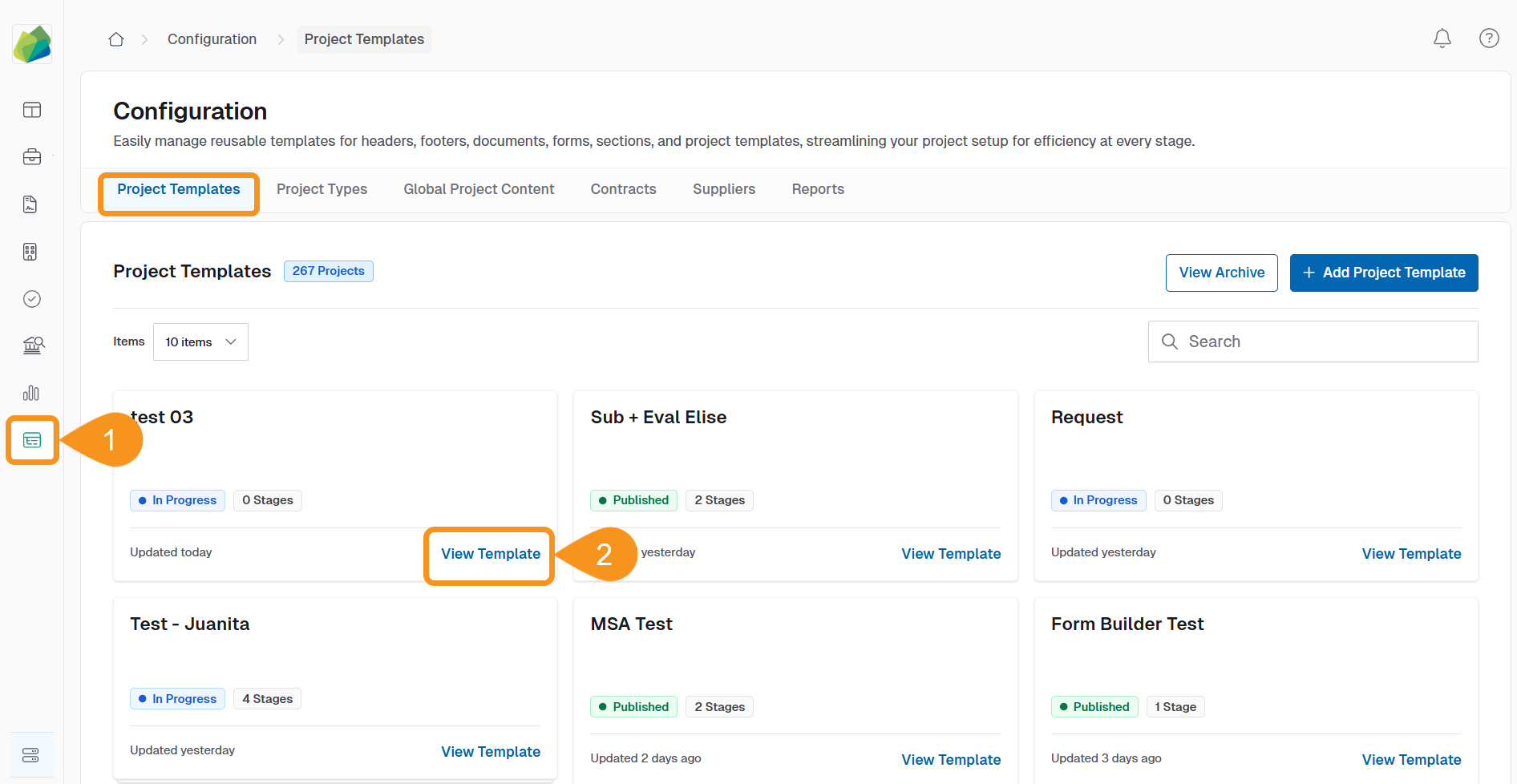
- Go to Configuration > Project Templates.
- Locate the template you want to modify and click View Template.
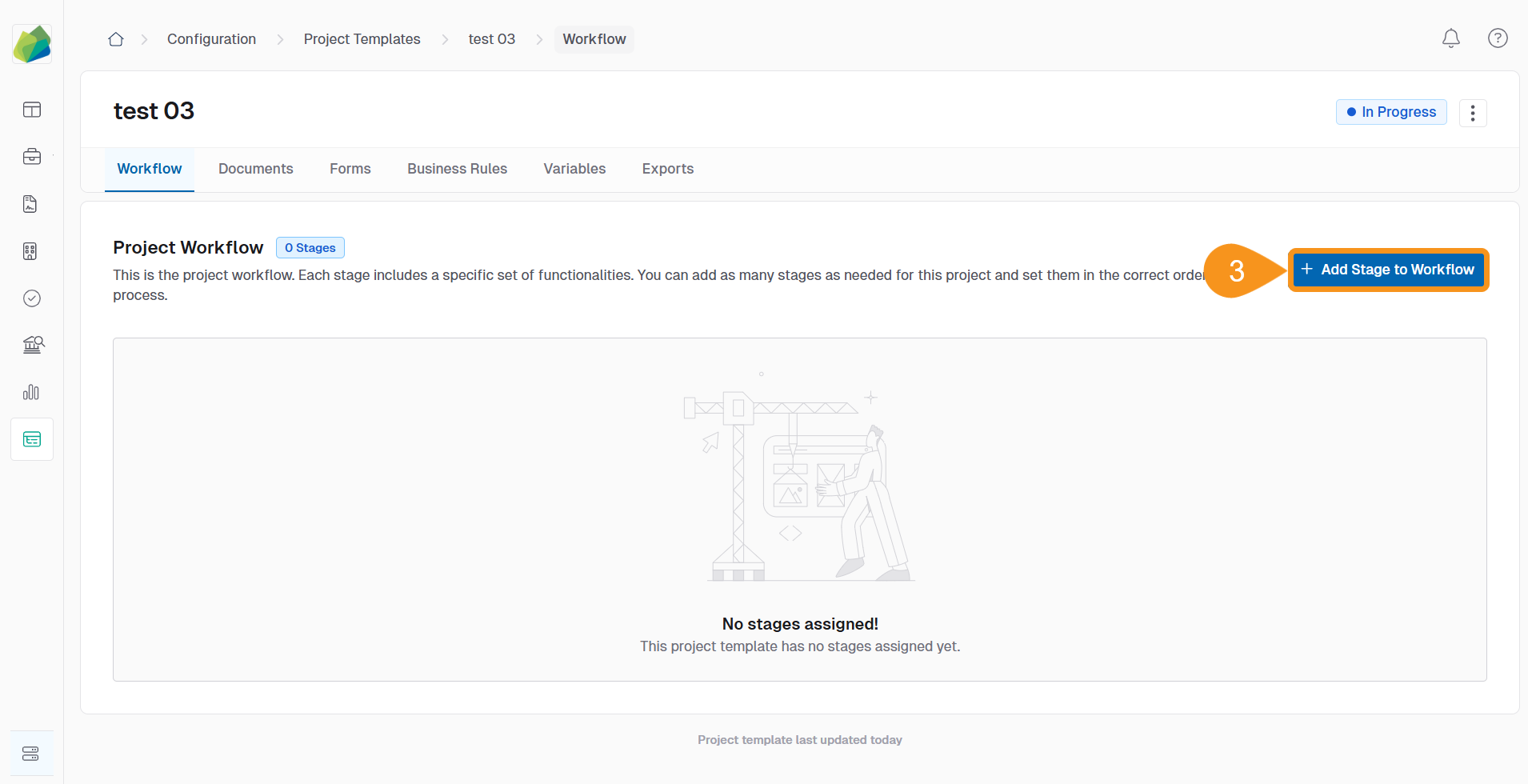
- Click + Add Stage to Workflow.
- Select the type of workflow stage you would like to add.
- Enter a Stage Name and (optional) Description.
Tip
Use a descriptive name that clearly indicates the stage’s function—for example, “RFO Document Review” or “Bid Evaluation Committee”.
- Complete any additional required fields depending on the stage type.
- Click Save Stage to add it to the workflow.
Changing the Stage Type will update the form and available settings accordingly.
To Update Existing Project Templates
When you update a project template—such as by adding or editing workflow stages—you’ll be prompted to decide whether the changes should apply to:
- All future projects created from the template.
- Existing projects that are already using the template.
Applying changes to existing projects may impact workflows that are already in progress. Review the potential impact before choosing to update retroactively.
See Also
To complement your knowledge of this process, check the following pages: