Edit User Components
This guide explains how to edit existing User Components in a form template. You can update their display settings, data configuration, validations, and conditionals.
Currently, the available User Components are:
- User Select: Allows form submitters to choose one or more users from the organization.
- User Field: Automatically populates and displays user-related information such as username, email, or department.
When to Edit a User Component
You should edit user components when you need to:
- Change labels, placeholders, or styles.
- Update the user attributes or values captured by the component.
- Add or modify validation rules for user input.
- Apply or adjust conditional logic based on user identity or attributes.
To Edit a User Component in a Form Template
- Hover over the user component and click the gear icon in the top-right corner.
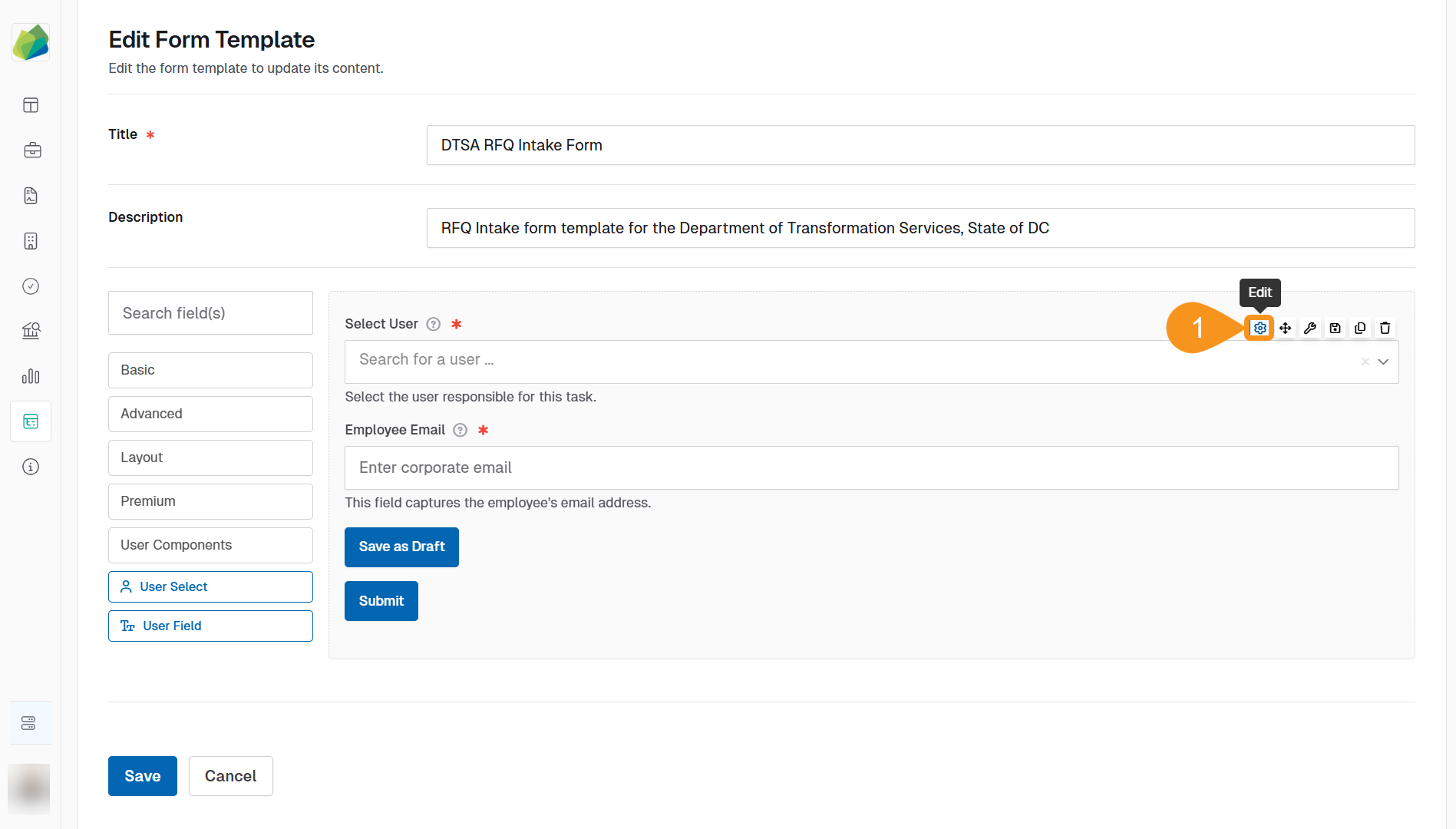
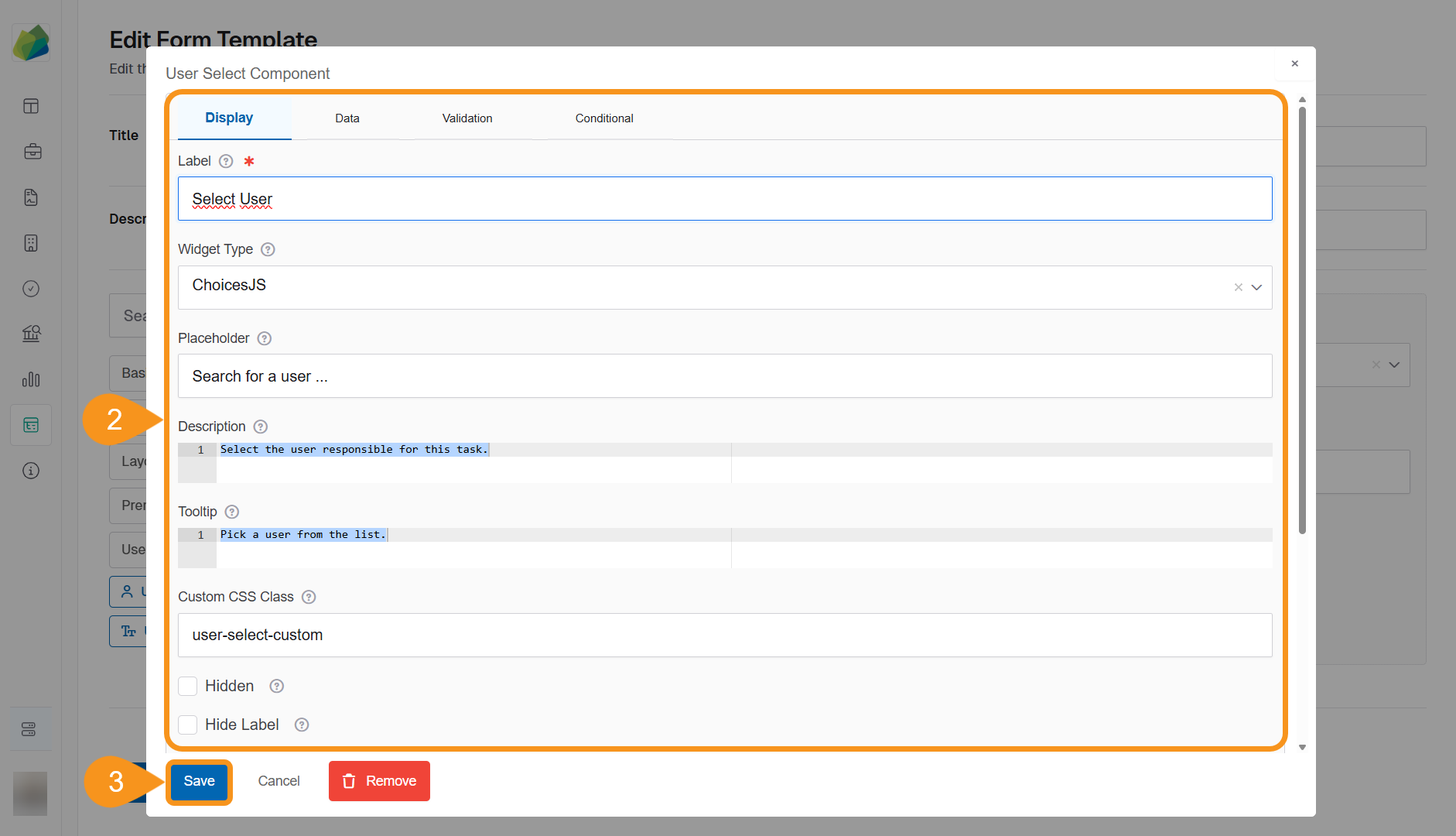
- The edit modal will appear with four tabs: Display, Data, Validation, and Conditional.
- Make the necessary changes in one or more tabs:
- Display: Update how the component appears (label, placeholder, description, tooltip, etc.).
- Data: Define default values, user attributes, or multiple value options.
- Validation: Set required fields, uniqueness, or regex patterns.
- Conditional: Show or hide the component based on specific logic.
- Make the necessary changes in one or more tabs:
- Click Save in the component editor to save your changes.
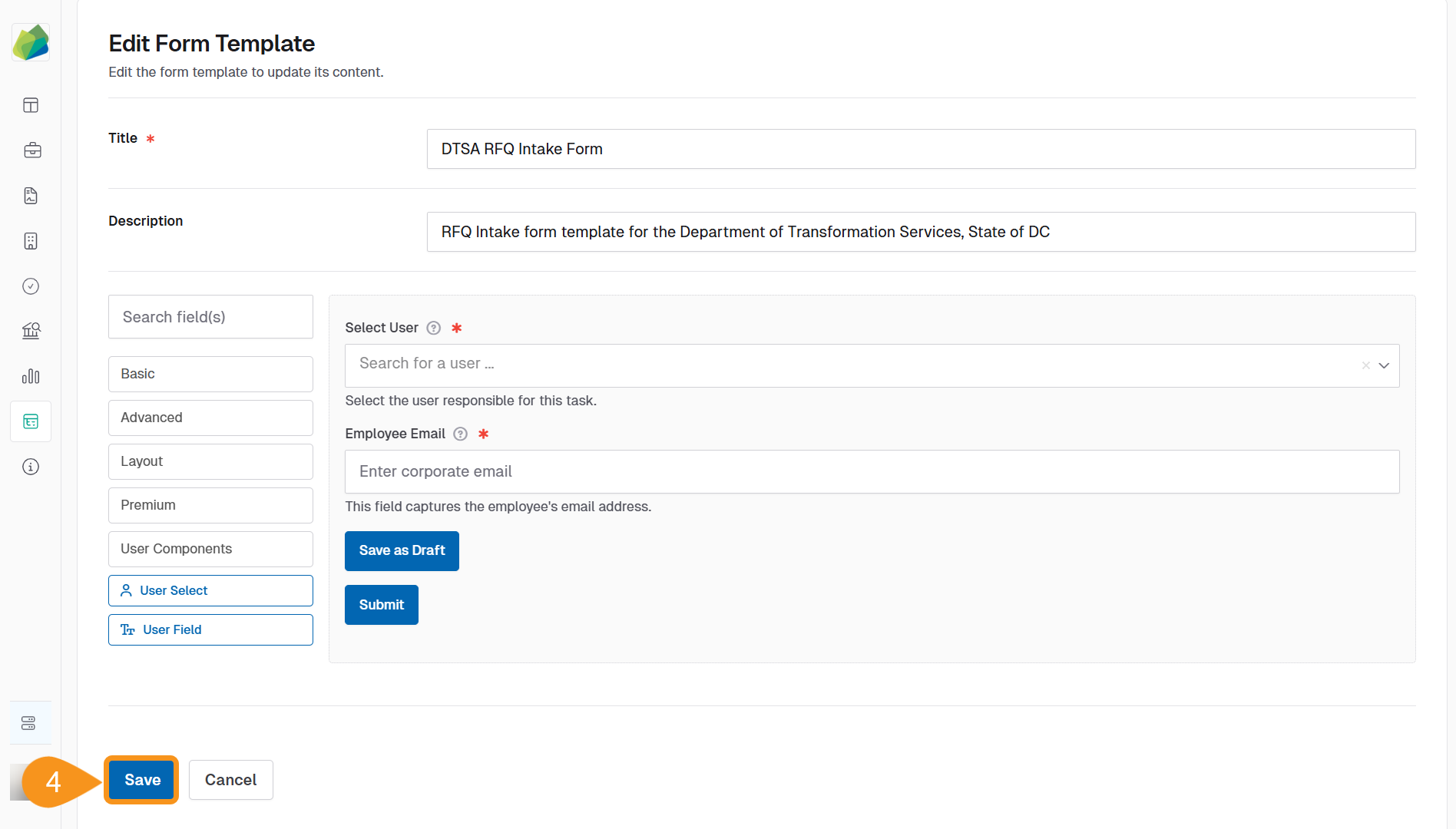
- Click Save again in the form template builder to apply the changes to the template.
See Also
To complement your knowledge of this process, check the following pages: