Copy and Paste User Components
This how-to guide explains how to copy and paste User Components in a Form Template. Duplicating components can save time and ensure consistency when building forms.
When to Copy and Paste User Components
You should copy and paste user components when:
- You need to reuse the same configuration (e.g., multiple User Select fields for different approvers).
- You want to replicate fields that capture similar user-related data.
- You want to maintain design and logic consistency across user components.
To Copy and Paste a User Component
- Hover over a User Component to display the action buttons.
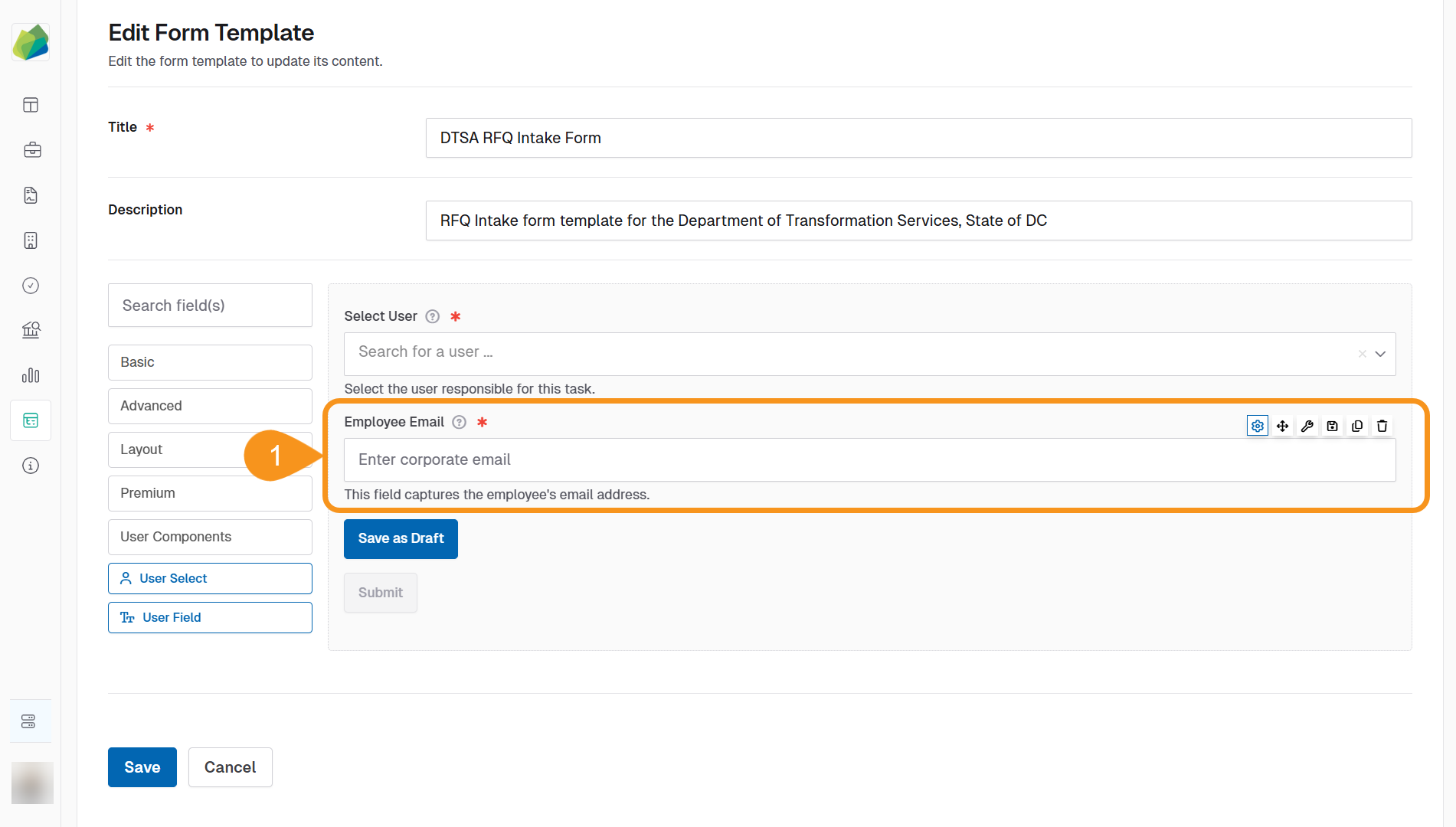
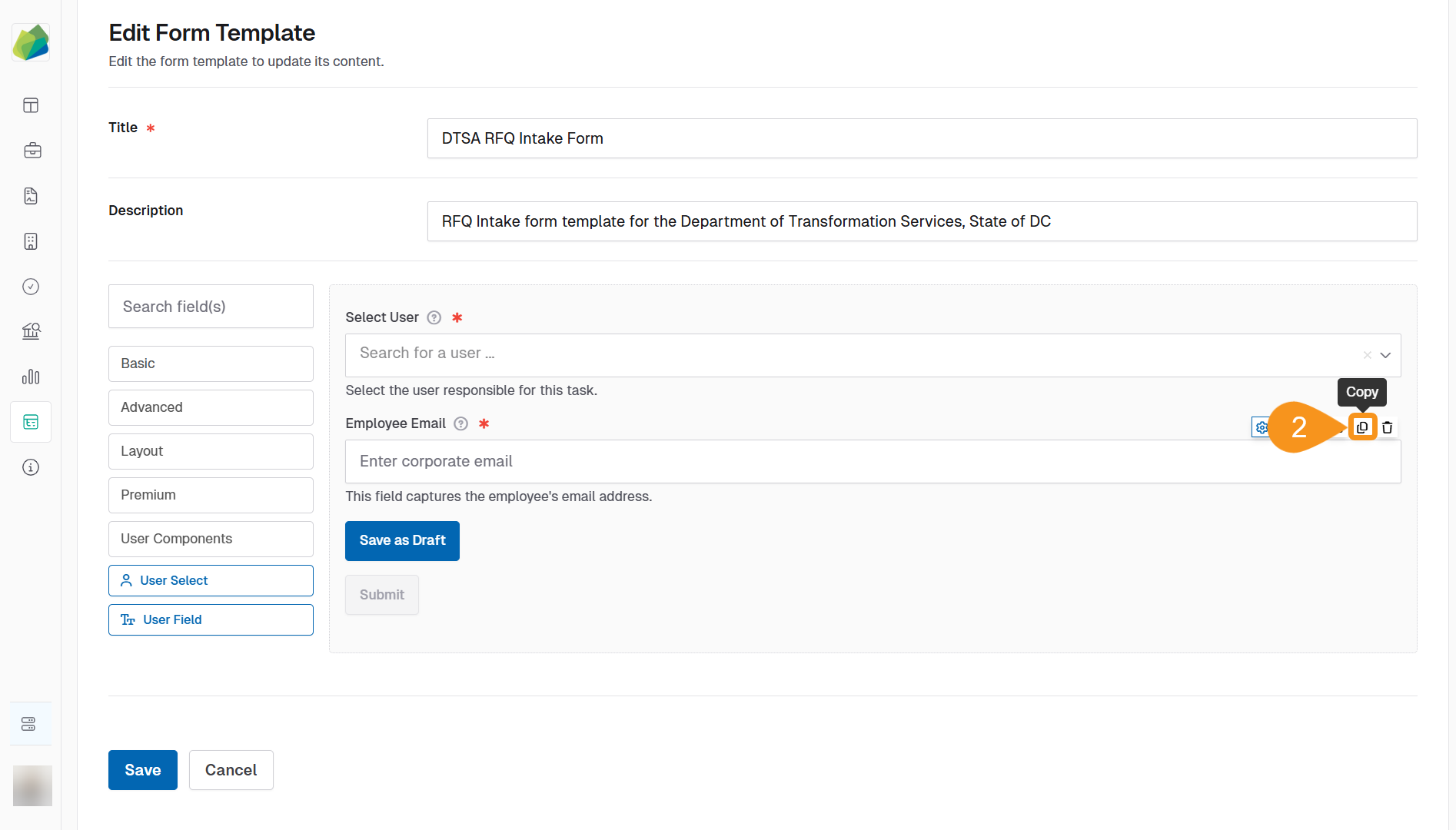
- Click the Copy button located above the component.
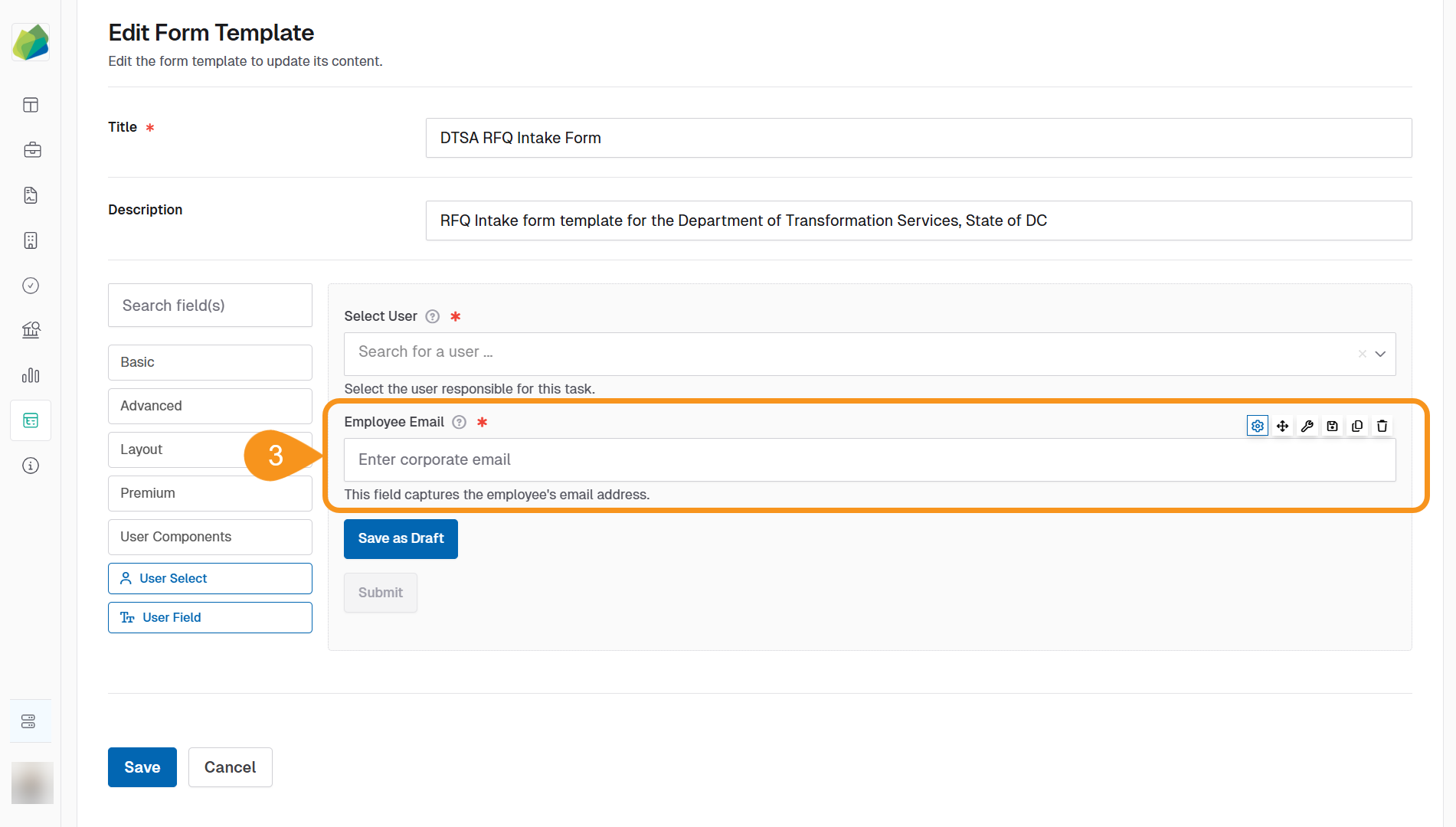
- Hover over another component where you want the duplicate to appear.
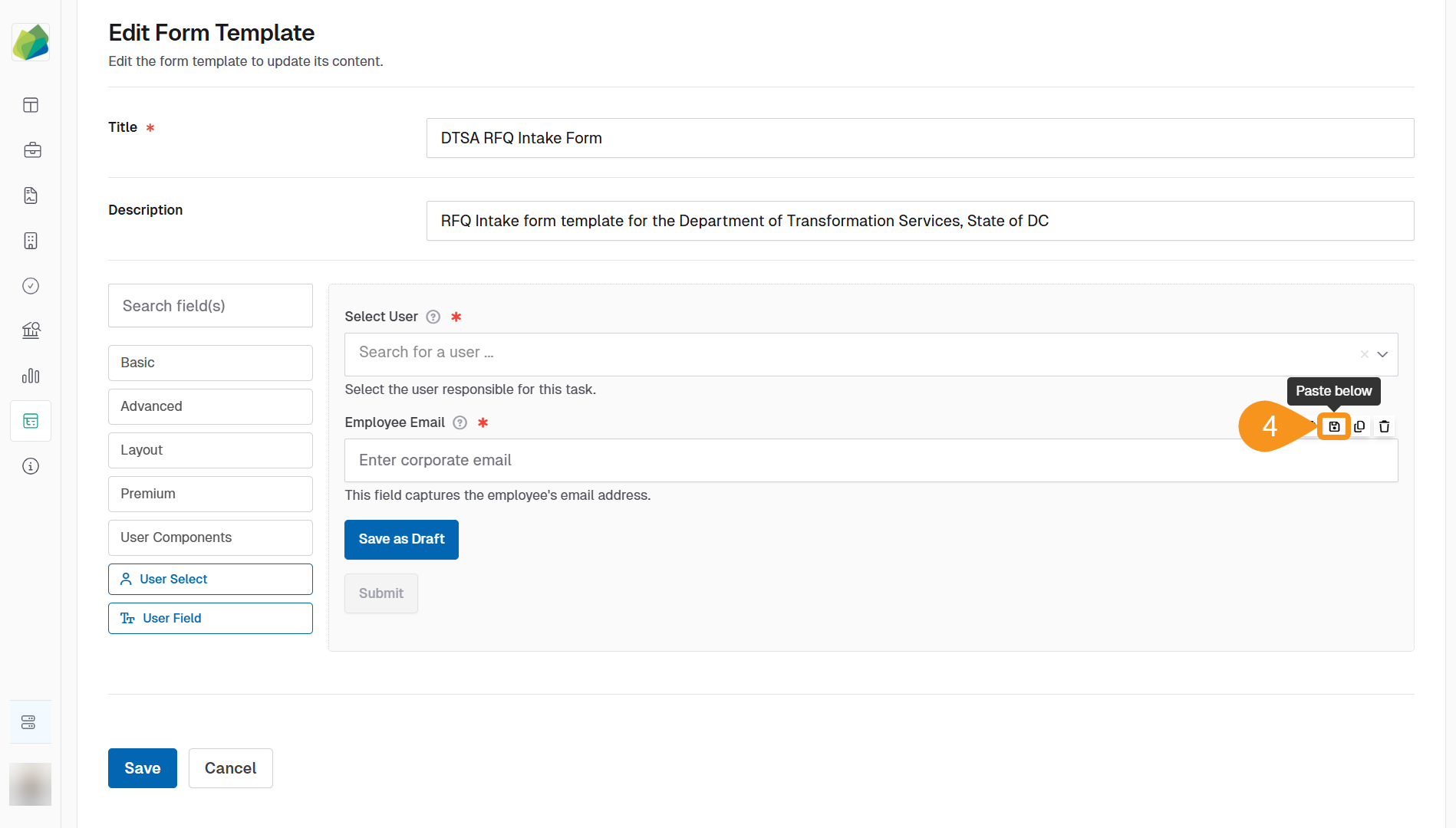
- Click the Paste Below button to paste the copied component below the selected one.
 Note
NoteIf edits are needed on the duplicated component, follow the steps in the Edit User Components guide to make the necessary changes.
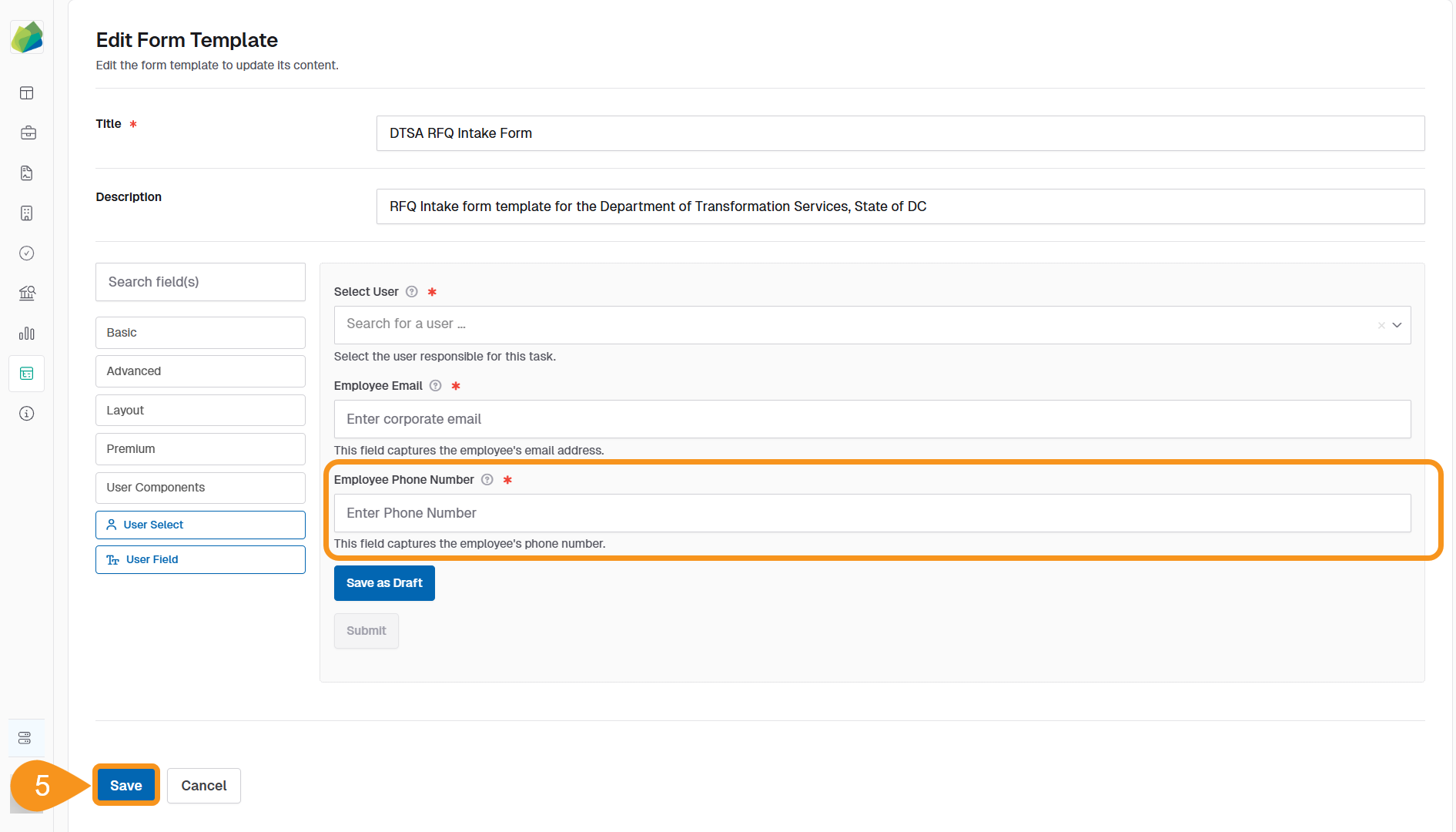
- Click Save again in the form template builder to apply the changes to the template.
See Also
To complement your knowledge of this process, check the following pages: