Add User Components to Form Templates
This how-to guide explains how to add User Components to Form Templates. Unlike basic components, which handle general input such as text fields or select boxes, user components are designed specifically to capture and display information related to project collaborators.
Currently, the available User Components are:
- User Select: Allows form submitters to choose one or more users from the organization.
- User Field: Automatically populates and displays user-related information such as username, email, or department.
When to Add User Components
You should add user components when you need to:
- Assign responsibilities or designate approvers within a form (User Select).
- Automatically display user information (e.g., email, department) without requiring manual input (User Field).
- Ensure that user-specific data is consistently captured and available across the project.
- Trigger conditional logic or dynamic behavior based on user identity or attributes.
Note
All variables captured through user components are available in the Global Project Information section and can be managed under the Data Mapping tab in the template settings.
To Add a User Component to a Form Template
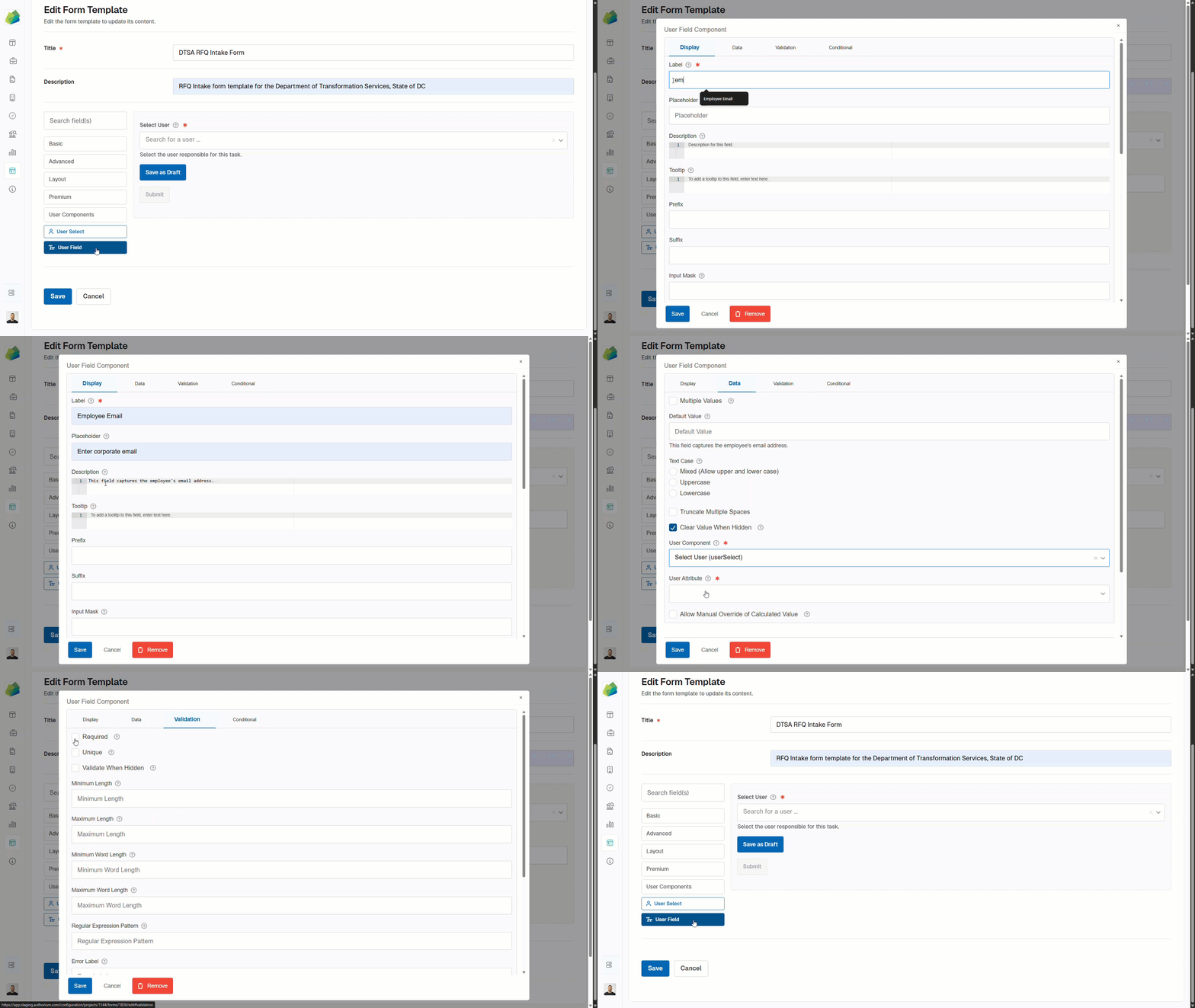
- Start a new Form Template or edit an existing one.
- Click the User Components button from the form’s left-side panel.
- Drag and drop a user component (User Select or User Field) onto the form template canvas.
- The component editor modal will appear. Configure the settings of the component within the four available categories: Display, Data, Validation, and Conditional. The options available will vary depending on whether you are using User Select or User Field.
- Click Save in the component editor to save the configuration.
- Click Save again in the form template builder to apply the changes to the template.
Note
Configuration options vary depending on the component:
- For User Select, you can define whether multiple users can be selected, and configure how each user appears in the dropdown list.
- For User Field, you can choose which user attribute (e.g., Email, Full Name, Department) should be displayed and whether it can be manually overridden.
See Also
To complement your knowledge of this process, check the following pages: