Advance Projects Between Stages
This guide explains how to advance a project through its various workflow stages, ensuring a smooth transition from initiation to completion. Properly advancing projects is crucial for maintaining momentum and achieving project milestones efficiently.
When to Advance a Project Stage
You should advance a project stage when:
- All tasks and deliverables within the current stage are finalized.
- The project is ready to move to the next phase of its lifecycle.
- The project owner has confirmed the completion of all requirements for the current stage.
To Advance a Project to the Next Workflow Stage
- From the Dashboard, open the Projects drop-down in the main navigation bar.
- Select the Project Type corresponding to your project.
- Find your project and select View Project. This will take you to the currently active workflow stage.
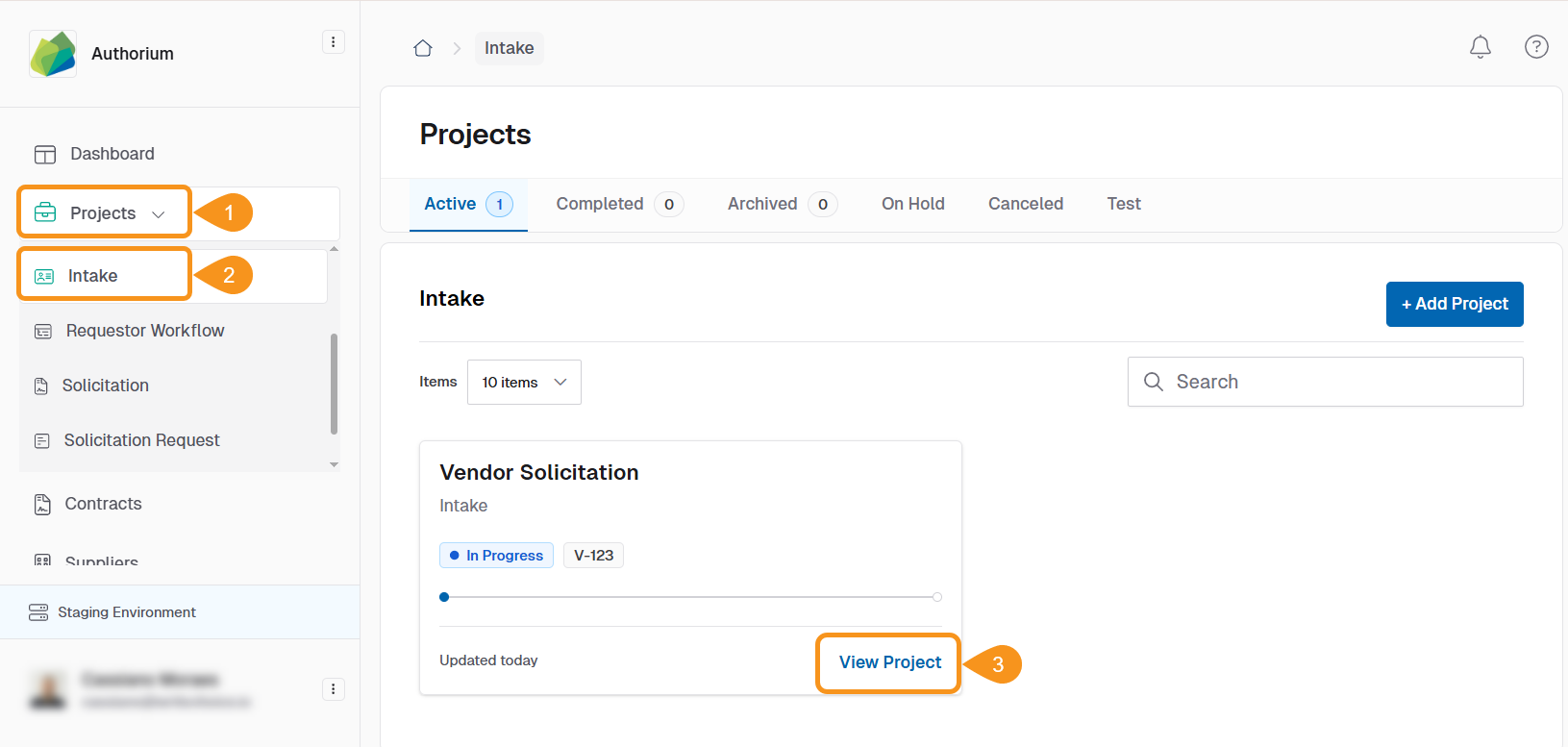
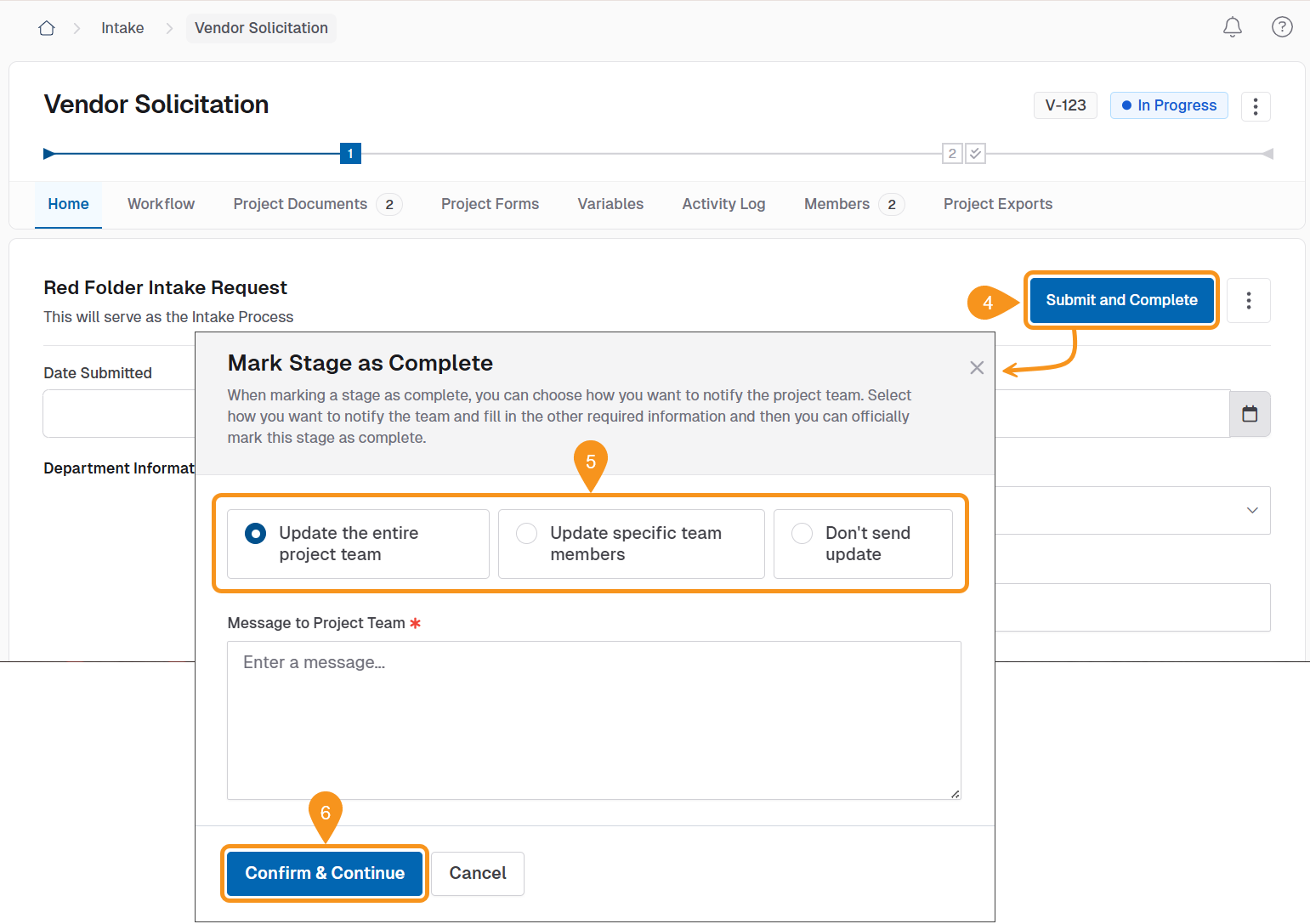
- Select the Submit and Complete option to mark the stage as complete.
Stage Documents
If you are dealing with a Documents Stage, the option you will see is Mark Stage as Complete.
- In the modal window that opens, select one of the following options:
- Update the entire project team - this will notify the whole team involved in the Project.
- Update specific team members - add a specific team member to send a notification.
- Don't send update - use this option to mark the stage as complete without sendind any notifications.
- Click Confirm & Continue to save your changes. The stage will be marked as complete and you will ve automatically moved to the next one.
Notes
- To mark a workflow stage as complete, all documents pertaining to that stage must be marked complete.
- If you are unable to mark a workflow stage as complete, double-check that all associated documents have been finalized.
- For Online Submissions stages, the project must have received at least one submission before the stage can be marked complete.
See Also
To complement your knowledge of this process, check the following pages: