Manage Internal User Security Settings
Control authentication and session policies for users inside your organization.
When to Configure Internal Security Settings
You should configure internal security settings when:
- You're onboarding your organization to Authorium.
- You want to enforce password policies or Multi-Factor Authentication (MFA).
- You're using Single Sign-On (SSO) and need to set up identity provider details.
To Configure Internal Security Settings
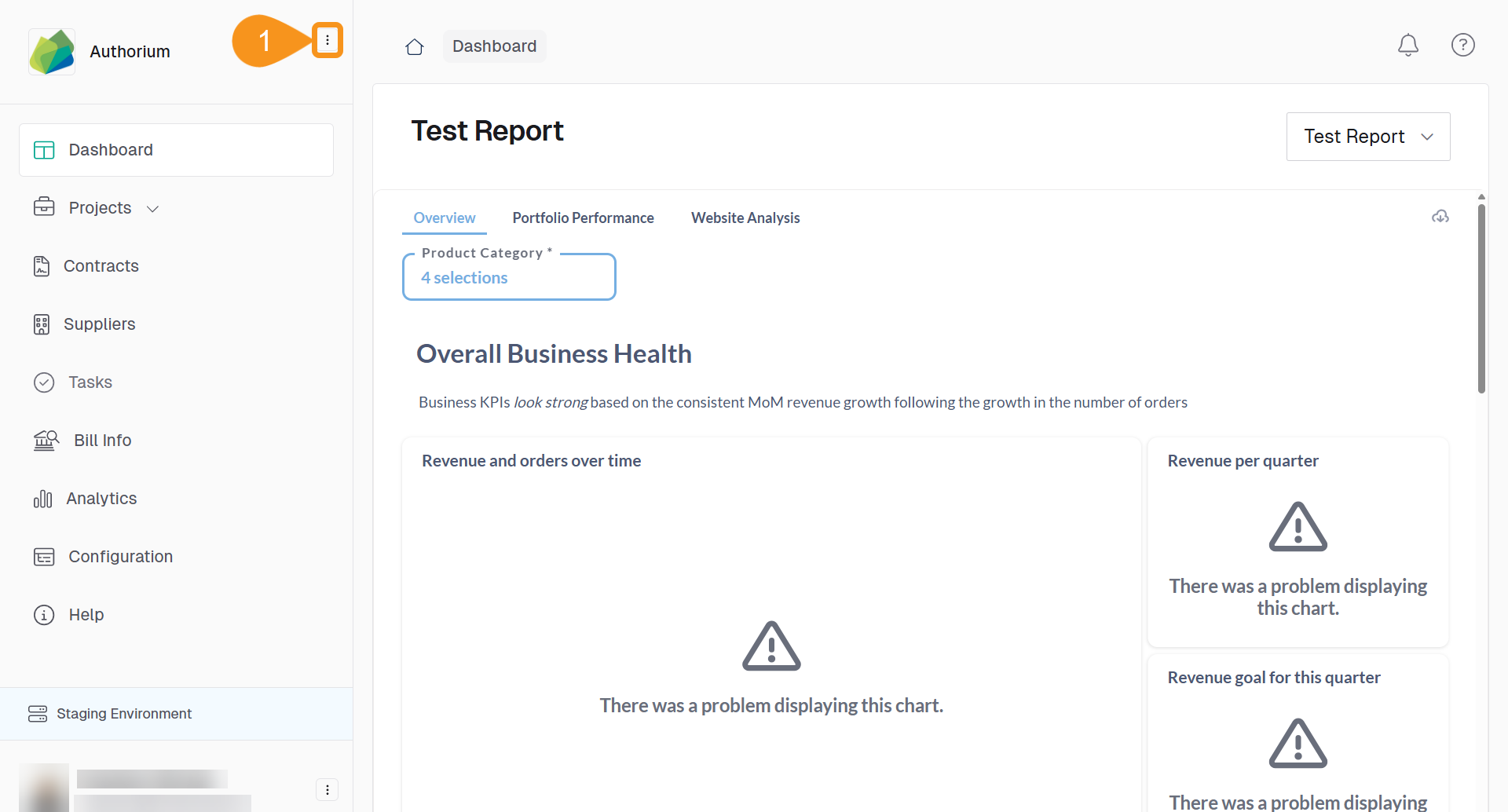
- From the Dashboard, go to the three-dots menu in the main navigation bar next to the logo.
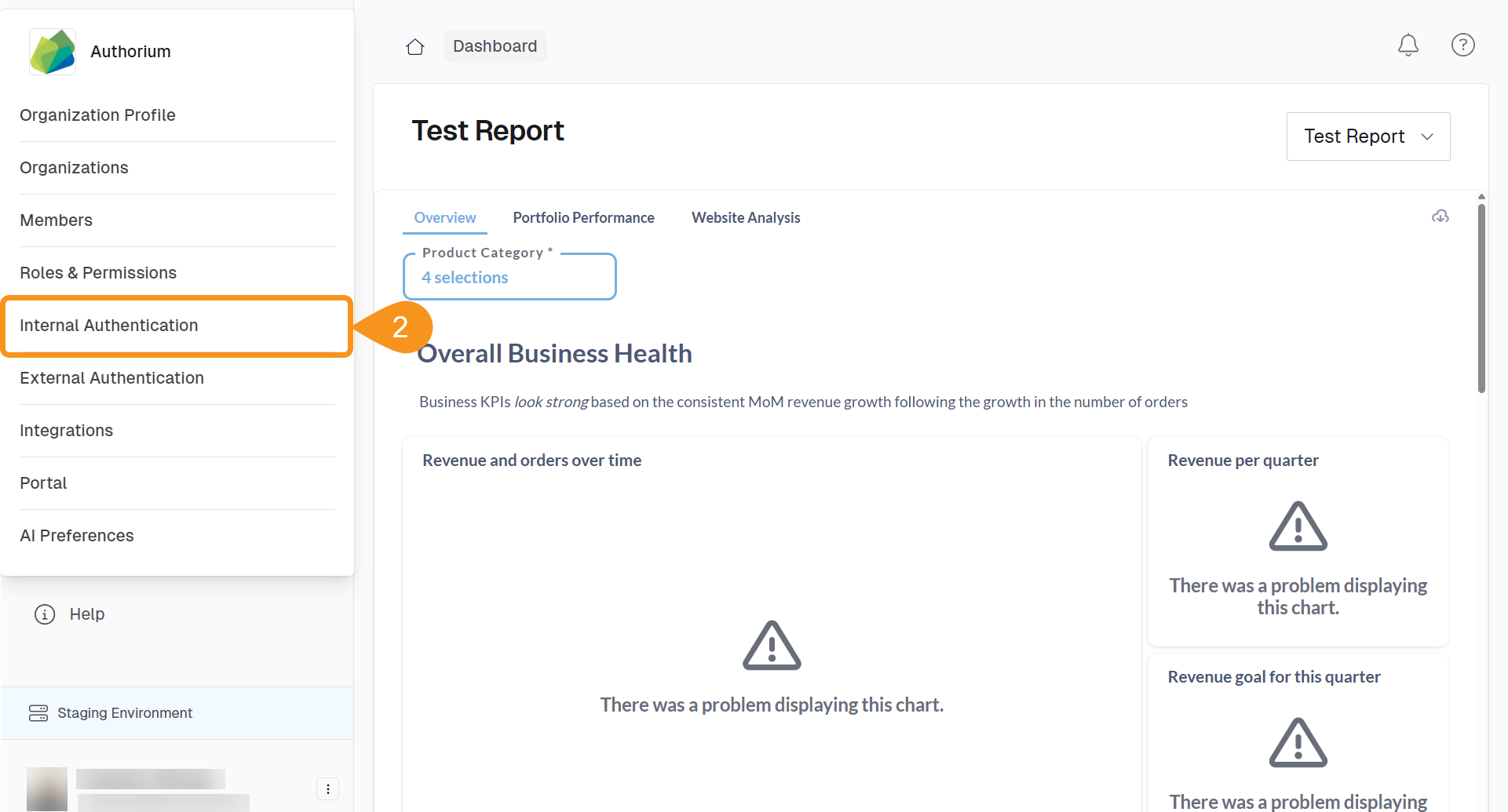
- Select Internal Authentication.
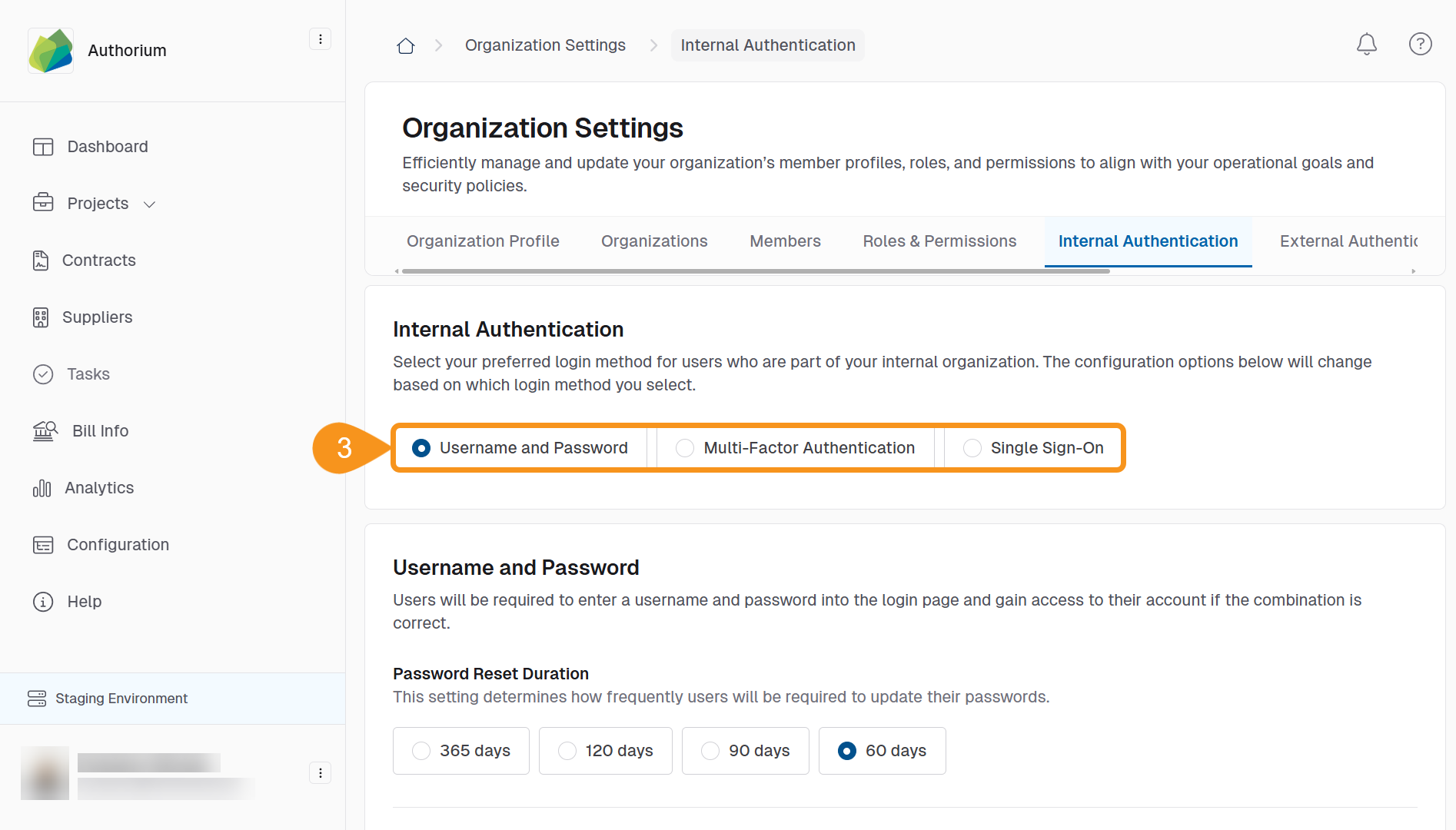
- Choose your preferred Authentication Method:
- Username and Password
- Multi-Factor Authentication
- Single Sign-On (SSO)
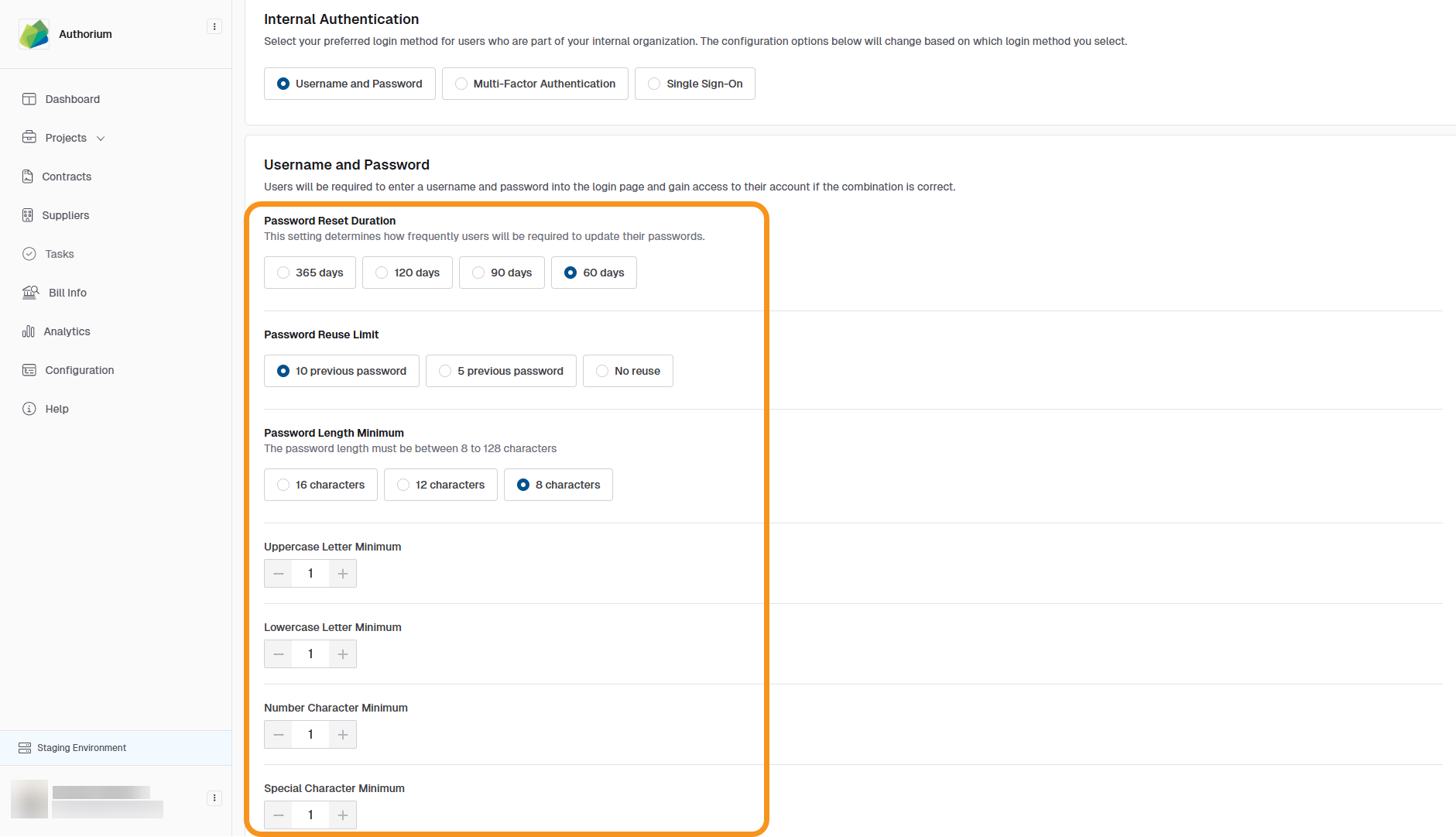
If using Username and Password or Multi-Factor Authentication, configure the following:
- Username and Password:
- Password Reset Duration: 365, 120, 90, or 60 days
- Password Reuse Limit: Last 5, last 10, or no reuse
- Password Length Minimum: 8, 12, or 16 characters
- Character Requirements: Uppercase, lowercase, number, special character
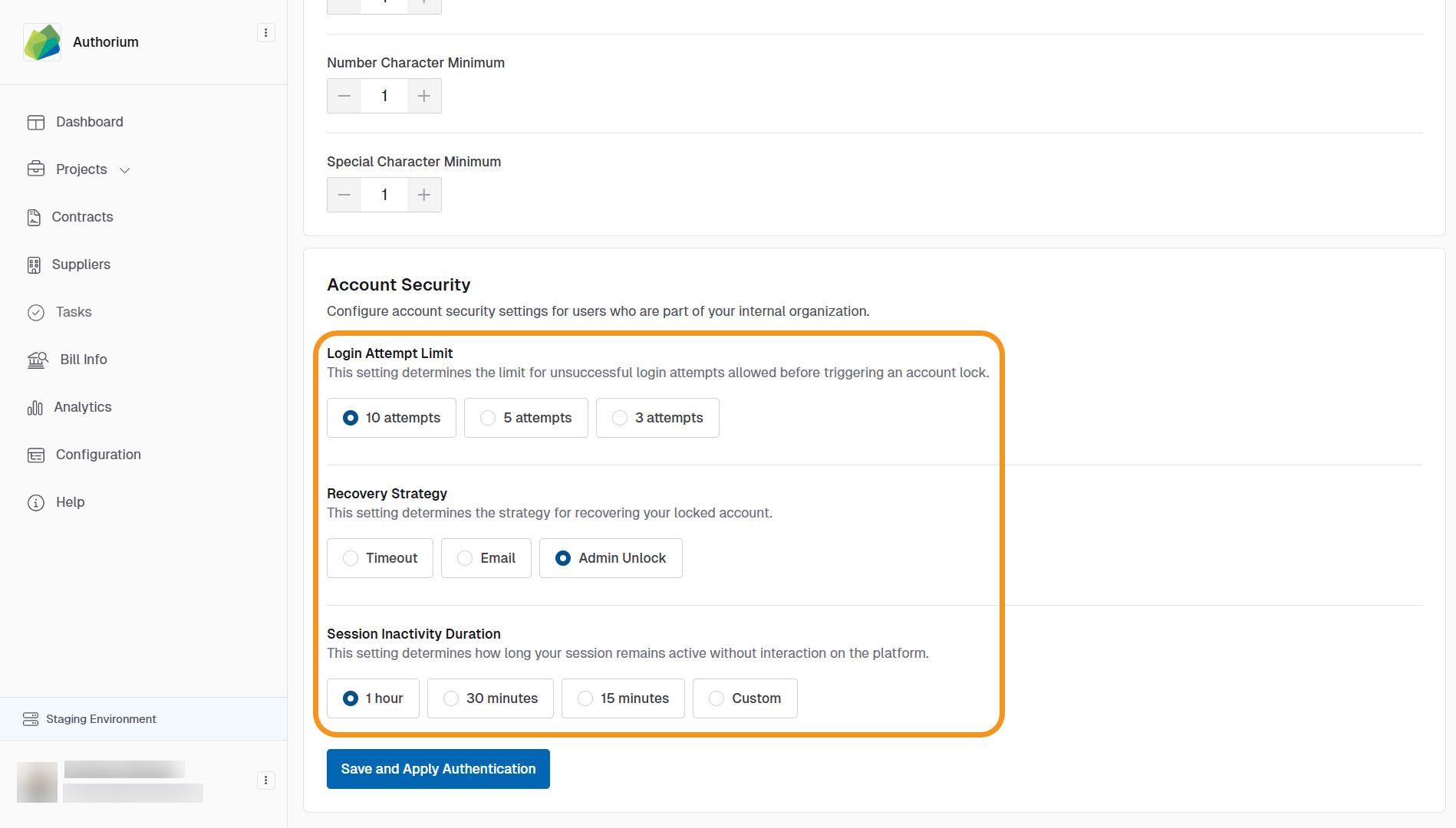
- Account Security:
- Login Attempt Limit: 3, 5, or 10 failed attempts
- Lockout Duration: Set a custom value
- Recovery Strategy: Choose from email, admin unlock, or timeout
- Session Inactivity Duration: Set a custom value
If using Single Sign-On (SSO), configure:
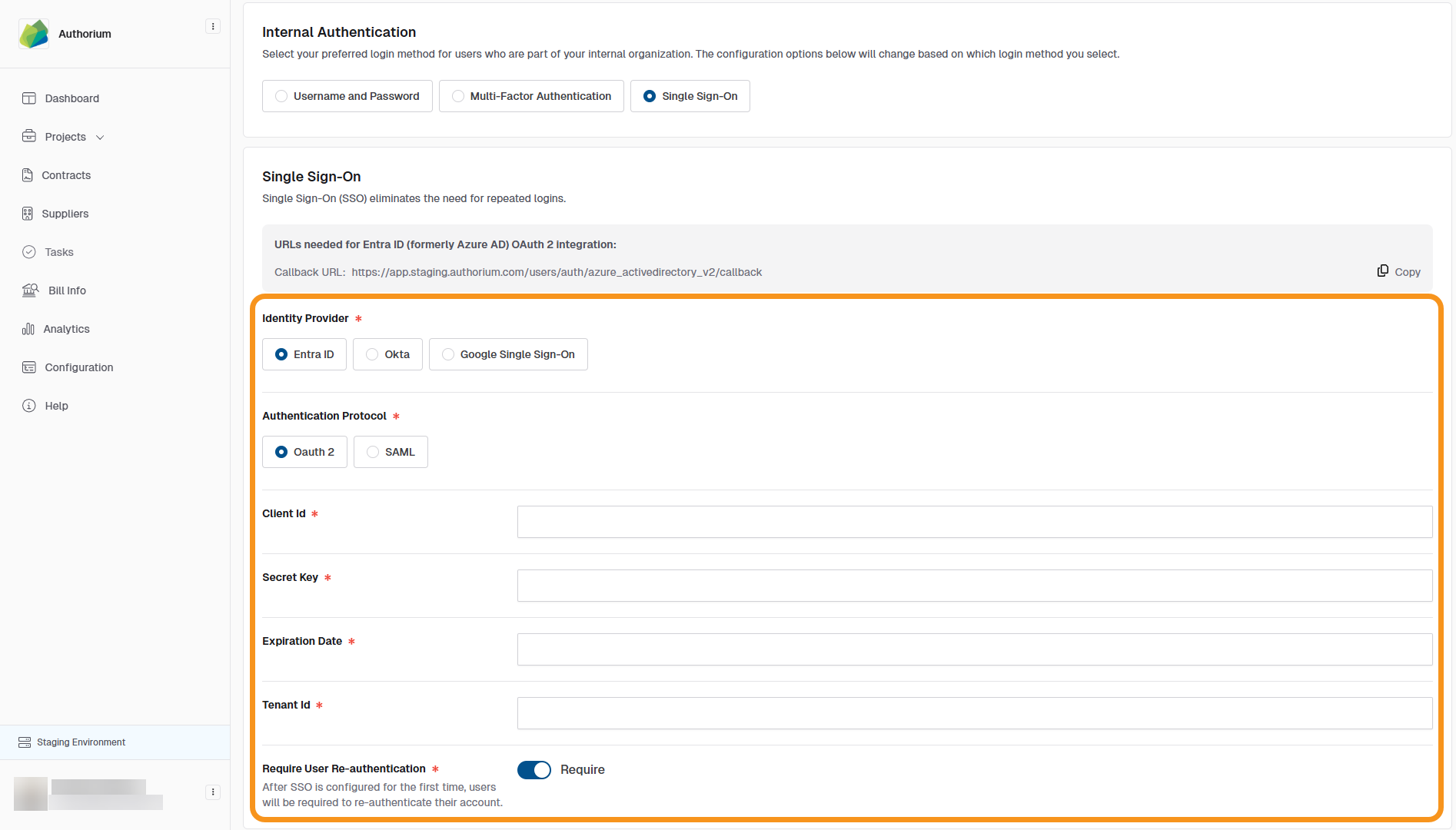
- Single Sign-On:
- Identity Provider: Entra ID, Okta, or Google SSO
- Authentication Protocol: OAuth 2 or SAML
- Client ID
- Tenant ID
- Secret Key (with expiration date)
- Require User Re-authentication (Optional)
- Account Security:
- Session Inactivity Duration
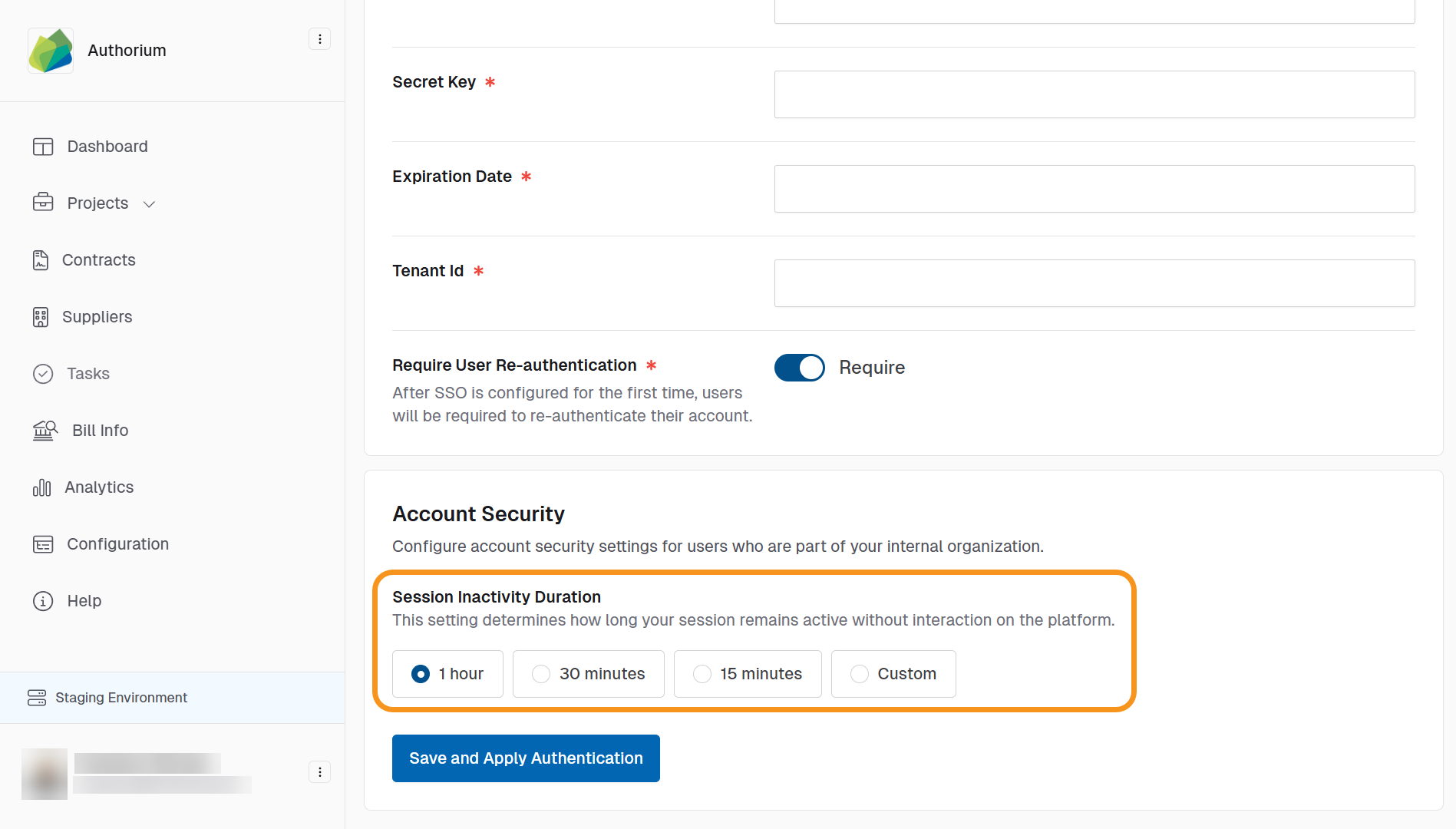
- Session Inactivity Duration
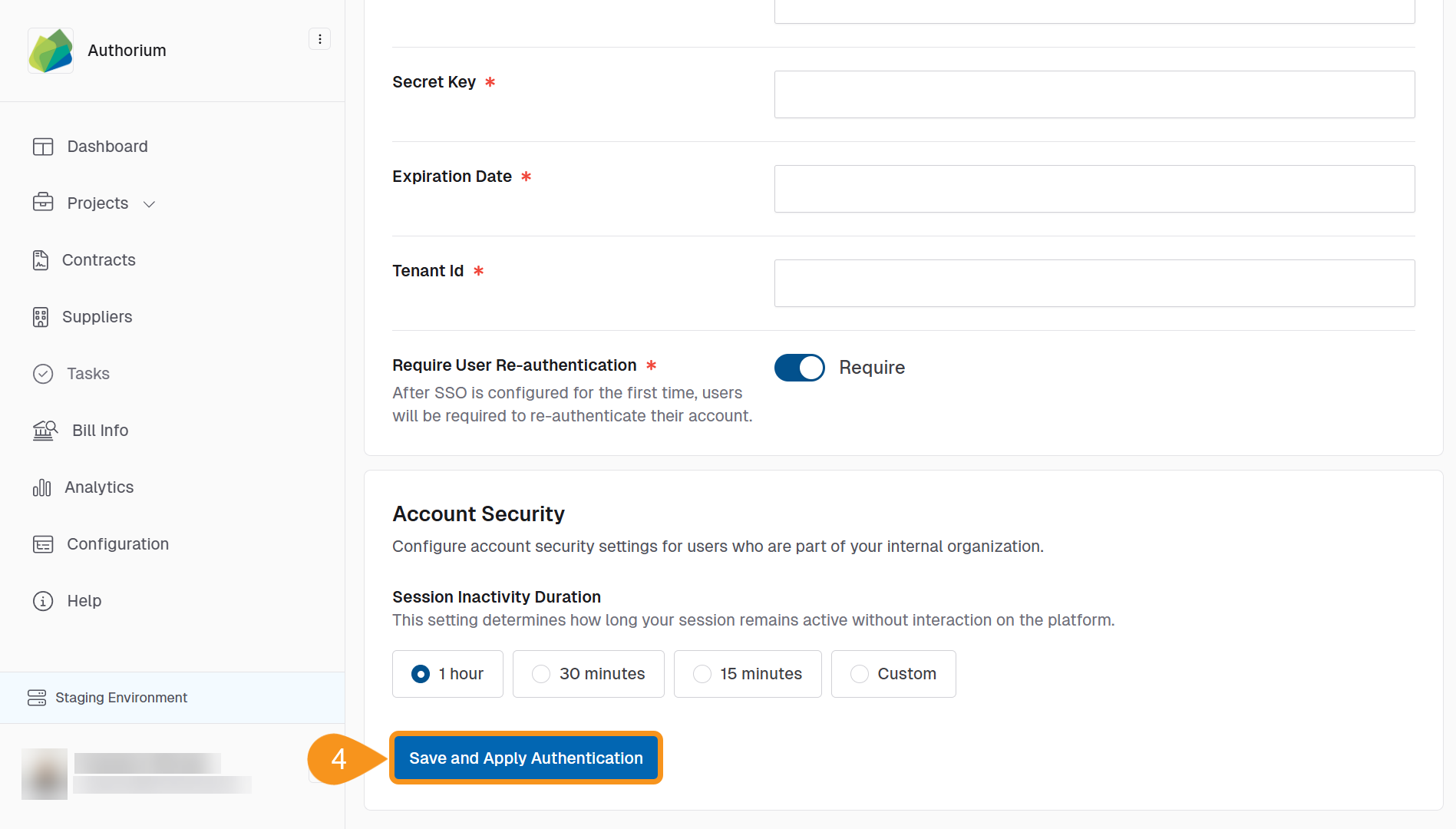
- Click Save and Apply Authentication to confirm your settings.
See Also
To complement your knowledge of this process, check the following pages: