Invite Users via Authorium in the Authorium App
This guide explains how to invite individual users to join your organization directly from the Authorium app. You can assign roles while sending invitations and manage pending invites easily.
When to Invite Users
You should invite users directly from the Authorium app when:
- You need to quickly add a small number of users without configuring SSO.
- You want to assign roles such as Admin, Account Owner, or Project Creator during the invitation process.
- Your organization does not use an identity provider integration (e.g., Microsoft Entra, Okta, Google SSO).
To Invite Users via the Authorium App
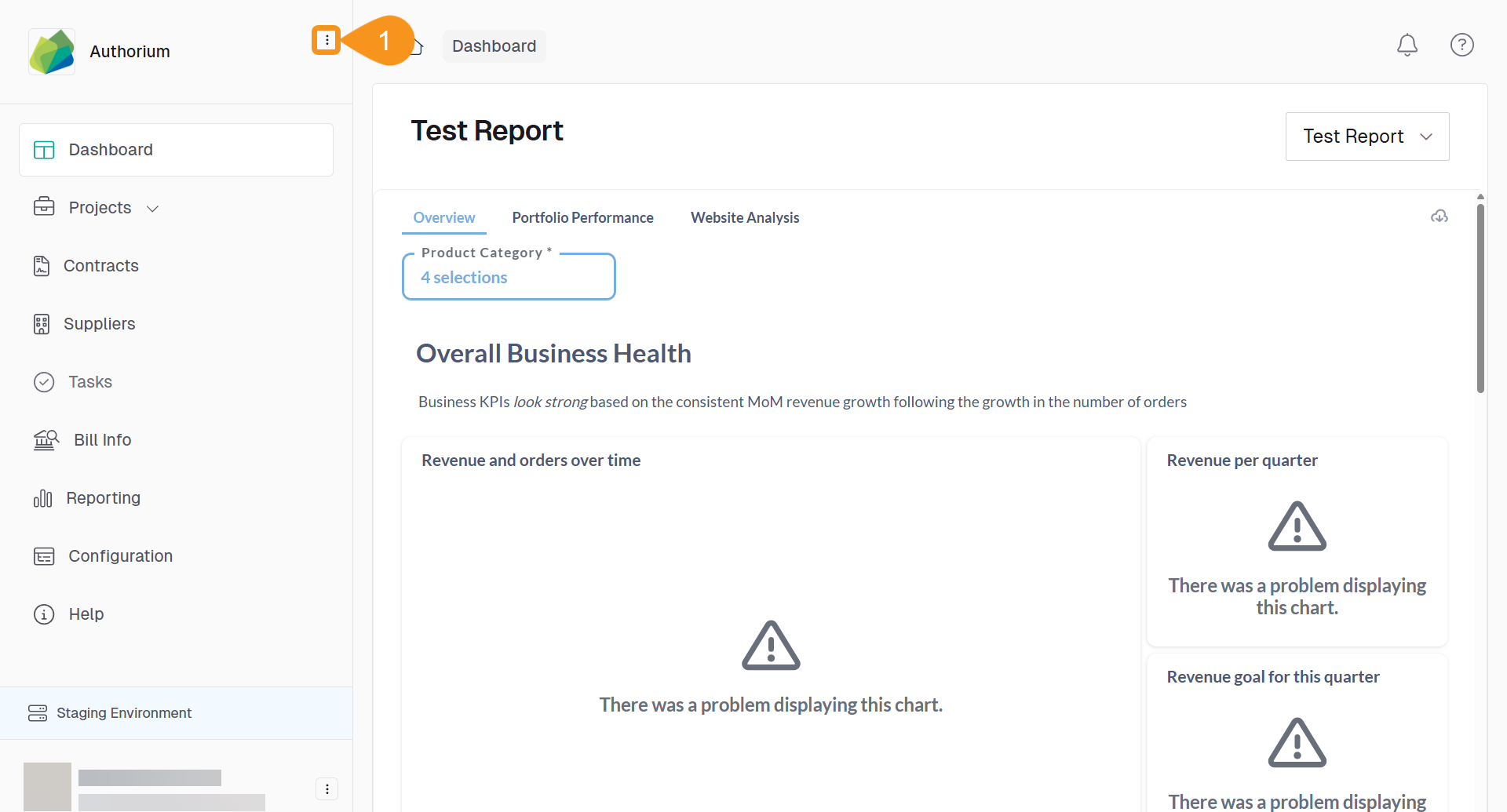
- From the Dashboard, go to the three-dots menu in the main navigation bar next to the logo.
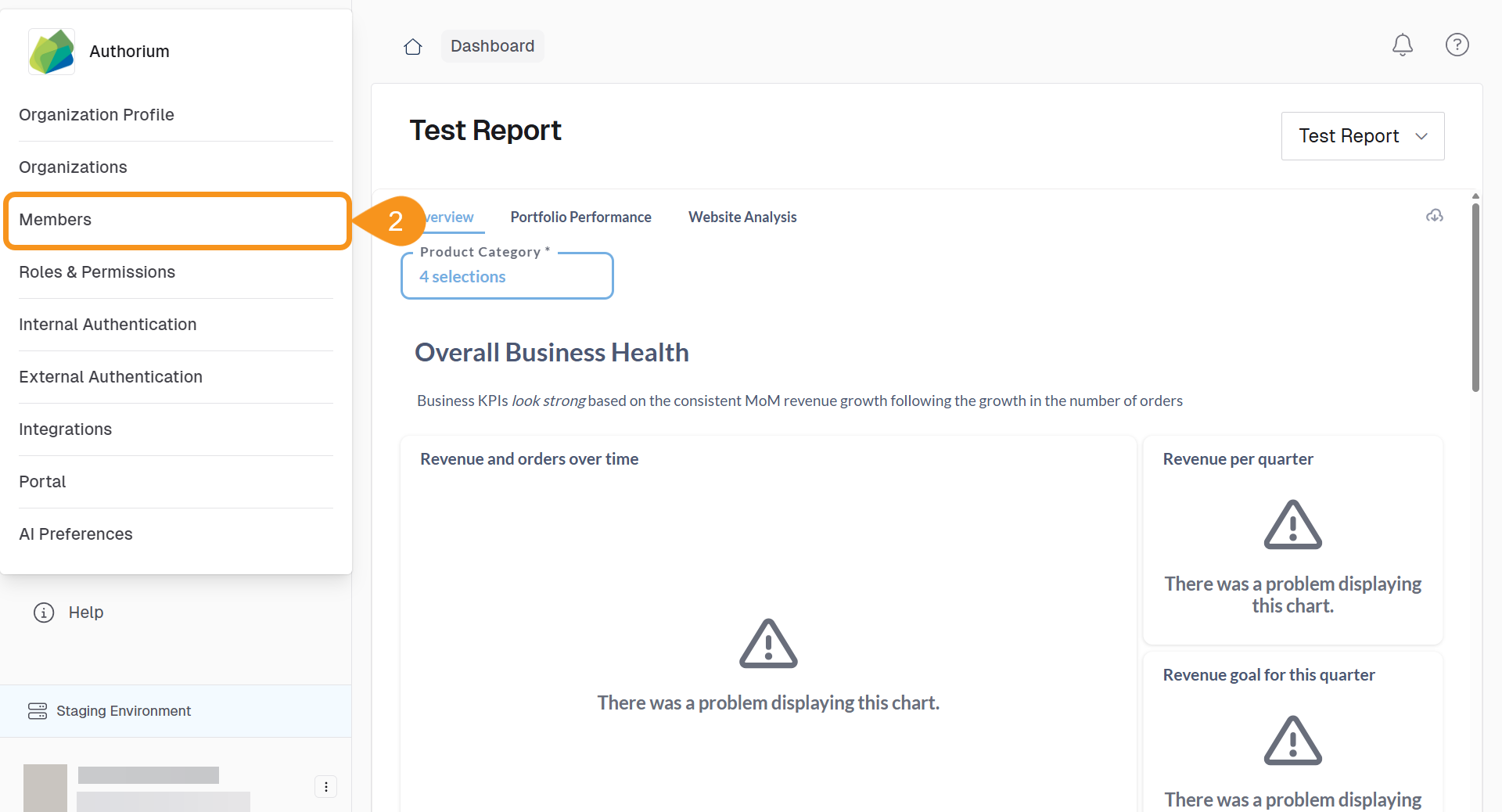
- Select Members.
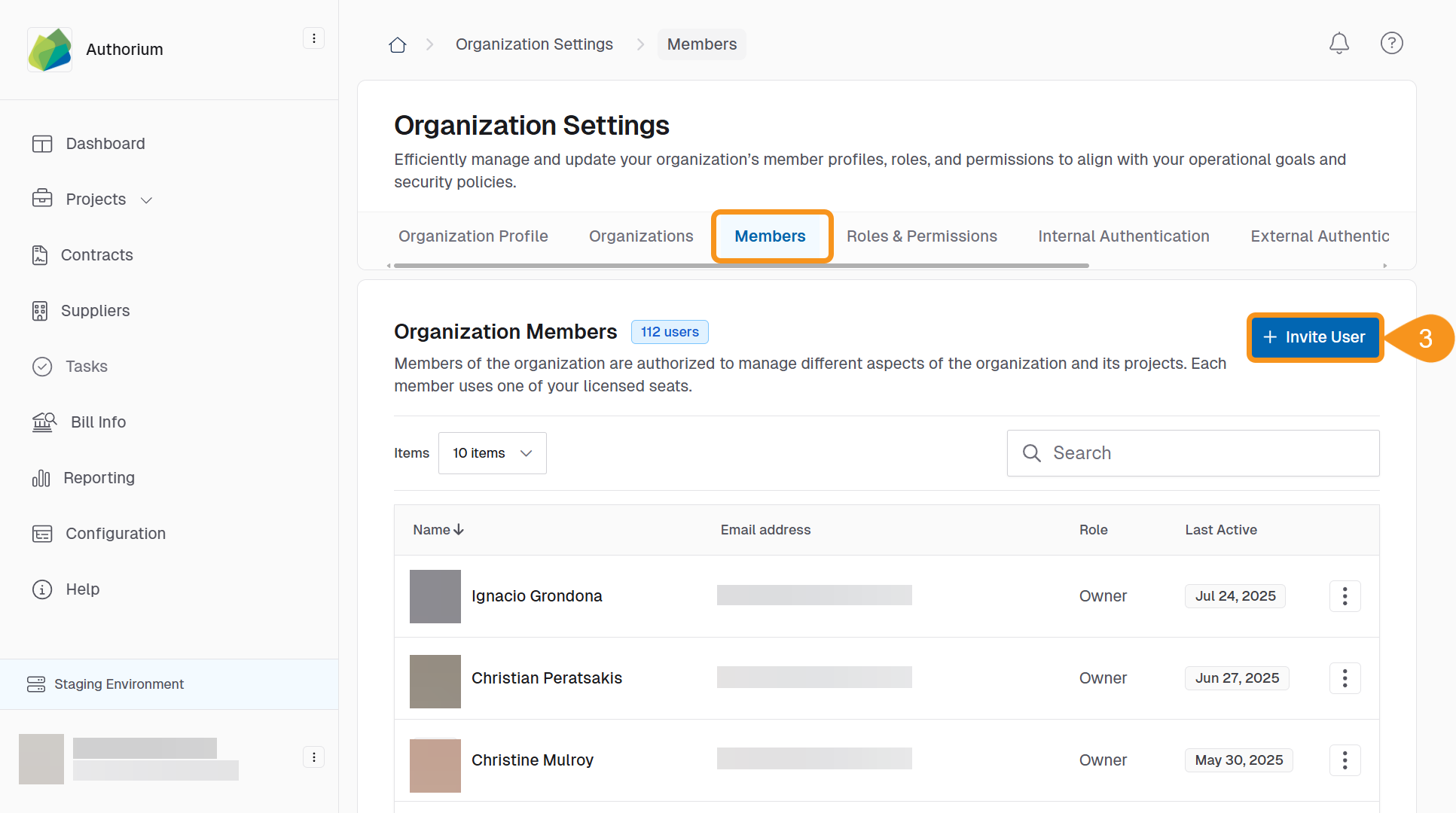
- Click + Invite User.
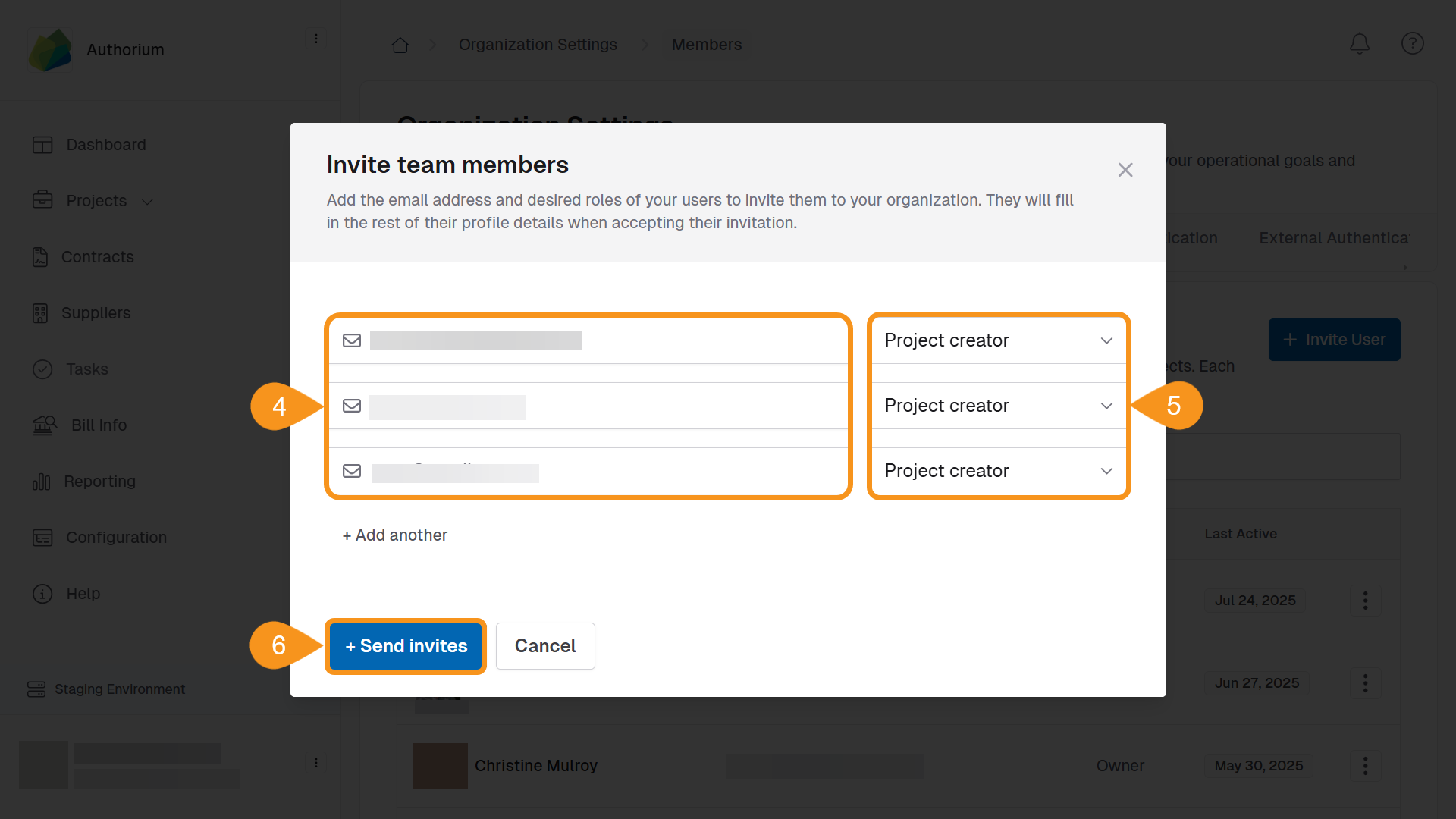
- Enter the email address for each user you want to invite.
- Select the appropriate organizational role (Admin, Account Owner, or Project Creator) for each user.
- Click + Send Invites.
Each invited user will receive an email with a link to join your organization.
Note
When a user accepts their invitation, they will be prompted to create a password or set up SSO if it has been enabled for your organization.
To Resend an Invitation
If a user did not receive or lost their invitation:
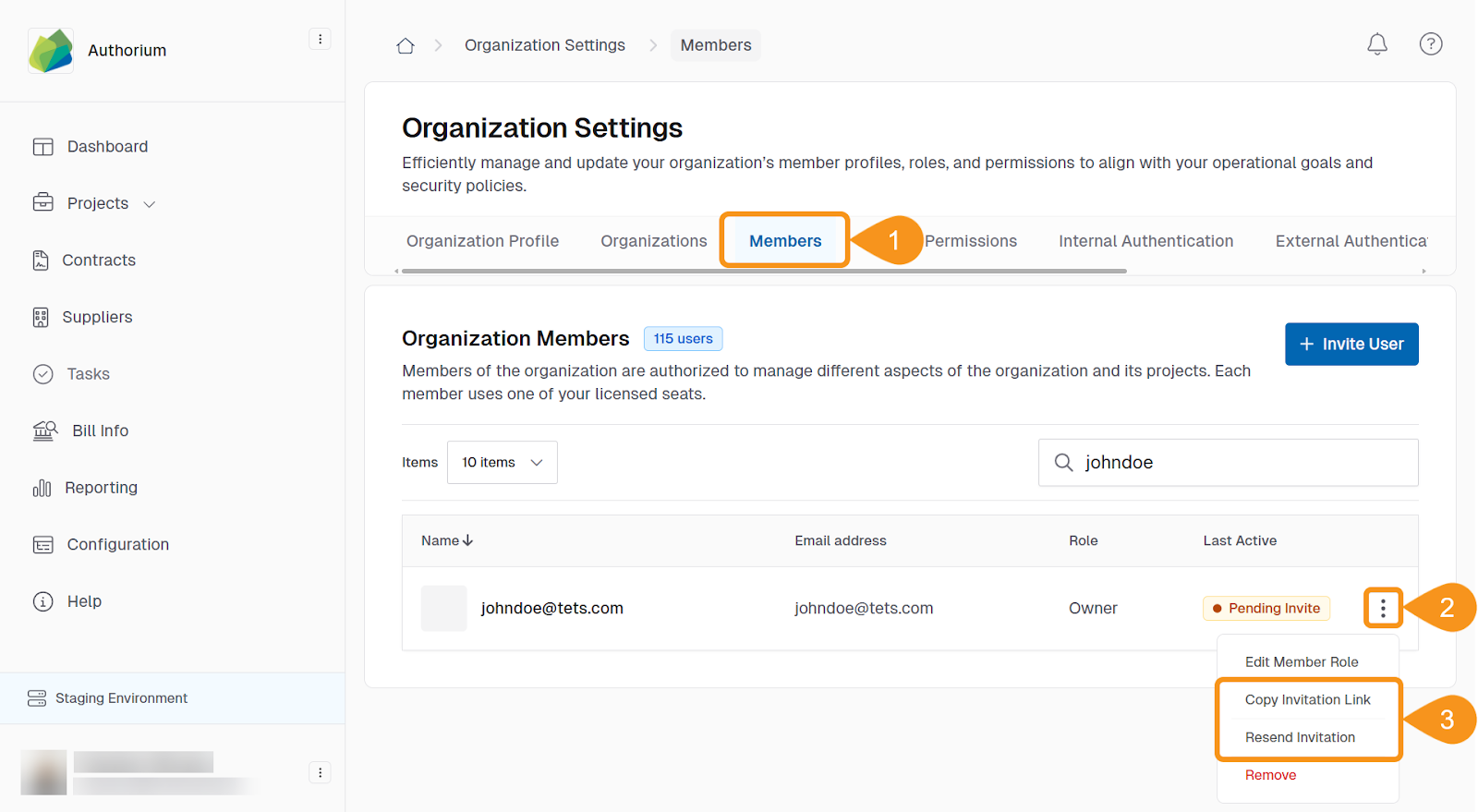
- Go to Members from the organization menu.
- Click the three-dot menu next to the user’s name.
- Select Resend Invitation or manually copy their invitation link.
Best Practices
- Verify email addresses before sending invitations to avoid failed deliveries.
- Assign roles during the invitation to save time and ensure proper permissions from the start.
- Monitor pending invitations and resend them if needed to ensure timely onboarding.
See Also
To complement your knowledge of this process, check the following pages: