Edit Users’ Organizational Roles
This guide shows how to update or reassign a user’s organizational role in Authorium.
Organizational roles define what each user can access and manage across your organization, including projects, templates, and member settings.
As team responsibilities change, you may need to promote, restrict, or adjust access for individual users. For example, assign project creator rights to a new team lead, or remove admin access for someone moving to a different department.
Who Can Do This?
You must be an Org Admin or Org Owner to edit user roles.
When to Edit a User’s Organizational Role
You should edit a user’s organizational role when:
- Their responsibilities within the organization change.
- They need access to manage templates, projects, or members.
- You want to reduce or restrict their access to specific features.
To Edit a User’s Organizational Role
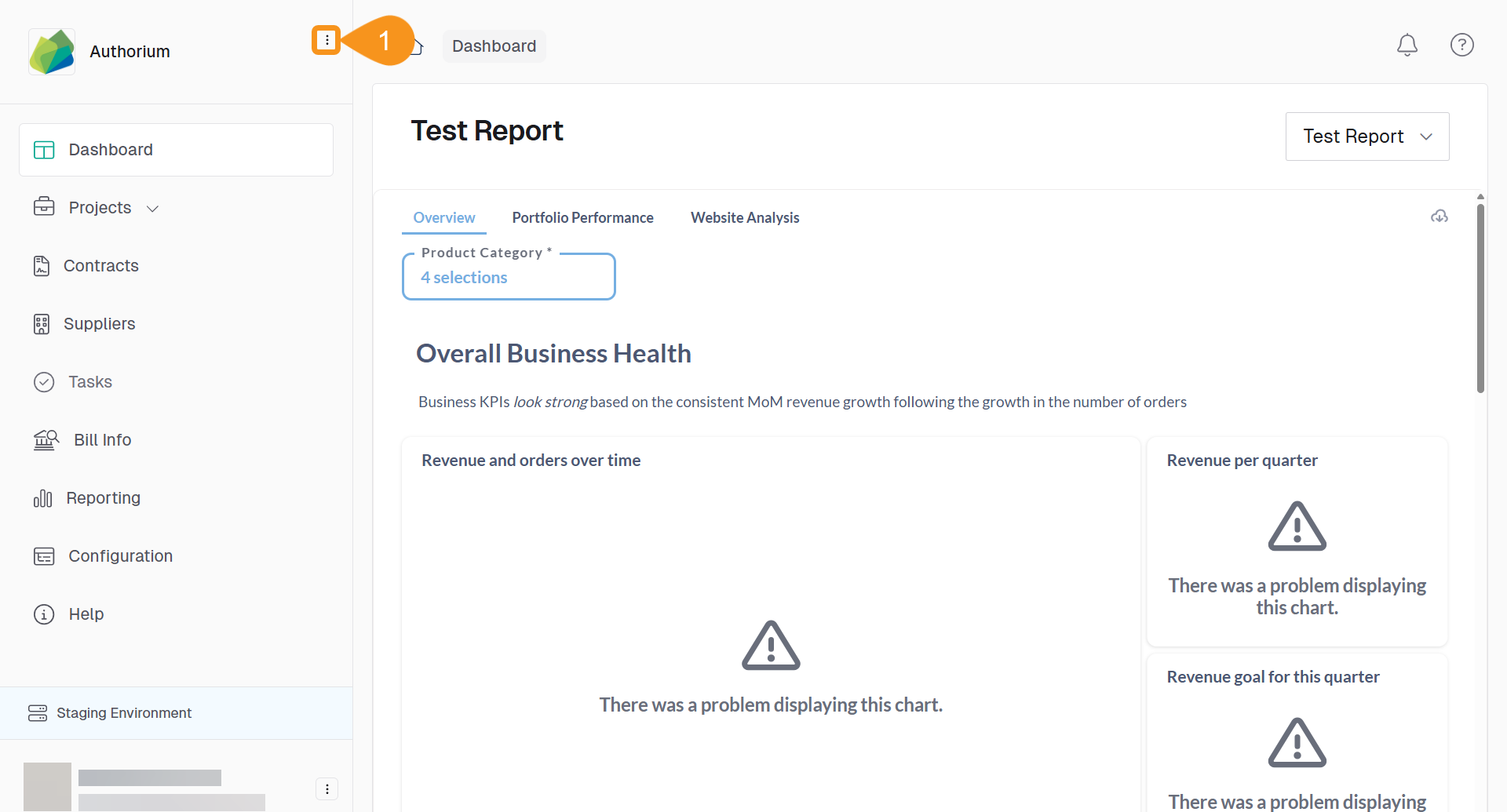
- From the Dashboard, go to the three-dots menu in the main navigation bar next to the logo.
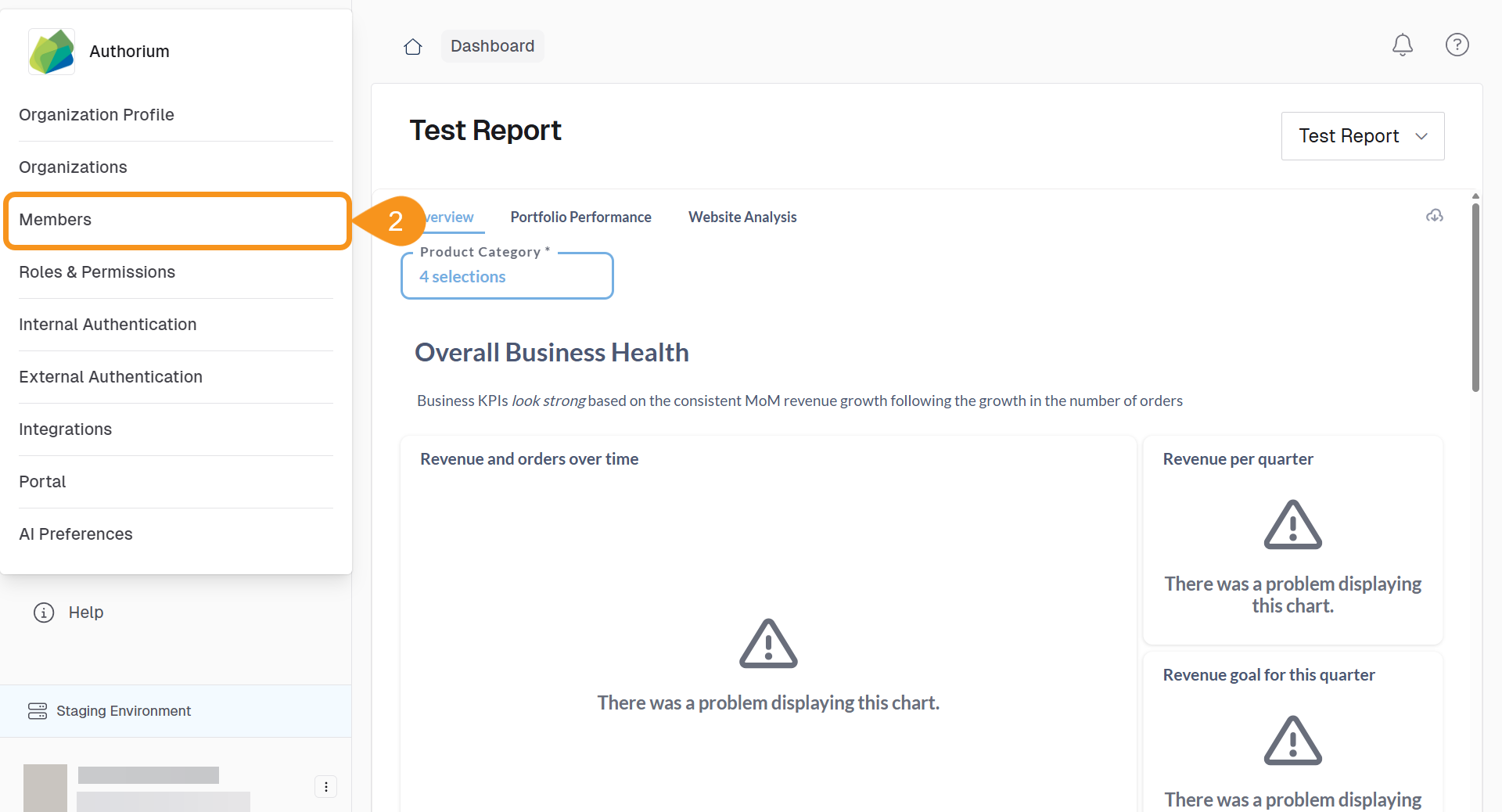
- Select Members.
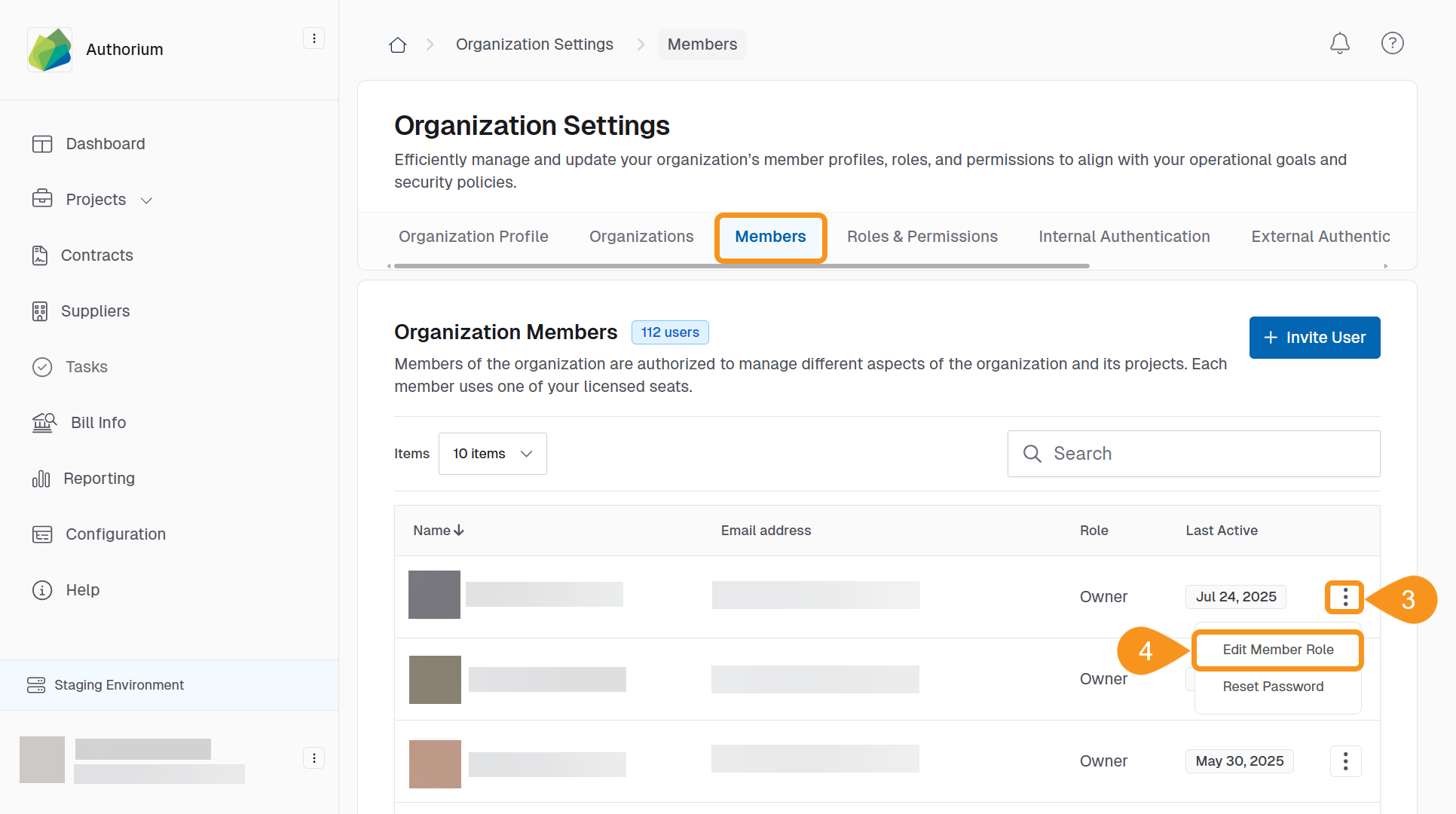
- Find the user you want to update and click the three-dots menu next to their name.
- Select Edit Member Role.
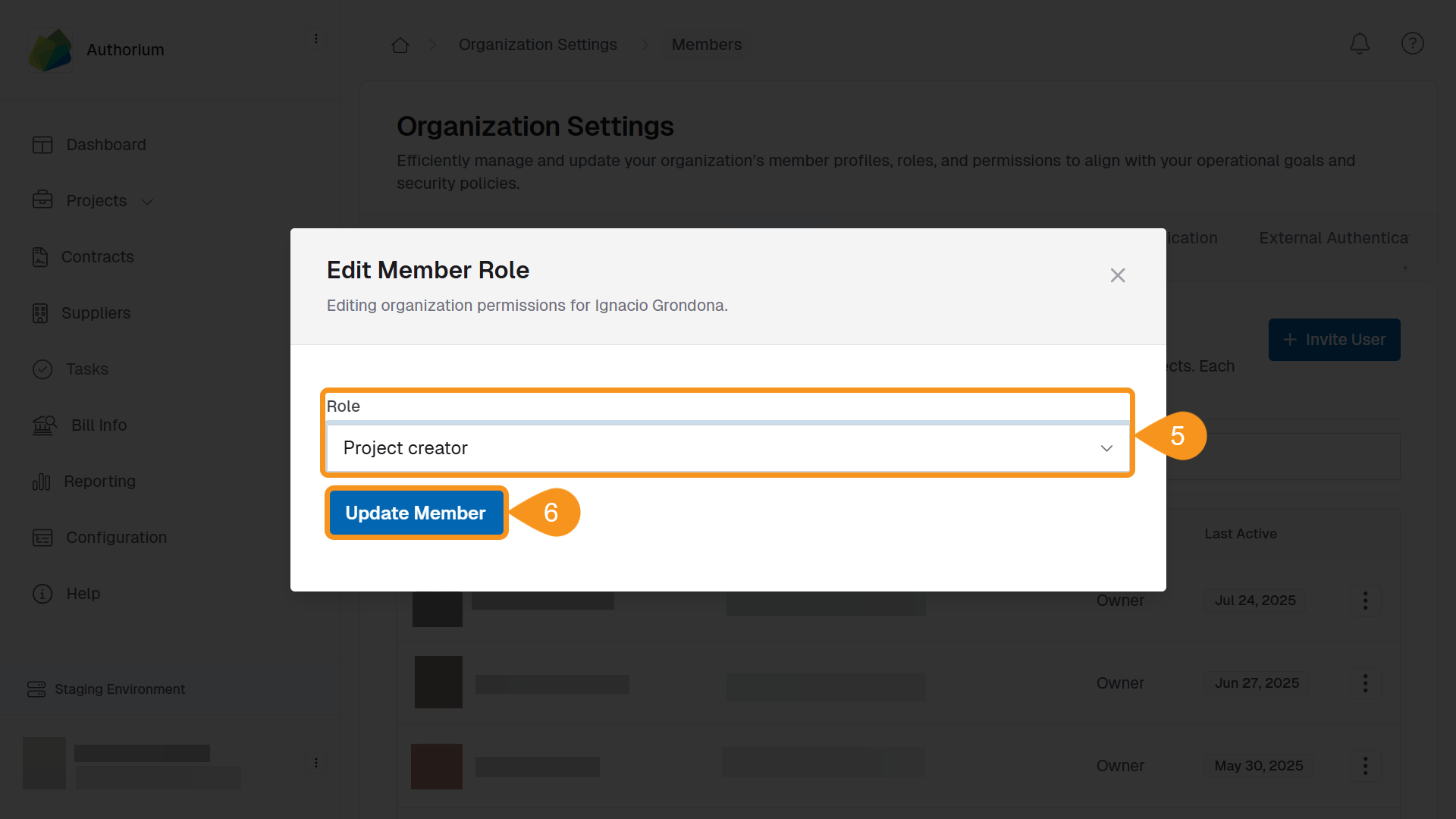
- Choose the new role from the list of available options.
- Click Update Member to apply the changes.
Tip
You can edit a user’s role at any time—even after they've set up their profile.
See Also
To complement your knowledge of this process, check the following pages: